
The Tool Desk
Outbyte PC Repair FREERepair Windows errors before they cause bigger problemsFix Now →Outbyte Driver Updater FREEFix the driver behind crashes, sound loss and screen glitchesFind Drivers →Some links on this page are affiliate links: if you buy through them we may earn a commission, at no extra cost to you.
Dying Light audio problems are worth diagnosing by symptom before changing settings: Techland says missing sound during video segments can happen when those segments use a different, unplugged output device than the main game. On PC, check output routing first; if gameplay sound works but dialogue sounds muffled or misplaced, test audio processing and channel settings one at a time. These steps do not establish a universal fix, and the Windows guidance should not be assumed to apply to consoles or Dying Light 2.
Start by identifying whether the silence or distortion affects logos and other videos, all gameplay, dialogue alone, or directional effects. Then test the output device and the relevant settings without changing several things at once. The official routing advice is for the original Dying Light; reports about muffled dialogue and spatial sound are individual player experiences, not confirmed fixes for every setup.
As an Amazon Associate I earn from qualifying purchases.
Free tools Windows power users keep installed
One-click scans. No signup required.
What kind of audio problem are you having?
First note where the fault occurs: during logos or the intro, throughout gameplay, in dialogue only, or mainly in directional and spatial effects. Those symptoms can have different causes. In particular, Techland Support says that missing sound in video portions may result from those portions selecting a different audio output from the main game.
Its guidance concerns the original Dying Light and Windows audio routing. Techland identifies the WB and Techland logos, intro trailer, opening sequence, and video news as examples of video parts that may be affected. The support article was modified June 1, 2021, so it is useful official guidance, not a guarantee that every current setup or symptom has the same cause. Read Techland Support’s sound-issues guidance.
Popular on Amazon

- BLUE LIGHT BLOCKING GLASSES: Our blue light glasses for women boast UV400 protection, blocking harmful blue rays from computer screens. With these bluelight glasses women, you can enjoy gaming, reading, or watching TV with no worries of eye strain.
- EYE RELIEF: Our blue light glasses are engineered to reduce blurry vision or strain caused by prolonged screen time. These womens blue light glasses aid in better sleep by preventing blue light from disrupting your natural sleep cycle, helping you fall asleep faster and enjoy a more restful night's sleep, making them the perfect christmas present.
- COMFORTABLE: Crafted from durable material, our trendy blue light glasses for woman or blue light glasses men ensure long-lasting comfort. The high-transmittance lenses accessories, gamer gifts for men, help keep your eyes relaxed. Perfect stocking stuffers, gifts for gamers men, christmas gifts for men, halloween costumes.
- LIGHTWEIGHT: These clear blue light glasses feature a lightweight frame, meaning they’ll stay comfy for long-term wear. Perfect as blue blockers glasses for women or mens blue light glasses, these non-prescription fake glasses for men can be worn throughout the day. The blue light blocking glasses women feature polycarbonate HD lenses, which are anti-reflective and restore true color.
- WORRY-FREE PURCHASE: If you experience any issues, our support team is ready to assist you quickly. These are the perfect costume glasses for cosplay dressing up.
Before changing anything, make a quick symptom note. Is the game completely silent, or do only voices disappear? Can you hear ordinary gameplay effects but not a cinematic? Does the sound play clearly but seem to come from the wrong side or behind a character? Is it consistently muffled, or does it happen only with one output device or one kind of content? These distinctions help you avoid treating a video-routing issue as though it were a headset defect, or treating a directional-placement complaint as though all game audio had failed.
“Unbalanced” can mean different things to different players: one channel may seem louder, dialogue may be hard to distinguish from other sounds, or audio may appear to come from an unexpected direction. The available reports support testing output mode and processing for muffled or misplaced dialogue, but they do not establish one cause for every imbalance or provide a universal balance setting. Treat the symptom description as a guide to what to compare, not as a diagnosis by itself.
Do these 3 things before closing this tab:
1Fix the driver behind crashes, sound loss and screen glitches2Repair Windows errors before they cause bigger problems3Scan for outdated or missing drivers - takes under a minuteHow do you fix missing sound in Dying Light on PC?
Check that Windows and the game are using the output device you actually want to hear through. If only the logos, intro, or other video segments are silent, pay particular attention to whether their audio is routed differently from ordinary gameplay. Techland Support explains that video parts can be routed to a different, unplugged output than the main game. That is why a game that seems to work during play may still have silent videos.
- Connect or power on your intended headset or speakers. Make sure the device is available as an audio output before changing game settings. If you normally use more than one output, such as speakers and a headset, be clear about which one you want to test. The point is to select the actual active device, not simply to assume the game will follow whichever device you last used.
- Switch Dying Light to windowed mode. Techland’s instructions use this as part of selecting the intended output for video playback. Follow the support article’s sequence rather than assuming that changing a general in-game volume control will address a separate output selection.
- Open the Windows Audio Volume Control Panel and select the intended output device, following Techland’s guidance. Its article does not specify every current Windows menu label, so the precise route may vary by Windows version. Avoid relying on a guessed menu path if your version presents different labels.
- Replay the part that was silent. If video segments were the only problem, check those again rather than judging only by gameplay sound. Conversely, if videos now play but gameplay remains silent, record that distinction; it suggests that the initial video-specific explanation did not account for the whole symptom.
Keep the test focused. First establish which output you want, select it as Techland describes, and then listen to the type of content that failed. If you alter several Windows and game settings together, you will not know which change mattered, if any. If the sound is still absent, return to the symptom distinctions above and note whether ordinary gameplay, dialogue, and video segments behave differently.
Do not assume that changing the game’s general audio setting alone will correct a video-specific routing mismatch. Nor should you buy a headset, adapter, cable, or replacement part as the first response: the cited guidance identifies output selection, not a hardware defect, as a possible cause. The reviewed information does not establish a particular product as a fix, nor does it justify a driver-cleaning utility, a reinstall, or a replacement part as the next step.
Also popular on Amazon
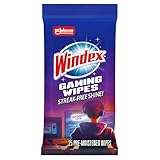
- WINDEX GAMING WIPES: effortlessly clean all your gaming gear and gaming electronics in one easy step with our new Windex Gaming Wipes
- AMMONIA FREE: our ammonia-free formula is safe to use on all of your favorite gaming equipment like consoles, headsets, controllers, screens, keyboards, and more
- PRE-MOISTENED WIPES: each wipe instantly removes dust, dirt, and stubborn smudges and fingerprints leaving a streak-free shine
- ANTI-STATIC: great for cleaning and wiping down your gaming gear and electronics leaving behind no visible residue
- COMPACT RESEALABLE PACKAGE: store your pack of Windex Gaming Wipes anywhere in your home for whenever a quick and easy wipedown is needed
What should you try if dialogue sounds muffled or comes from the wrong direction?
Isolate the audio configuration before making larger changes. Community posts describe stereo-versus-surround mismatches, audio enhancements, and spatial-audio processing as possible factors, but these are individual reports rather than confirmed fixes for every player. Use them as hypotheses to test on your own setup, not as evidence that a particular Windows option is always wrong.
Start with the simplest comparison: whether the output configuration matches the device you actually have connected. A stereo device and a surround-capable setup do not necessarily use the same channel configuration. Compare the mode selected in the audio setup with what your device supports; do not choose surround or spatial processing merely because the option appears in a menu. The evidence does not identify a universally correct mode for every headset, speaker arrangement, or Windows configuration.
- Confirm the device’s actual channel setup. Compare the output mode with what your connected device supports; do not select surround or spatial processing just because it is available. If you change a mode to test it, listen to the same scene or dialogue again and note whether clarity and placement improve.
- Temporarily disable one extra processing layer. If you use third-party virtual surround, an equalizer, or other audio processing, turn off one feature and retest the same dialogue or scene. Avoid disabling several unrelated features at once; a one-at-a-time test gives you a clearer indication of whether that layer is involved.
- Check Windows spatial audio separately. A Steam participant in December 2024 reported that dialogue seemed to come from behind or beside an NPC and that disabling Windows 11 audio enhancements and trying spatial sound helped. That is one person’s report, not an official Techland remedy; results can depend on the device and configuration. See the Steam discussion.
- Keep or revert each change based on the result. Change one setting at a time and listen to the same type of sound again. If a change makes no improvement, restore it before trying another. If it makes the sound worse, revert it rather than stacking another adjustment on top.
There is no evidence here that stereo, surround, Windows Sonic, Dolby Atmos, or turning enhancements off is the universal answer. The useful comparison is between the setup that matches your real output device and the extra processing layers currently enabled. Windows spatial sound and software-provided virtual surround can be part of different setups, so do not assume that enabling all available effects will improve directional audio.
For an unbalanced or misplaced sound, listen for the same cue before and after each adjustment. If dialogue seems to move from one side of a character to another, use the same scene as a comparison rather than relying on a different cutscene or gameplay moment. If voices remain muffled while other sounds are clear, note that dialogue-specific distinction for support; the reports do not establish a guaranteed voice-specific control or remedy.
Community discussions can offer useful ideas, but they are not a controlled test across devices and operating systems. One player’s success with spatial sound or disabled enhancements does not show that another player should use the same combination. If your original setting works better than the suggested test, restore it. The goal is to learn whether a particular processing layer or channel choice affects your own symptom, not to copy an anecdotal setup blindly.
What’s actually slowing this PC down?
Pick the symptom - the matching free tool is one click away.
Also popular on Amazon

- Ergonomic & Adjustable Design: Fight "text neck" and improve your posture. Designed for comfort, it offers an adjustable height (7.1in-8.5in) (1.4in adjustable range) and angle (5°-85°) Please note: cell phone stand is only 9 inches tall—the length of a standard pencil
- Without blocking subtitles Perfect for office desk Tiktok Face Time Zoom video—this is the ultimate kitchen desk essential for phones! Perfect viewing experience while reducing neck back strain, A must-have for gamers streamers desk, and anyone who values both style and support!
- Sleek & Stable Design fits Otterbox Case: Say goodbye to bent cables, tangles, and tip-overs! LISEN’s stylish adjustable desk phone holder features a built-in charging hole and smart cable management, keeping your phone secure and your workspace clutter-free cool gadgets for men
- ANTI-SLIP DESIGN free hands: The under 10.00 items easy gadgets back and the bottom of this kitchen essentials for women are fully covered by anti-skid silicone, which LISEN stand up desk decor can provide maximum protection device from any scratches and slides
- Your Perfect Viewing Companion:If your product arrives damaged or breaks within 365 days, reach out to LISEN for a quick and hassle-free solution. Struggling with assembly, like tightening the screw? We’ve got your back! Your experience matters to us. (Product including: phone Holder stand*1, screw*1, hexagon screwdriver*1, specification*1)
How do you troubleshoot Embody Enhanced Headphone Mode?
Use these checks only if the problem is that Embody’s Enhanced Headphone Mode does not seem to make a difference. They address that feature’s activation and processing, not every missing-sound or muffled-dialogue problem. If the game is silent in general or only a video segment has no sound, first follow the output-routing checks above instead of assuming Enhanced Headphone Mode is responsible.
- Confirm that Enhanced Headphone Mode displays Trial Active or Purchased. If it does not show one of those states, the feature’s status is the first thing to verify.
- Complete the feature’s profile personalization. Embody’s feature guidance includes personalization as part of setup; selecting a headphone option without completing that step may leave the feature from being properly configured.
- Select your headphone model, or choose an appropriate Universal preset. The relevant comparison is between the selected model or preset and the headphones you are actually using, not between arbitrary presets.
- Turn off other headphone effects, equalizers, or 3D virtualization while checking the feature. This isolates Enhanced Headphone Mode from other processing that could alter the sound at the same time.
- Close other processing software that may compete with it, such as Dolby Atmos for Headphones, SteelSeries GG, or Razer Synapse. These are examples named in Embody’s troubleshooting, not evidence that every user needs to remove or uninstall any of them.
- Set the game’s audio output to Headphones. This is a feature-specific check: use it when troubleshooting Enhanced Headphone Mode, not as a universal instruction for players using other output types.
Retest after making those changes. Embody’s guidance is specific to its feature; it should not be read as proof that the feature is involved whenever game audio is missing or unbalanced. See Embody’s Enhanced Headphone Mode troubleshooting.
If the feature still does not seem different after these checks, keep the description narrow when asking for help: explain that the issue is whether Enhanced Headphone Mode makes an audible difference, and include which status it displays, whether you completed personalization, which preset you selected, and whether other processing software is active. That is more useful than describing every audio fault as the same “no sound” problem.
How should you compare settings without making troubleshooting harder?
A short, controlled comparison is more informative than changing several settings at once. Use the same output device and, as far as possible, the same scene or kind of sound for each test. Change only one setting—such as a processing effect or output mode—then listen again. If the symptom is unchanged, restore that setting before testing another. If the symptom changes, note precisely what changed so you can keep or reverse it deliberately.
PC Slower Than It Used to Be?
A free scan shows the junk files, broken settings and background clutter dragging Windows down - then fixes them in one click.Free scan · Windows 10 & 11Outdated Drivers Are Slowing You Down
One free scan finds every outdated or missing driver and matches the right update for your exact hardware.Free scan · exact hardware matchKeep the content category in your notes. A silent logo or intro is not the same observation as dialogue that sounds muffled during gameplay. Similarly, directional placement concerns should not be reduced to “the game is silent” if other audio remains audible. Record whether the symptom affects videos, all gameplay, dialogue, or spatial effects; whether it is consistent; and which output device was active. These are the comparison points supported by Techland’s routing guidance and the community reports.
Also popular on Amazon

- Easy Installation: Our gaming lights have been designed to enhance your entertainment experience. Simply position the led light bar next to your TV or game console to create a game room environment with ease. They come with USB power and a 60 inch cord for direct mounting and mobility
- Audio Syncing & Extensive Mode: The built-in high-sensitivity music sensor allows you to sync the TV led lights to your favorite music. Lights react and move to the beat of music, film and game audio, creating an incredible immersive sound and light experience – and all without the need for an additional hub. You can choose from 64+ patterns, including strobe, illusion, jump, energy, gradient, running, chasing, fluttering mode etc. Each mode can be applied to different scenes
- 64+ Chasing IC+RGB & W Effect: The independent control design of IC+RGB and white all-in-one multifunctional rgbw led bar lights monitor backlight allows you to easily switch the led lights for desk between IC+RGB and white to enjoy a variety of lighting effects, you can choose white lighting mode with high brightness for better illumination when working, etc. Choose IC+RGB lighting mode when you need to create an entertaining atmosphere for the light show, 16 million colours of Color changing rgb light bar let you dance to the beat and create a dynamic party atmosphere
- Dynamic and Dimmable Lights: 1%-full brightness free brightness adjustment gives you the flexibility to adjust dimmable led light bar for room decorations or a variety of occasions
- USB Powered: USB light bars for room can be powered by powernank, usb charger, TV, Monitor, laptop PC mainframe, making behind TV led lighting bar easy to install in any location.TV led lights are powered by the TV usb interface / PC mainframe, can be turned on/off synchronously with TV / PC
Do not interpret a single test as proof of a general fix. If disabling an enhancement helps, that is evidence that the configuration may matter on your setup, not that every player should disable it. If a spatial mode seems to improve placement, that does not establish the same answer for a different device. The available evidence contains no measured success rate, prevalence figure, or universal setting recommendation.
What if those checks do not fix the sound?
If the intended output is selected and isolated setting changes have not helped, gather details before escalating: platform and operating system, output device and connection, whether the issue affects videos or gameplay, and whether dialogue alone is affected. Those details help distinguish a routing issue from a channel or processing problem.
For the original PC game, consult Techland’s current support options if the problem persists. The official article was modified June 1, 2021; it gives a specific possible explanation for missing video audio, but does not establish a universal repair for every muffled, missing, or unbalanced symptom. The available evidence does not establish a universal repair, driver-cleaning utility, reinstall procedure, or hardware purchase for these symptoms. Do not apply the Windows-specific steps as though they were confirmed console instructions, and do not assume they cover Dying Light 2.
When contacting support, describe what you already tested and what happened. For example, say whether selecting the intended Windows output restored sound in video segments, whether ordinary gameplay audio is also affected, and whether a one-at-a-time change to an audio enhancement or channel mode altered dialogue placement. Include the output device and its connection and identify the platform and operating system. This keeps the report focused on observable symptoms rather than presenting an unverified community workaround as a confirmed fix.
Independent reader supportYour contribution helps us test, update, and keep practical guides available for everyone.Which fixes are supported—and which are not?
The clearest supported first step is to check output routing on PC when sound is missing from video parts of the original game. Techland identifies a different, unplugged output as a usual possible cause for those video segments and instructs players to use windowed mode and Windows Audio Volume Control Panel to select the intended device. That advice is specific to the symptom and game context it describes.
Also popular on Amazon
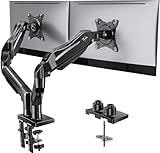
- Compatible with Wide Screens - To ensure compatibility with the dual monitor mount, your each monitor must meet three conditions at the same time: First, computer screens size range: 13 to 32 inches. Second, screen weight range: 4.4 to 19.8 lbs. Third, the back of the monitor screen must have VESA mounting holes with a pitch of 75x75mm or 100x100mm.
- Regarding the compatibility with desks - Your desk must meet three conditions at the same time: First, desk material: Only wooden desks are recommended, plastic or glass desks cannot be used. Second, desk thickness range: 0.59" - 3.54". Third, the bottom of the desk should not have any cross beams or panels, as this will interfere with installation. We recommend carefully checking that your desk and monitors meets all above conditions before purchasing.
- Dual C-Clamp Hold - Worried your dual monitors might wobble or slip? Our upgraded base uses a larger platform plus a dual C-clamp structure to lock the dual monitor arm firmly to your desk. Each arm safely keeps your screens steady while you type, click and game—no shaking, no sliding, just a clean and secure setup you can trust every day. It also provides Grommet Mounting installation choice, both options ensure stable and secure fixation for your 0.59" - 3.54" desk.
- Full-Motion Adjustment For Comfortable View - Pull the screen closer when you’re deep in a spreadsheet, push it back to watch videos, or rotate to portrait for coding — moving everything smoothly with just one hand. The monitor stand offers +85°/-50° tilt, ±90° swivel and 360° rotation. Raise your monitor up to 15.75″ to support a healthy sitting posture. Whether you’re working from home, gaming through the night, or switching between video calls and documents, getting the screens to your natural line of sight helps relieve neck, shoulder and back strain so you can stay focused longer with less fatigue.
- Keep Your Desk Organized: By lifting both screens off the desktop, this dual monitor stand opens up valuable space for your keyboard, notebook, docking station or a simple, clutter-free work area. Built-in cable management guides wires along the arms, keeping cords out of sight and out of the way. Enjoy a tidy, modern workstation that looks as good as it feels to use.
For muffled dialogue or misplaced audio, the supported approach is cautious testing, not a promised setting. Community discussions mention channel-mode mismatches, enhancements, and spatial-audio settings. Embody provides a separate checklist for its Enhanced Headphone Mode. None of these sources establishes that a specific headset, adapter, cable, software utility, or replacement part will fix the broad set of audio complaints. Diagnose routing and configuration before considering purchases, and do not treat a single anecdote as a universal answer.
Frequently Asked Questions
Is muffled dialogue a confirmed bug in Dying Light?
The cited Steam discussions are individual player experiences, not a confirmation from Techland that one specific dialogue-audio bug affects all players. Treat suggested processing or channel changes as setup-dependent troubleshooting, not a guaranteed patch or fix.
What should I do if the logos or intro are silent but gameplay audio works?
Techland Support says video parts can use a different, unplugged output device from the main game. On PC, connect or power on the intended output, switch Dying Light to windowed mode, select that output through Windows Audio Volume Control Panel as Techland describes, and retest the video segment.
What if gameplay sound works but dialogue seems to come from the wrong direction?
Compare the output mode with the capabilities of your actual device, then test any virtual surround, equalizer, enhancement, or spatial-audio layer one at a time. A Steam participant reported a benefit from changing Windows 11 enhancements and spatial sound, but that is an anecdote rather than an official universal fix.
Should I enable surround sound or Windows spatial audio?
There is no universal answer supported for every setup. Compare the mode with your device’s actual channel configuration, change one option at a time, retest the same scene, and revert a setting if it does not help.
Does this guide apply to Dying Light 2 or console versions?
The official missing-audio instructions discussed here concern the original Dying Light and Windows audio routing. The sources do not establish equivalent steps for Dying Light 2 or console editions, so check support for the specific game and platform.
The Bottom Line
For missing sound in the original Dying Light on PC, check output routing first—especially if only logos, the intro, or other videos are silent. For muffled or misplaced dialogue, compare channel mode and processing settings one at a time, and treat community workarounds as experiments rather than guarantees. Embody’s checklist is only for Enhanced Headphone Mode. The sources do not establish a universal fix, a required hardware purchase, or equivalent Windows steps for consoles or Dying Light 2.




