Do these 3 things before closing this tab:
1Repair Windows errors before they cause bigger problems2Fix the driver behind crashes, sound loss and screen glitches3Clear out junk files and repair common Windows errorsTo improve Discord stream quality, use the desktop app, open Stream Quality, and choose the highest resolution and frame rate your account, computer, network, and viewers can sustain. Start with 720p/30 for reliability, 720p/60 for fast games, or 1080p/30 when sharp text matters. If the stream stutters, buffers, or becomes more pixelated, lower one setting rather than assuming the highest option is best.
Discord quality is controlled by four limits: your account’s available quality ceiling, the selected resolution and frame rate, real-time network conditions, and the performance of the computer capturing and encoding the stream.

As an Amazon Associate I earn from qualifying purchases.
The fastest way to improve Discord stream quality
- Use the Discord desktop client rather than a browser when possible.
- Join a voice channel or start a direct-message/group call.
- Select the Screen or Stream button.
- Choose the specific game or application window instead of the entire desktop when possible.
- Select Go Live.
- Choose a resolution and frame rate in the stream-quality controls.
- Test the result with one viewer before adding more people.
For a server voice channel, start the stream, hover over the picture-in-picture preview, select the gear icon, and open Stream Quality. In a direct message or group call, open the stream’s drop-down control and choose Stream Quality. Menu names can vary by operating system, account, client, and future Discord releases.
Discord’s documented controls are more limited in a browser, so the desktop client is the better choice when you need adjustable resolution, frame rate, application audio, or more capture troubleshooting options.
#1 Best Overall

- 【12" Light Panel with 420 LED Beads】Designed with a 12-inch light panel and 420 premium LED beads, this studio light delivers up to 3000 lumens of ultra-bright output with CRI > 97 for true-to-life color accuracy. Perfect for YouTube videos, live streaming, video calls, makeup, photography, and product shooting.
- 【26W High Brightness & 3000 Lumens Soft Lighting】This 26W high-brightness LED video light provides up to 3000 lumens of powerful illumination, delivering brighter and more stable lighting for indoor content creation. The soft, flicker-free light helps improve dim rooms, dark-looking faces, and unclear product details, giving videos a more professional look in bedrooms, offices, living rooms, home studios, and other low-light spaces.
- 【Adjustable Color Temperature & Brightness】Customize your lighting with 3000K–6500K color temperature and 1–9 brightness levels. Switch easily from warm light for makeup or evening streaming, to natural light for tutorials and video calls, or cool light for product photography. The in-line controller lets you adjust power, mode, and brightness during recording without interrupting your setup.
- 【Flexible Tripod Stand & Phone Holder】The light panel supports 180° angle adjustment and mounts on a sturdy aluminum tripod that extends up to 72 inches and folds down to 15.5 inches. The included phone holder helps creators film hands-free, making it ideal for gaming streams, tutorials, product demos, live selling, vertical videos, desktop filming, and home studio content.
- 【Portable 2-Light Kit with Carry Bag】This lightweight studio lighting kit sets up quickly and stores easily in the included carrying bag, making it convenient to move between a desk, bedroom, office, living room, or product shooting table. Each light plugs directly into a wall outlet using its attached power cord, providing continuous power for extended recording sessions.
Discord’s Go Live and Screen Share guide documents the current screen-sharing workflow and available controls.
Resolution, frame rate, compression, and lag are different problems
“Better quality” can mean several different things:
- Resolution: The number of pixels in the image. Higher resolution makes small text and fine details clearer.
- Frame rate: The number of frames shown per second. Higher frame rates make fast movement look smoother.
- Compression and bitrate: These determine how much detail survives movement. Discord dynamically manages delivery instead of exposing a normal broadcaster-style bitrate setting for Go Live.
- Dropped frames and stutter: These usually indicate a computer-performance or connection problem, not simply insufficient resolution.
- Viewer playback: A viewer’s device, browser, connection, or playback mode can make a good stream appear blurry or choppy to that viewer alone.
A nominal 1080p or 4K selection does not guarantee a consistently sharp picture. Discord estimates available bandwidth and adapts real-time delivery. Unlike an on-demand video service, it cannot buffer several seconds of video to hide every network fluctuation. Congestion, packet loss, changing call membership, and the slowest viewer connection can all affect the result. See Discord’s engineering explanation of its streaming technology for the technical background.
Quick wins for a faster PC:
Repair Windows errors before they cause bigger problemsFix Now →Fix the driver behind crashes, sound loss and screen glitchesFind Drivers →Clear out junk files and repair common Windows errorsFree Scan →Choose the right resolution and FPS
| Content | Recommended starting point | Reason |
|---|---|---|
| Documents, coding, spreadsheets | Highest available resolution at 30 fps | Extra pixels improve text readability more than extra frames. |
| Casual desktop sharing | 720p/30 or 1080p/30 | Lower load is easier to keep stable. |
| Fast games | 720p/60 | Smoother motion without the full demand of 1080p/60. |
| Competitive games | 1080p/60 if stable | Provides both motion smoothness and detail, but requires more headroom. |
| Films or animation | Approximately match the source, usually 30 fps | Extra output frames cannot create missing source frames. |
| High-resolution design work | Highest available resolution at 30 fps | Preserves fine detail better than prioritizing motion. |
| Weak upload connection or congested Wi-Fi | 720p/30 | It is the most dependable fallback. |
Discord’s stream options may also prioritize different goals. A smoother-video option can reduce resolution while increasing frame rate. A text-readability option can preserve application resolution while reducing frame rate. For a document or game menu, prioritize resolution. For a rapidly moving game, prioritize frame rate.
Use this simple decision rule:
- Text is hard to read: Raise resolution first and keep 30 fps.
- Game motion looks jerky: Raise frame rate first, beginning with 720p/60.
- The stream is pixelated during movement: Reduce competing network traffic and test a lower resolution or frame rate.
- The stream freezes or drops frames: Check the computer and connection before increasing quality.
Discord’s guidance on stream-quality choices is covered in How to Stream Games and Applications to Discord.
Why Discord looks blurry even at 1080p or 4K
High resolution is only one part of the pipeline. A stream can look soft or heavily pixelated because:
Rank #2
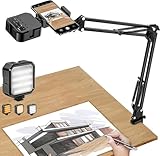
- More clear and Bright:The overhead phone mount is equipped with an led light, which has 3 modes and 10 adjustable brightness, provide proper but sufficient light for different occasions. Warm tips: This product is only suitable for providing supplemental lighting during photography, video recording, and more. It is not phone projection
- 2000mAh Rechargeable Battery:Built-in large-capacity lithium battery, charging time is 2 hours, maximum brightness output up to 90 minutes, minimum brightness output up to 180 minutes.Supports with type c charging port, 3.7V 7W output,safer and more convenient to use
- Universal Compatibility:The phone bracket is compatible with a Width of 2.4-4 inches (6-10 cm) phones, included almost all the smartphones. Table mounting clamp has rubber pad to protect your desktop from scratches. The clamp can be adjustable to maximum height 2.16 inches (5.5 cm)
- Flexible Arm:This overhead tripod comes with 2 arms, suspension Arm can free to adjust to any angle. Keep your phone at appropriate distance from your eyes. Warms tip:It has a max load weight of 2 lbs/0.9 kg(Not for heavy duty Cameras or devices)
- Please note:To enhance user convenience, we have extended the charging cable. However, we don't recommend using the device while charging, as the light may dim and not achieve the desired brightness
- Discord is adapting quality downward because available bandwidth changed.
- Game downloads, cloud backups, uploads, video calls, or other household traffic are competing for upload capacity.
- Wi-Fi interference or packet loss is interrupting delivery.
- Fast movement contains more detail than the available stream data can represent.
- The captured game is running at a different resolution from the selected output.
- The game is consuming nearly all available GPU resources.
- You are sharing the entire desktop and Discord is scaling the application unnecessarily.
- The viewer is watching in a small grid tile rather than an enlarged or focused view.
- The original source is low-resolution and is being enlarged.
- The Discord client or capture path is malfunctioning.
Test a static text-heavy scene and a fast-motion scene separately. If text is sharp in the static scene but motion becomes blocky, the limitation is probably compression or available delivery capacity rather than the selected resolution alone.
Improve the network before buying anything
Discord does not publish one universal upload-speed number that guarantees a particular Go Live resolution. Stability, packet loss, congestion, routing, call membership, and viewer conditions matter alongside a speed-test result.
- Use Ethernet instead of Wi-Fi if practical.
- Pause downloads and uploads, including game updates, cloud synchronization, torrents, and other streams.
- Reduce household traffic temporarily while testing.
- Test with one viewer. A large call can produce different conditions from a one-to-one test.
- Lower resolution first if the stream is blurry or buffering; lower frame rate as well if stutter continues.
- Test another viewer’s connection or device if only one person reports the problem.
- Restart Discord and then the router after checking the simpler causes.
A VPN is not a default fix. It can add latency, congestion, or another point of failure. Consider it only as a controlled routing test when you have a specific reason to suspect the route, not as a general quality upgrade.
Reduce game and computer load
If Discord competes with the game for GPU, CPU, or memory, increasing the stream setting can make both the game and stream worse.
- Cap the game’s frame rate so the GPU is not permanently saturated.
- Lower graphics settings that heavily load the GPU, especially if the game itself is dropping frames.
- Close unnecessary overlays, browsers, launchers, recording tools, and background applications.
- Use borderless or windowed mode if exclusive full-screen capture is unreliable.
- Share the application window rather than the entire desktop when possible.
- Update Discord and your graphics drivers.
- Check application permissions. If the game and Discord run at mismatched privilege levels, capture can fail or show a black screen.
- Avoid demanding local recording at the same time unless your system has enough performance headroom.
First check whether the game itself is losing frames. If the game is already performing poorly, Discord is unlikely to produce a smooth stream on top of it.
What’s actually slowing this PC down?
Pick the symptom - the matching free tool is one click away.
Test hardware acceleration instead of blindly disabling it
Hardware acceleration can help on one computer and cause capture or performance problems on another. Discord’s troubleshooting guidance recommends testing the setting rather than treating either state as universally correct.
Rank #3

- 【650LUX/M Soft and Eye-Friendly】The RALENO 13" led light panel offers a soft light that prevents eye strain, ensuring a comfortable and pleasant experience during video recording, photography, YouTube lighting conference calls and live streaming. Delivers 650LUX/M, perfect for crisp, well-lit photos and videos, yet gentle on skin tones—no harsh
- 【Built-in 8000mAh battery】The video light features a 8000mAh rechargeable battery, providing 90 minutes of lighting at maximum power. The studio light comes with a 1.8m adapter, ensuring uninterrupted lighting for your long-term working requirements
- 【CRI>95 2500K-6500K】RALENO PLV-S192 panel light comes with 192 beads, color temperature from 2500K to 6500K to meet the light needs in different environments; CRI>95, ensuring accurate color reproduction and display the true beauty of your subjects
- 【ULTRA-THIN 1-INCH PANEL LIGHT】 The photoshoot light is only 1 inch thick, which can be slid behind the monitor or placed flat in the backpack. Make room for your coffee, equipment and creative processes. Don't worry about the burden on your going out, because the weight of the panel light is only 2.4lb. And the HD LCD screen displays real-time parameters, providing you with greater control over your work
- 【Sturdy Stand & Wide Compatibility】This makeup light comes with an adjustable desk stand for quick setup (6.42"-10.16" height). RALENO camera light comes with a 1/4 standard screw hole, compatible with any DSLR, video camera, tripod and light stand. Moreover, the studio lights can be adjusted 180° front and back, providing better lighting effects
- Record whether hardware acceleration is currently enabled.
- Change the setting in Discord’s settings.
- Completely quit and restart Discord.
- Repeat the same test using the same game scene, resolution, frame rate, and viewer.
- Keep the setting that produces the better result.
- If neither state helps, restore the original setting and continue with network, driver, and capture tests.
Use the same static scene, text-heavy scene, and fast-motion scene for each comparison. Changing several variables at once makes it difficult to identify the cause.
For more official troubleshooting steps, see Discord’s Voice, Video, and Streaming Guide and Voice and Video Troubleshooting Guide.
Fix blurry text
For coding, spreadsheets, menus, and documents, resolution usually matters more than frame rate. Try these changes:
Free tools Windows power users keep installed
One-click scans. No signup required.
- Choose the highest stable resolution that Discord exposes.
- Keep the frame rate at 30 fps unless the content is highly animated.
- Share the application window rather than a scaled full desktop.
- Ask the viewer to enlarge the stream or use Focus View instead of judging clarity from a small grid tile.
- Check the application’s own display resolution and scaling.
- Test a static page with high-contrast text.
If the viewer sees sharp text in Focus View but not in the normal call layout, the stream may be fine and the apparent blur may be caused by playback size or scaling.
Fix a black screen, frozen video, or unreliable capture
| Symptom | Tests to try |
|---|---|
| Black screen | Switch between application and full-screen capture, restart Discord, test hardware acceleration, and try borderless or windowed game mode. |
| Severe game FPS loss | Cap game FPS, reduce graphics settings, close overlays, and test hardware acceleration. |
| Stream is smooth but blurry | Compare one lower resolution or frame-rate step, stop competing uploads, and test a static scene. |
| Video freezes while audio continues | Check GPU/CPU load, graphics drivers, network stability, and Discord’s client state. |
| Browser content will not share correctly | Use the desktop client and share the browser or application window directly. |
| Capture works only with different permissions | Run Discord and the captured application at compatible permission levels, then restart both. |
Fix missing application audio
Video resolution and application-audio support are separate issues. Discord’s cited support documentation says application audio capture is available on Windows desktop, macOS desktop, Chrome browser, and mobile clients, while it documents application audio as unavailable on Linux. Client behavior can change, so check the current support page if your platform behaves differently.
Use a supported desktop or browser client, share the application rather than an unsupported capture target, and verify that Discord recognizes the application. Microphone audio can work even when application audio does not.
Rank #4

- 【Light Up Your Ideas-15W Optimal Lighting Kit】 No more fretting about poor, flickering lights! This 15W photography lighting kit packs 352 LED beads, offering up to 1700 Lumens of bright, steady light -powered right through USB (5V/3A). Switch between 3 color temps (2500/4500/8500K) and dial brightness from 10 to 100% to get that natural-looking tone. Perfect for short-form content, video calls, home office settings, beauty shots, and creative DIY projects where you need diverse moods.
- 【Perfect for Creative Setups & Home Use】 Besides superior illumination, strong utility is also a priority. Whether you're building a TikTok/YouTube channel, filming online courses, doing livestreams, snapping studio-quality stills, or just lighting up any space as you wish, this video lighting for video recording adapts with ease. Its compact and portable design makes it a go-to tool for home setups, travel kits, and small production teams alike.
- 【Compact Panel & Foldable Tripod】 Measuring just 6.85” (17.4 cm) x 10” (25.4 cm), this panel light is compact enough to carry anywhere. The built-in quality diffuser delivers a softer, more even illumination to your work. The tripod is built with durable metal and a stable triangular structure, extended up to 62" (157cm) for overhead shots, or folded down to just 16" (41cm) so it barely takes up space.
- 【Efficient Heat Control for Long Use】 Built with an advanced heat-dissipation design, this streaming light stays cool even during long recording sessions. No flickering, no overheating—just stable, reliable lighting from start to finish. Perfect for long video recordings, online meetings, vlogging, podcasting, multi-hour live streaming, or continuous filming sessions.
- 【2.5m USB Cable for Flexible Setup】 This LED content creator light comes with a 2.5m (8.2ft) USB charging cable—longer than typical cords—for easy placement without hunting for outlets. Move freely whether you're creating in a compact desk setup, standing for a demo video, or filming across a larger studio space. Includes 2 velcro straps to keep cables tidy.
Check Discord’s current Go Live and Screen Share documentation for platform-specific audio details.
Recommended Free Tools
Desktop app versus browser
Use the desktop Discord client when you need adjustable stream quality, dependable game detection, application audio, or more troubleshooting controls. Use the browser when installation is impossible or when the desktop client itself appears to be the source of the problem.
The browser is not automatically worse in every situation, but Discord’s documented stream-quality controls are more limited there. Switching clients is a useful diagnostic step, not a guarantee of higher quality.
Does Discord Nitro improve stream quality?
Nitro can raise the quality ceiling available to an account, but it does not repair the underlying cause of blur, lag, or dropped frames. It does not increase your internet upload capacity, fix packet loss, relieve an overloaded GPU or CPU, guarantee smooth playback for every viewer, override adaptive delivery, or repair a broken capture path.
Discord’s current official documentation is inconsistent about the exact ceiling. Its Go Live support page, updated June 19, 2026, lists free users up to 720p/30 and Nitro/Nitro Classic up to 4K/60. Discord’s separate Nitro FAQ describes HD streaming and lists screen sharing up to 1080p/60 for the relevant feature.
Because those pages disagree, do not treat 1080p/60 or 4K/60 as a universal promise. Nitro raises the available ceiling; the exact choices depend on the account and the current Discord client. Use the options actually shown in your Stream Quality menu.
Best Value
Nitro is most useful when you specifically need a higher Discord quality ceiling and also value its other benefits. It is a poor fix when the real problem is Wi-Fi congestion, packet loss, a saturated gaming PC, a graphics-driver issue, or a viewer’s weak connection. Discord’s published US pricing signal at the time of the cited research was $9.99 per month or $99.99 per year for Nitro and $2.99 per month or $29.99 per year for Nitro Basic, but prices vary by country, currency, platform, account, and billing context. Confirm the final amount at checkout using Discord’s Nitro page.
When OBS Studio is useful—and when it is not
OBS Studio is free and open source and is useful when you need scenes, webcam overlays, multiple sources, filters, transitions, or local recording.
OBS is not an automatic Discord quality upgrade. Sharing an OBS preview window through Discord adds another capture and encoding stage, which can increase latency or reduce quality. Discord still controls its own Go Live delivery and adaptive behavior.
Use OBS when you need a production workflow, not merely because a native Discord stream is blurry. OBS’s connection troubleshooting advice applies mainly to OBS’s own streaming outputs; it should not be treated as a Discord-specific bitrate rule.
Viewer-side fixes
If only one viewer reports blur, buffering, or choppy playback, troubleshoot that viewer before changing the streamer’s settings.
- Enlarge the stream or use Focus View.
- Check that a reduced-data or low-quality playback mode is not enabled.
- Reduce other network activity.
- Try the desktop client instead of a browser, or the browser instead of the desktop client.
- Update Discord and restart the client.
- Try another device or connection.
- Ask the streamer to test 720p/30 for comparison.
Distinguish between “the stream is blurry for everyone” and “the stream buffers only for me.” The first points toward the source, Discord’s adaptive delivery, or the streamer’s network. The second points more strongly toward the viewer’s connection, device, client, or playback mode.
Recovery checklist by symptom
Blurry or pixelated for everyone
- Stop competing uploads and downloads.
- Use Ethernet if available.
- Test one viewer.
- Try 720p/30, then compare 720p/60 or 1080p/30 according to the content.
- Share the application window and test a static scene.
Low FPS or stutter
- Lower frame rate or resolution one step.
- Check whether the game itself is dropping frames.
- Cap the game’s FPS and reduce GPU-heavy settings.
- Close overlays and background recording tools.
- Test hardware acceleration, restarting Discord after the change.
- Update Discord and graphics drivers.
Buffering
- Test Ethernet and pause household traffic.
- Test with one viewer.
- Ask the affected viewer to try another connection or device.
- Lower the stream to 720p/30.
- Restart Discord and then the router if the problem remains.
Black screen
- Switch between application capture and full-screen capture.
- Use borderless or windowed mode.
- Check Discord and game permissions.
- Restart the game and Discord.
- Test hardware acceleration.
Quality worsens after several minutes
- Watch for downloads, backups, or other traffic starting in the background.
- Check for rising CPU or GPU temperatures and utilization.
- Test whether adding viewers changes the result.
- Try a lower setting and compare the same scene.
- Restart Discord if the client has become unstable.
Change one variable at a time and record what happened. Test a text-heavy scene, a static desktop, and fast game movement. That approach identifies whether the limiting factor is resolution, motion, connection stability, capture, or viewer playback.
Quick Recap
Practical defaults
- Text and productivity: Use the highest stable resolution at 30 fps.
- Most games: Start at 720p/60 for a good balance of motion and stability.
- Powerful wired setup with Nitro: Test 1080p/60, then a higher option only if the current client exposes it and the stream remains smooth.
- Weak or congested connection: Use 720p/30 and solve the network problem before increasing quality.
Product prices and availability are accurate as of the date/time indicated and are subject to change. Any price and availability information displayed on Amazon at the time of purchase will apply.




