Do these 3 things before closing this tab:
1Scan for outdated or missing drivers - takes under a minute2Clear out junk files and repair common Windows errors3Fix the driver behind crashes, sound loss and screen glitchesPokémon Pokopia has several ways to play with other people, and they do different things: Link Play lets you visit a friend’s town, Palette Town is for building together, Cloud Islands are persistent shared spaces, and GameShare lets a second player join without owning the game. For ordinary Link Play, each player needs a separate console and game; GameShare is the limited one-copy option.
Choose the multiplayer mode that fits what you want to do
| Mode | What you do | Players and setup | Important limit |
|---|---|---|---|
| Link Play: visit a town | Visit a friend’s town or invite them to yours. | Up to four players total, including the host; multiple consoles and copies for standard play. Connect locally or online. | Visitors use Spectator Mode and cannot freely change the host’s town. |
| Palette Town | Build, craft, discover Pokémon and create habitats together. | Invite players to Palette Town, then turn off Spectator Mode at the Pokémon Center PC. | Visitors cannot take items home from Palette Town. |
| Cloud Island | Create or visit a persistent shared island. | Visit through a Pokémon Center PC using the island’s address. The owner can configure access and Link Code settings. | Virtual Mode is view-only; island bags and town bags are separate, and backups are manual. |
| GameShare | Share a game session with a player who does not own it. | Up to two players on separate consoles; choose nearby local GameShare or GameShare via GameChat. | The guest’s interactions may be limited, and access to the shared game ends with the active session. |
Nintendo describes ordinary town visits as a way to show friends your town. If you want to make changes together, use Palette Town instead. Cloud Island is the option for a shared space that persists beyond a standard visit.
As an Amazon Associate I earn from qualifying purchases.
How to start Link Play
- Start Pokémon Pokopia and enter a town.
- Go to the Pokémon Center and use the PC.
- Select Link Play.
- Choose Invite Others to Visit to host or Visit a Friend to join. For online play, use the Link Code when prompted; local connection can be set up with or without one.
Link Play unlocks after approximately 30 minutes of play and reaching Environment Level 2. Nintendo notes that some multiplayer options require additional in-game progress.
Crashes, No Sound, or Screen Glitches?
Random freezes, missing sound and display glitches usually trace back to one bad driver. Find and replace yours safely.Free scan · under a minuteWindows Errors? Fix Them Before They Spread
Repair common Windows errors and clear accumulated junk for a smoother, more stable PC - no reinstall needed.Free scan · no reinstallWhat visitors can do in your town
In a regular Link Play town visit, visitors are in Spectator Mode. They can visit and interact with Pokémon and habitats, but they do not have unrestricted permission to alter the host’s work. Nintendo’s official overview characterizes this mode as showing off towns to friends.
#1 Best Overall

- Shape the world and build a cozy new life with Pokémon as a Ditto transformed to look like a human.
- Use other Pokémon’s moves, like Bulbasaur’s Leafage, to revitalize and navigate the world around you.
- Meet and befriend more Pokémon as you help nature flourish.
- Gather materials to create items and furniture, till the fields to grow delicious crops, build homes for the Pokémon you meet, and more—there’s so much to do!
- Experience a world with varied weather, real-time days and nights, and other surprises.
How to build together in Palette Town
Palette Town is the collaborative-building mode. It becomes available after you attract Hitmonchan and complete its request to learn Rock Smash. Once there, invite friends through the Pokémon Center PC and turn off Spectator Mode to let visitors build, craft, discover Pokémon and make habitats with you. Players visiting Palette Town cannot take items home from it.
How Cloud Islands work
Create or visit a Cloud Island from a Pokémon Center PC. To join someone else’s island, you need its address. The island is a persistent shared space with its own Pokédex and shared PC rewards and challenges; it is distinct from each player’s town.
Rank #2
![Pokémon Pokopia Standard - Nintendo Switch 2 [Digital Code]](https://m.media-amazon.com/images/I/51Dr2-tvabL._SL160_.jpg)
- Shape the world and build a cozy new life with Pokémon as a Ditto transformed to look like a human.
- Use other Pokémon’s moves, like Bulbasaur’s Leafage, to revitalize and navigate the world around you.
- Meet and befriend more Pokémon as you help nature flourish.
- Gather materials to create items and furniture, till the fields to grow delicious crops, build homes for the Pokémon you meet, and more—there’s so much to do!
- Experience a world with varied weather, real-time days and nights, and other surprises.
- The island owner can decide whether other players may join and whether a Link Code is required.
- Virtual Mode lets visitors view the island without changing it.
- Items do not transfer between a player’s town bag and Cloud Island.
- Island backups are manual, so the owner must make a backup rather than rely on automatic saving for that purpose.
Can you play Pokémon Pokopia with one copy?
Yes, through GameShare, but it is a specific, limited session rather than standard multiplayer. The host starts it from Link Play in Palette Town: choose Invite Others to Visit, then GameShare, and select either the nearby local option or the GameChat option. Nintendo documents both options for up to two players. The guest may have limited interactions, and can use the shared software only while the session is active.
For standard local multiplayer, Nintendo’s Australian product information specifies one console and one game copy per player. GameShare is the exception for a guest without a copy; it does not make regular Link Play a one-copy mode.
Rank #3

- Pokémon Pokopia Expansion Pass
Online and local requirements
Online play requires internet access, a Nintendo Account and a Nintendo Switch Online membership. Nintendo lists these requirements for online features; GameShare through GameChat is an online option. Local multiplayer connects nearby consoles and does not use the online connection path. The official setup describes multiplayer across consoles, not split-screen or couch co-op on one console.
Quick Recap
Best Value
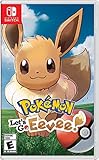
- Don the role of a Pokémon Trainer as you travel through Kanto
- Discover a new species of Pokémon with the Pokémon Lets Go series
- Catch Pokémon in the wild using a gentle throwing motion with either a Joy-Con controller or a Poké Ball Plus accessory, which will light up, vibrate, and make sounds to bring your adventure to life
- See the world in style by customizing Pikachu and your Trainer with a selection of outfits
- Connect to Pokémon GO* to transfer caught Kanto-region Pokémon, including Alolan and Shiny forms, as well as the newly discovered Pokémon, Meltan, from that game to this one
Rank #4

- Pokémon Pokopia Bundle (Game + Expansion Pass)
Product prices and availability are accurate as of the date/time indicated and are subject to change. Any price and availability information displayed on Amazon at the time of purchase will apply.




