OrbitPS2 Manager is a desktop organizer for preparing a PlayStation 2 library for Open PS2 Loader (OPL); it does not load games on the console. Install the build for your computer, mount the folder or drive that will hold the OPL library, import your disc images, and review any unresolved game information before using the library with OPL.
What ORBIT means here
This guide covers OrbitPS2 Manager, the open-source library manager in the Luden02 GitHub project. The project describes it as a cross-platform organizer for PlayStation 2 and PlayStation 1 collections intended for use with OPL. It is distinct from unrelated PC game launchers named Orbit. See the OrbitPS2 Manager project README for its current platform and feature information.

Install OrbitPS2 Manager
Download the package for your desktop operating system from the project’s current Releases page. The project documentation lists an installer or portable ZIP for Windows, a DMG for macOS, and an AppImage, DEB, or ZIP for Linux. Release packages and availability can change, so use the current release information rather than relying on an older version-specific walkthrough.
The project describes its current macOS build as unsigned. Check the release notes and Apple’s current security guidance before deciding how to handle any operating-system warning; do not treat a maintainer’s security assurance as independent verification.
Windows Errors? Fix Them Before They Spread
Repair common Windows errors and clear accumulated junk for a smoother, more stable PC - no reinstall needed.Free scan · no reinstallCrashes, No Sound, or Screen Glitches?
Random freezes, missing sound and display glitches usually trace back to one bad driver. Find and replace yours safely.Free scan · under a minute#1 Best Overall
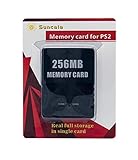
- Upgrade innovation chip that process and save the games faster by 15% than older version, smooth and steady without interruption.
- Fully compatible with Sony Playstation 2 and playstation 2 Slim.
- Improved storage system now compatible with more game than ever.
- Newly design package, fresh and elegant look. Sleek package allows you to easily slip the memory card in and out.
- 60 months worry free warranty. Friendly and supportive customer service is there to answer all your questions within hours.
Mount the OPL library location
- Start OrbitPS2 Manager and choose Mount Directory.
- Select the folder or drive that should contain the OPL library. The project supports an internal folder or an external/USB drive; choose based on available space, portability, and whether the eventual console setup can read that storage.
- If the selected location does not already have an OPL layout, accept the app’s option to create its folders:
CD,DVD,VCD,POPS,APPS,ART,CFG, andVMC. - Enable reconnect-on-launch if you want the manager to reconnect to that location automatically when it starts.
The README does not specify a required drive capacity, filesystem, speed, or compatible model. Mounting a location in the desktop app does not by itself establish that a particular drive or console configuration will work with OPL.
Import your PS2 disc images
PS2 DVD images
Choose the PS2 DVD import option for .iso or .zso files. OrbitPS2 Manager places these in the library’s DVD/ folder.
Rank #2

- Upgrade innovation chip that process and save the games faster by 15% than older version, smooth and steady without interruption.
- Fully compatible with Sony Playstation 2 and playstation 2 Slim.
- Improved storage system now compatible with more game than ever.
- Newly design package, fresh and elegant look. Sleek package allows you to easily slip the memory card in and out.
- 60 months worry free warranty. Friendly and supportive customer service is there to answer all your questions within hours.
PS2 CD images
Choose the PS2 CD import option for .bin/.cue input. The manager converts the input to a single ISO and places it in CD/.
Check game identification
During import, the manager can inspect disc images to identify game IDs and names. Check anything the app flags for manual review rather than assuming every title was resolved correctly. The project also documents batch importing and optional artwork retrieval. Only import game files you are entitled to use.
Recommended Free Tools
Rank #3
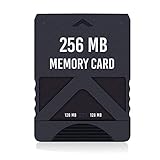
- Never lose saved data again or have to constantly switch between smaller memory cards | 256MB (2043 Block) memory card is perfect even for the most demanding PlayStation 2 games
- Durable, compact design mimics look and feel of original memory cards and is compatible with all PS2 games and systems | Memory card features two switchable data banks to achieve 256 megabyte capacity
- Please Note: To reach full capacity of memory card dual 128 megabyte banks must be switched between | Front facing switch on card must be set to apropriate memory bank prior to turning on console
- Compatible with: PS2 (Playstation 2) consoles only | Will not work with backwards compatible fat PS3 consoles or PSONE (PSX) systems
- Package Contents: 1x PS2 memory card | Works on all models of PS2 including launch, fat and slim console variants
Review titles, metadata, and artwork
After importing, use the manager’s search, system filters, sorting by title or game ID, and grid or list views to find entries. A game detail view can display available cover art, screenshots, region, format, size, and metadata. The project documents automatic artwork retrieval from the PSX/PS2 OPL Art Database; artwork availability can vary by title.
Optionally compress PS2 ISOs to ZSO
The project describes ZSO as LZ4-compressed and OPL-compatible. OrbitPS2 Manager can convert an individual PS2 ISO or run a library-wide conversion, with an option to remove the original after a successful conversion. Compression is optional: keep an independent backup until you have checked the converted files in your intended setup. Do not remove originals merely because a conversion completed if you do not have another recoverable copy.
Rank #4

- TWO SEPARATE 128 MB BANKS, NOT ONE POOL OF 256 MB: The selector on the front of the card chooses which bank the console talks to, and each bank is its own storage area with its own save list. Nothing spans the two, so a file written on one side is invisible from the other. Set the selector first and then turn the console on, because the console reads the position once at start-up and does not look again.
- BUILT FOR PS2 AND FOR THE SLIM, AND FOR NOTHING ELSE: It drops into the memory card slot made for PS2, on every revision from the first SCPH-10000 through to the 90000 series, fat or slim. It is not for the PS One, not for the PSX, and not for a fat PS3 running a disc in backward compatible mode. Those machines use a different card and will not read this one.
- IT IS A STORAGE CARD, AND IT WILL NOT RUN FREEMCBOOT: If the plan is to install a homebrew launcher, this is the wrong card and no amount of formatting will change that. What it does do is hold save files, and a lot of them, which is the job most people actually need a second card for.
- NO BOOT DISC, NO DRIVERS, NOTHING TO INSTALL: Push it into the slot and the console lists it straight away. Save sizes vary by title, and the back of a game case usually prints how many kilobytes a save needs, so you can work out how far one bank will go before you fill it.
- WHAT ARRIVES IS ONE BLACK CARD, 5.6 BY 4.1 BY 0.6 CM: Two habits keep a save file intact on any card of this kind: leave the console powered down while the card goes in or comes out, and do not cut the power while a title is writing.
Use per-game settings sparingly
The manager can edit OPL display titles, compatibility modes, and virtual memory card assignments. The project documentation does not prescribe universal compatibility settings for games, so change a per-game option only when you have a specific need and a reliable game-specific reference. The project says unknown configuration keys, including keys written by OPL, are preserved when editing settings.
Independent reader supportYour contribution helps us test, update, and keep practical guides available for everyone.Choose where the library should live
The documented storage choices are an internal folder or an external/USB drive. An internal folder avoids a separate removable device if that location is suitable for your workflow; an external drive can make the library easier to move, provided the intended OPL setup supports it. The manager documentation does not establish a preferred capacity, filesystem, speed, or drive model, so confirm console-side compatibility separately before moving a library to new hardware.
The Tool Desk
Outbyte PC Repair FREEClear out junk files and repair common Windows errorsFree Scan →Outbyte Driver Updater FREEFix the driver behind crashes, sound loss and screen glitchesFind Drivers →Best Value
Installing an internal PS2 hard drive is a separate console-side process, not a prerequisite for mounting and importing with OrbitPS2 Manager. An older community OPL HDD guide describes that distinct workflow, which can involve formatting and erasing existing data. Do not follow destructive disk steps unless you intend to install that type of setup and have backed up anything the drive contains.
Quick Recap
What to verify before using the library with OPL
- Confirm the manager is pointed at the library location you intended, and that the expected folders exist.
- Review titles flagged for manual identification and confirm the files are in the appropriate
CD/orDVD/folder. - If you converted files to ZSO, retain a backup until the converted library has been checked in the intended OPL and hardware setup.
- Validate storage and per-game compatibility separately: the manager organizes files and selected OPL configuration, but does not establish universal console or game compatibility.
Product prices and availability are accurate as of the date/time indicated and are subject to change. Any price and availability information displayed on Amazon at the time of purchase will apply.




