Recommended Free Tools
To sync a DUALSHOCK 4 to a PS5, turn on the console, connect the controller with its USB cable, then press the controller’s PS button. When the light bar blinks and the player indicator lights up, it is paired. Leave it connected until it has enough charge, then unplug it to play wirelessly.
Pair the DUALSHOCK 4 with your PS5
- Turn on the PS5.
- Connect the DUALSHOCK 4 to the console using the included USB cable.
- If the controller is off, press its PS button.
- Wait for the light bar to blink and the player indicator to light up.
- After the controller has enough charge, disconnect the cable to use it wirelessly.
Sony’s PS5 pairing instructions specify connecting the controller with the included USB cable and pressing PS. A compatible USB cable is also Sony’s recommended way to reconnect a controller later.
What to do if it will not connect
- Check that the PS5 is on, the controller is connected to it by USB, and you have pressed PS.
- If the controller was paired to another console, pair it with the PS5 again. A DUALSHOCK 4 pairs with one console at a time; a PS5 can have up to four controllers connected.
- If pairing still fails, follow Sony’s DUALSHOCK 4 troubleshooting steps, which include resetting the controller. Sony directs users to PlayStation Repairs if the problem continues.
- For reconnection, attach the controller with a compatible USB cable and press PS; once connected, remove the cable to use it wirelessly.
Sony’s console setup instructions begin with USB pairing, not the SHARE-plus-PS Bluetooth sequence. That Bluetooth sequence is for pairing the controller with a supported non-console device: turn off the player indicator, unplug USB, hold SHARE while pressing PS until the light bar flashes, then select the controller in that device’s Bluetooth list. See Sony’s guide to connecting a DUALSHOCK 4 to other devices.
Can you use a DUALSHOCK 4 to play PS5 games?
The DUALSHOCK 4 works on PS5 consoles with supported PS4 games. PS5-format games require a DualSense wireless controller, so successfully pairing a DUALSHOCK 4 does not make it compatible with a PS5-native version of a game. Check whether the game you want to play is the PS4 or PS5 edition and consult its compatibility information. Sony’s PS5 backward-compatibility guidance explains the distinction.
#1 Best Overall

- The feel, shape, and sensitivity of the dual analog sticks and trigger buttons have been improved to provide a greater sense of control, no matter what you play.Motion sensors - Rock and roll as a highly sensitive built-in accelerometer and gyroscope detect the motion, tilt and rotation of your DUALSHOCK 4 wireless controllerDualShock 4 Wireless Controller PS4 and PC compatible. Item PS5 compatible only when playing PS4 games.
- The new multi touch and clickable touch pad on the face of the DualShock 4 Wireless Controller opens up worlds of new gameplay possibilities for both newcomers and veteran gamers
- The DualShock 4 Wireless Controller features a built in speaker and stereo headset jack, putting several new audio options in the player's hands
- The Dualshock 4 wireless controller can be easily recharged by plugging it into your PlayStation 4 system, even when in rest mode, or with any standard charger using a USB cable (type A to micro B sold separately)
Sony also recommends the DUALSHOCK 4 for the best PS VR experience on PS5. That is a specific VR use case, not an exception that allows the controller to play PS5-format games.
Which cable should you use?
Use the included USB cable for initial pairing or a compatible USB cable for reconnection. If you need a replacement, check that the connectors fit both your controller and console and that the cable supports data. Sony’s cited instructions do not specify a cable model or guarantee that every charge-only cable will work.
Quick Recap
Best Value

- 🎮【2 Packing】Two controllers are packaged in one box, which is less costly than buying two controllers separately. You can get two different custom designed controllers at the same time, which is very cost-effective.This will bring you a better game experience when you play with your friends, lover, family.
- 🎮【Wide Compatibility】AceGamer wireless controller compatible with PS4/Pro/Slim/Windows PC. ❗*Attention*❗: Only when connecting for the first time, you must activate the device with the USB cable for the first pairing and connection. After that, the normal wireless connection of Bluetooth can be made, and USB data cable is no longer needed. ❗*Note*❗: Connecting to PC(without Bluetooth) needs to install receiver, not included.
- 🎮【Function Highlights】360° Refined analog sticks, the new touch pad on the face of the game controller offer players precise control. Controller which built-in 6-axis gyro sensor has dual motor vibration, excellent dual shock effect design makes the tactile sense more sensitive. The optimized buttons and triggers, ergonomic design non-slip grips, which offer you fantastic gaming experience.
- 🎮【Turbo Setting】You can customize any key as a turbo key. First, hold down the 'share' key, then click the turbo key you want to set up successfully. Secondly, you can adjust the turbo frequency. First, hold down the 'share' key, then touch the joystick on the right up and down. There are three gears to adjust in total.
- 🎮【To Be AceGamer】You can get: 2x AceGamer for ps4 controllers wireless; 1x Charging Cable; 1x User Manual; Professional after-sales service. We focus on the design, production and sales of custom controllers. If you have any questions, please contact us in any time!
Rank #4
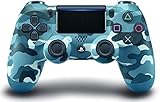
- Precision control - The enhanced feel, shape, and sensitivity of the Dualshock 4 wireless Controller offers players absolute control over all games on the PlayStation 4 system
- Sharing at your fingertips - The addition of the share button makes sharing your greatest gaming moments as Easy as a press of a button. Upload gameplay videos and screenshots directly from your system
- New ways to play - Revolutionary features like the touch pad, integrated light bar, and built in speaker offer exciting new ways to experience and interact with your games
- Charge Efficiently - The DUALSHOCK 4 wireless controller can be easily recharged by plugging it into your PlayStation 4 system, even when in rest mode, or with any standard charger using a USB cable (type-A to Micro-B Sold Separately)
Rank #3

- The feel, shape, and sensitivity of the dual analog sticks and trigger buttons have been improved to provide a greater sense of control, no matter what you play
Rank #2

- Precision Control: The feel, shape, and sensitivity of the DualShock 4’s analog sticks and trigger buttons have been enhanced to offer players absolute control for all games on PlayStation 4.
- Sharing at your Fingertips: The addition of the Share button makes sharing your greatest gaming moments as easy as a push of a button. Upload gameplay videos and screenshots directly from your system or live-stream your gameplay, all without disturbing the game in progress.
- New ways to Play: Revolutionary features like the touch pad, integrated light bar, and built-in speaker offer exciting new ways to experience and interact with your games and its 3.5mm audio jack offers a practical personal audio solution for gamers who want to listen to their games in private.
- Charge Efficiently: The DualShock 4 Wireless Controller can easily be recharged by plugging it into your PlayStation 4 system, even when on standby, or with any standard charger with a micro-USB port.
Product prices and availability are accurate as of the date/time indicated and are subject to change. Any price and availability information displayed on Amazon at the time of purchase will apply.
Independent reader supportYour contribution helps us test, update, and keep practical guides available for everyone.



