To move Shadow Fight 4: Arena progress between Android and iOS—or from mobile to Steam—link the existing save to Nekki ID, then sign in on the new device using the same connection method and tap Continue. For a restore on the same mobile platform, use the Google Play Games account on Android or Game Center on iOS.
Choose the transfer method for your destination
| From and to | Use |
|---|---|
| Android to iOS, or iOS to Android | Nekki ID, connected in the game’s Settings > Account. Nekki’s Android/iOS transfer instructions |
| Android to another Android device | The Google account connected through Google Play Games. Nekki’s Android restore instructions |
| iOS to another iOS device | The connected Game Center account. Nekki’s iOS restore instructions |
| Mobile to Steam | Nekki ID. Nekki’s mobile-to-Steam transfer instructions |
Transfer progress between Android and iOS
- On the device with the progress you want to keep, open Shadow Fight 4: Arena > Settings > Account and tap the orange Connect button.
- Choose email, Google, or Apple. For email, enter the confirmation code sent to your email; for Google or Apple, complete sign-in.
- Tap Continue after connecting. Nekki says the progress is linked after this step.
- On the new device, open the game and go to Settings > Account > Connect. Sign in with the same connection method and account you used on the original device, then tap Continue.
The instructions describe linking and restoring one progress record; they do not describe merging saves or choosing between two existing records. If you have more than one save, do not assume connecting accounts will combine them.

Restore progress on Android
- Install Google Play Games if it is not already installed.
- In Google Play Games settings, select the Google account that holds your game progress and configure automatic login for supported games.
- Open Shadow Fight 4: Arena, then check Settings > Account to confirm Google is connected.
Nekki’s Android instructions say progress is saved through Google Play and that the game has one progress record. If the in-game Connect button does not work, Nekki advises installing Google Play Games.
Restore progress on iOS
- Activate Game Center in your device settings and sign in to the account associated with your progress.
- Open Shadow Fight 4: Arena and go to Settings > Account.
- Check that the Game Center account is connected.
Nekki’s iOS instructions say progress is saved through Game Center and describe one progress record.
Free tools Windows power users keep installed
One-click scans. No signup required.
#1 Best Overall
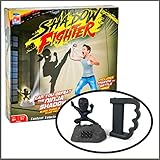
- ARE YOU FASTER THAN THE SHADOW? – Shadow Fighter is the only game where you can match up against the mysterious, unpredictable Shadow Ninja. Gear up with the shadow puncher to start your fight.
- TRAINING MODE – This game is equipped with a training mode to help you become a shadow fighting master.
- DEVELOP AGILITY AND QUICK THINKING – You have to be agile and quick to hit the Shadow Ninja before he hits you. Take advantage of his distractions to punch him at just the right moment.
- INCLUDES – 1 Ninja Shadow Projector and 1 Brass Knuckle Shadow punchers. Requires 5 AA batteries (not included).
- PLAY INDOORS OR OUTDOORS – Place the projector anywhere for versatile play time. Play alone or with a friend!
Move mobile progress to Steam
- On the mobile device with your progress, open Settings > Account > Connect.
- Choose a Nekki ID connection method—email, Google, or Apple—complete sign-in, and tap Continue.
- Launch Shadow Fight 4: Arena on Steam and select Connect using Nekki ID.
- Sign in using the same connection method and account as on mobile, then tap Continue.
If the Steam version already has progress, Nekki says the game will not prompt you to choose between saves. Instead, connect through Settings > Account in the Steam game.
Independent reader supportYour contribution helps us test, update, and keep practical guides available for everyone.About the Account Transfer code option
A Nekki search-result excerpt describes another route for transferring between devices: on the original device, open Settings > Account > Account Transfer, tap Get Code, then use Account Transfer > Enter Code on the second device. The same excerpt warns that the transfer erases game data from the old device, says not to share the code, and prohibits transferring an account to another player. The official page was unavailable when checked, so treat these steps and warnings as provisional and follow the current in-game prompts carefully. Do not share a transfer code.
Quick Recap
Rank #4

- Harness the Spirit of vengeance to inflict brutal combos while mastering powerful new skills and weaponry.
- Exploit the individual fears, weakness and memories of your enemies as you dismantle Sauron's forces from within.
- Become the most feared force in Mordor in a new chronicle set before the events of the Lord of the Rings.
Rank #3
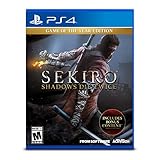
- Carve your own clever path to vengeance in an all-new adventure from developer fromsoftware
- Explore late 1500S sengoku Japan, a brutal period of constant life and death conflict, as you come face to face with larger than life foes in a dark and twisted world
- Take revenge. Restore your honor. Kill ingeniously
Rank #2

- Immerse yourself in the epic scale of Middle-Earth as you forge a new ring and siege epic fortresses to face the dark lord and Nazgul.
- Experience a richer and more personal world full of new enemy types, stronger personalities and deeper stories - anyone you face can now evolve from a lowly soldier to a mighty overlord.
- Go behind enemy lines and use strategy, cunning or brute force to conquer Sauron' s fortresses and turn them against him.
Fix the most common transfer problems
- Progress did not appear: Verify that you signed in with the same account and the same connection method used on the source device.
- You signed in but the game did not finish linking: Tap Continue after sign-in on both devices.
- Android restore is not working: Check the selected Google account and automatic login in Google Play Games, then confirm the connection under the game’s Settings > Account.
- iOS restore is not working: Confirm Game Center is activated and the correct account is connected under Settings > Account in the game.
- Steam has a separate save already: Open the Steam game’s Settings > Account and connect there rather than waiting for a save-selection prompt.
Product prices and availability are accurate as of the date/time indicated and are subject to change. Any price and availability information displayed on Amazon at the time of purchase will apply.




