Do these 3 things before closing this tab:
1Fix the driver behind crashes, sound loss and screen glitches2Clear out junk files and repair common Windows errors3Scan for outdated or missing drivers - takes under a minuteSome links on this page are affiliate links: if you buy through them we may earn a commission, at no extra cost to you.
The best horror-game setup is not a universal Ultra preset. Start with a graphics preset your PC can hold smoothly, preserve shadow detail and motion clarity, then add expensive lighting effects only when their visual benefit is worth the lost responsiveness. Use your display’s supported resolution, refresh rate, HDR and variable-refresh features; calibrate HDR instead of guessing a gamma value. For sound, follow the game’s own headphone or binaural guidance before enabling Windows or headset surround processing. Ordinary stereo headphones are sufficient for spatial audio on Windows, and a branded “7.1” headset is not a requirement.
The exact choices depend on the game, GPU, display and headphones. The workflow below gives you a repeatable baseline, explains where game-specific recommendations apply, and shows how to fix crushed blacks, stutter, tearing and confusing positional audio.
As an Amazon Associate I earn from qualifying purchases.
What’s actually slowing this PC down?
Pick the symptom - the matching free tool is one click away.
What should I change first for horror games on PC?
Change settings in an order that protects information the game is trying to communicate: stable frame delivery, readable darkness, and reliable directional sound. Record your starting settings, change one option at a time, and judge the result in a representative dark area while walking, turning and entering combat.
- Confirm the output path. Select the monitor or television you actually use, its native or a supported output resolution, and a refresh rate that Windows reports as available.
- Choose a stable preset. Begin with Medium or High rather than assuming Ultra is correct. A consistent frame time usually makes a tense scene easier to read than a higher-quality effect accompanied by hitching.
- Protect visibility. Adjust in-game brightness or gamma only until black detail is distinguishable without making the whole image gray. If the display supports HDR, calibrate it in Windows first.
- Control expensive effects. Test ray tracing, path tracing, volumetric lighting, reflections and shadows separately. Keep an effect when its improvement to lighting or reflections is obvious and the frame pacing remains acceptable.
- Set audio deliberately. Pick the correct playback device, select Headphones when the game offers it, and use either the game’s spatial renderer or a Windows spatial format—not several virtual-surround layers at once.
Do not transfer a setting recommendation from one title to another. A feature can have a different implementation, cost and visual purpose in every game.
Popular on Amazon

- Spacious Design: Measuring 21.1" wide and 14.1" deep, our lap desk comfortably fits most laptops up to 15.6". Extra room for accessories ensures convenience.
- Enhanced Functionality: Packed with handy features, including a 5x9" precision tracking mouse pad and a built-in phone slot for seamless work or video calls. Plus, enjoy ergonomic support with the integrated cushioned wrist rest.
- Cool Comfort: Enjoy a stable surface with our lap desk's dual bolster cushion, designed for comfort and airflow, keeping your lap cool during extended use.
- Durable Surface: Work with confidence on our lap desk's solid surface, featuring a sleek black carbon color, ensuring optimal air circulation to prevent your laptop from overheating.
- On-the-Go Convenience: With an integrated handle and lightweight design (2.8 lbs), our lap desk is portable for travel or moving around the house, offering flexibility in any space.
Which graphics settings matter most in dark scenes?
Visibility, frame pacing and lighting quality matter more than a preset name. The following order helps you spend performance where a horror game can actually communicate depth, movement and danger.
Resolution and upscaling
Use the display’s native resolution when your GPU can sustain it. If it cannot, keep the output resolution supported by the display and compare the game’s upscaling modes. A good Quality or Balanced reconstruction can preserve fine texture and signage better than a heavily reduced internal resolution, but the right mode depends on the game’s reconstruction technology and your target frame rate.
The Tool Desk
Outbyte Driver Updater FREEScan for outdated or missing drivers - takes under a minuteDriver Scan →Outbyte PC Repair FREERepair Windows errors before they cause bigger problemsFix Now →Inspect thin geometry, fences, hair and distant silhouettes while moving the camera. A mode that looks sharp in a paused hallway may shimmer during a turn. If temporal artifacts obscure an enemy or flicker around a flashlight, move one quality step higher or use a different upscaler before lowering other settings that affect lighting.
Textures and texture filtering
Textures primarily consume video memory rather than shader time. Set texture quality as high as your GPU memory allows without streaming stutter. If surfaces suddenly turn blurry when you enter a room, lower texture quality one step or close background applications that are consuming video memory. Anisotropic filtering improves the clarity of floors and corridors viewed at an angle and is usually a lower-cost adjustment than raising global lighting quality.
Shadows, ambient occlusion and volumetrics
Shadows and ambient occlusion define whether a doorway, stairwell or object appears grounded. Lower shadow resolution only after checking whether faces and silhouettes lose useful separation. Volumetric fog and light shafts can be particularly expensive in smoke-filled or rain-soaked scenes; reduce their quality if frame pacing collapses in those areas, but check that fog still separates foreground from background.
Reflections and lighting
Screen-space reflections can disappear when an object leaves the camera view, while ray-traced reflections may remain coherent around corners. Ray tracing can therefore improve a wet floor or mirror dramatically, but it is not automatically worth its cost. Compare a repeatable scene with the effect on and off, then keep the lower setting if the difference is cosmetic and the frame-time penalty is visible.
Free tools Windows power users keep installed
One-click scans. No signup required.
Ray tracing and path tracing
There is no universal “turn ray tracing on” answer. Start with the game’s rasterized High preset, then enable one ray-traced feature and observe motion, input response and dark-detail readability. Path tracing is a larger change than a single ray-traced reflection or shadow option and often requires upscaling or frame-generation features to maintain a playable output.
Also popular on Amazon

- 5-in-1 Connectivity: Equipped with a 4K HDMI port, a 5 Gbps USB-C data port, two 5 Gbps USB-A ports, and a USB C 100W PD-IN port. Note: The USB C 100W PD-IN port supports only charging and does not support data transfer devices such as headphones or speakers.
- Powerful Pass-Through Charging: Supports up to 85W pass-through charging so you can power up your laptop while you use the hub. Note: Pass-through charging requires a charger (not included). Note: To achieve full power for iPad, we recommend using a 45W wall charger.
- Transfer Files in Seconds: Move files to and from your laptop at speeds of up to 5 Gbps via the USB-C and USB-A data ports. Note: The USB C 5Gbps Data port does not support video output.
- HD Display: Connect to the HDMI port to stream or mirror content to an external monitor in resolutions of up to 4K@30Hz. Note: The USB-C ports do not support video output.
- What You Get: Anker 332 USB-C Hub (5-in-1), welcome guide, our worry-free 18-month warranty, and friendly customer service.
Alan Wake 2 illustrates why advice must remain title-specific. NVIDIA documents low, medium and high ray-tracing configurations for that game and recommends DLSS Quality at 1080p, Quality or Balanced at 1440p, and Performance at 4K. Those are NVIDIA’s recommendations for Alan Wake 2, not a rule for every horror game or every GPU; see the vendor’s guide at NVIDIA’s Alan Wake 2 ray-tracing and DLSS guidance.
Resident Evil Requiem is another example of a game-specific feature stack, with path tracing, DLSS Ray Reconstruction, Multi Frame Generation on supported GPUs and Reflex. NVIDIA claims a 46% reduction in PC latency with Reflex in that title; it is a vendor claim for that game, not an independent cross-game result or a promise for your system. Feature availability depends on the GPU, driver, game version and selected mode. The named features are described in NVIDIA’s Resident Evil Requiem announcement.
How do I choose a frame-rate, refresh-rate and VRR setup?
Use the highest refresh rate your display and connection support, then evaluate frame pacing in actual gameplay. Variable refresh rate (VRR) can reduce visible tearing when the game’s output fluctuates, but its behavior depends on the monitor, GPU, driver and game.
Check Windows before changing the game
- Open Settings > System > Display > Advanced display.
- Select the display you play on and review the available refresh rates.
- Check whether Windows reports variable-refresh support, then select a supported rate.
Microsoft’s current instructions for this menu are at Change the refresh rate on your monitor in Windows. A high refresh number alone does not make a game smoother if frame times are uneven.
Windowed and borderless games on Windows 11
On compatible Windows 11 DirectX 10 and DirectX 11 games running windowed or borderless, Optimizations for windowed games can reduce frame latency and enable supported VRR and Auto HDR. It does not apply identically to every PC game or to every rendering API. Treat it as a compatibility option, not a guaranteed performance boost.
V-Sync, frame caps and generated frames
There is no universal V-Sync setting. If tearing is distracting, test the game’s V-Sync or a frame cap that keeps output within the display’s VRR range. If a title offers frame generation, remember that a higher displayed frame count does not automatically mean faster input response; evaluate the game’s latency features separately and watch for artifacts around fast-moving objects.
How do I calibrate HDR so horror scenes are not crushed or washed out?
Use Windows HDR Calibration on a compatible HDR display instead of copying a gamma number from another monitor. The app uses three HDR Gaming Interest Group-recommended patterns: the darkest visible detail, the brightest visible detail and the display’s maximum brightness. Microsoft documents the process in Calibrate your HDR display using the Windows HDR Calibration app.
Also popular on Amazon

- Note: Not suitable for MacBooks released after 2023 or devices with a protruding front camera; Not applicable to full-screen or notch-style tempered glass screen protectors; Do not use on the rear camera of the phone.
- 💻 Why Do You Need a Webcam Cover Slide? — Safeguard your privacy by covering your webcam with our reliable webcam cover when not in use. Don't let anyone secretly watch you. Stay protected!
- ✅ Thin & Stylish — Enhance your laptop's functionality and aesthetics with our 0.027" ultra-thin webcam covers. Seamlessly close your laptop while adding a touch of sophistication.
- ✅ Fits Most Devices — Compatible with laptops, phones, tablets, desktops! Keep your privacy intact on Ap/ple, Mac/Book, iPh/one, iP/ad, H/P, L/novo, De/ll, Ac/er, As/us, Sa/msung devices.
- ✅ 365 Days Protection — Our upgraded 3.0 adhesive ensures a strong hold that won't damage your equipment. Experience reliable, long-term privacy protection day in and day out.
- Confirm that the display supports HDR and turn HDR on in Settings > System > Display.
- Run Windows HDR Calibration in the lighting conditions in which you normally play.
- Adjust each pattern until the intended detail is just visible without lifting the whole black floor or clipping bright areas.
- Launch the game and inspect a familiar dark room, a bright lamp and a scene with fog or reflections.
- If the game has its own HDR sliders, make small changes while checking shadow detail and highlights together.
Calibration is not a substitute for a game’s native HDR implementation. Auto HDR can extend HDR presentation to eligible SDR games, but it is different from native HDR authored by the developer. If Auto HDR makes an SDR game look over-bright or changes its intended contrast, compare it with the game’s SDR presentation.
Microsoft says Auto Super Resolution currently does not support HDR content. If you use Auto SR, turn it off for HDR gaming rather than assuming both features can operate together.
What to do when blacks look crushed
- Check that the display is in its intended HDR or SDR mode and that a full-range versus limited-range mismatch is not present.
- Re-run Windows HDR Calibration if the display mode, firmware or connection changed.
- Raise the game’s brightness only enough to reveal the first shadow detail; excessive brightness removes the contrast that makes darkness readable.
- Compare the same scene with HDR off. If SDR preserves more detail, the game’s HDR implementation or display mode may be the limiting factor.
Which audio settings give the clearest positional cues?
Choose the game’s intended headphone path first. A stereo headset can provide the input for spatial rendering, and stacking the game’s binaural processing with Windows and headset virtual-surround modes can blur front-back and elevation cues.
Game-integrated spatial audio
When a game provides binaural, HRTF or a named spatial mode, read its instructions before enabling another renderer. Crytek’s May 9, 2025 guidance for Hunt: Showdown 1896 says, “To experience CrySpatial (recommended):” and then specifies stereo headphones, the Headphones output option, CrySpatial enabled, and other virtual-surround enhancements disabled. Follow that recommendation for Hunt; it is not a universal instruction for unrelated games. The developer notice is available on Crytek’s Hunt: Showdown 1896 audio guidance.
Quick wins for a faster PC:
Scan for outdated or missing drivers - takes under a minuteDriver Scan →Repair Windows errors before they cause bigger problemsFix Now →Fix the driver behind crashes, sound loss and screen glitchesFind Drivers →Crytek also notes that spatial processing does not itself set occlusion or distance attenuation. Those behaviors remain part of the game’s mix and simulation, so a renderer cannot compensate for an audio mix that is unclear or incorrectly configured.
Windows spatial sound as an alternative
If a game does not provide its own spatial mode, Windows offers Windows Sonic for Headphones, Dolby Atmos for Headphones and DTS Headphone:X. Microsoft states that spatial sound can be used with any pair of headphones, with rendering performed by the platform. The platform documentation is at Microsoft’s Windows Spatial Sound documentation.
- Connect the headphones you will actually use and set them as the Windows output device.
- Open the speaker icon’s sound settings and select the available spatial-sound format, if the game does not require its own renderer.
- Set the game to Headphones or Stereo when that is the documented input for the chosen renderer.
- Disable headset software’s virtual 5.1 or 7.1 layer while comparing a game-integrated mode or Windows spatial sound.
- Test a scene with footsteps moving from behind you to the side, then compare distance, front-back separation and speech balance.
Compare renderers in the game rather than assuming one format wins everywhere. A mode that makes a distant cue louder can still make its direction less precise.
Also popular on Amazon

- Anti-Slip Surface - Transform your laptop into a mobile workstation with the AboveTEK portable laptop lap desk. The anti-slip surface provides a strong grip for laptops up to 15.6 inches(Diagonal), while the double rubber strip on the bottom ensures a stable display or typing experience on your lap, couch, or bed.
- Retractable Mouse Pad - Retractable laptop mouse pad extends on both directions for the left/right handed with elevation along the edges for stopping mouse from falling off. The size of laptop tray is 14" X 9.7" and the size of mouse pad is 7.4" X 6.1".
- Effective Heat Shield - The effective heat shield made of sturdy and thick material protects your laptop from overheating. Prioritizes your comfort and safety, an ideal lap pad or board for working anywhere.
- EASY to Carry and Store - With an ergonomic and simplistic design, the lap desk is portable to store in a backpack. Only 15" in size, 2.2 lb of weight and with slim 0.6 inch thickness, it is ready to be easily carried around.
- Widely Applicable - The smooth platform accommodates laptops and tablets up to 15.6 inches(Diagonal), making it a versatile accessory and one of the best gifts for mom, dad, students and professionals. Perfect for use as a laptop bed tray or tablet holder anywhere at home, library, or park.
Do I need a 7.1 headset?
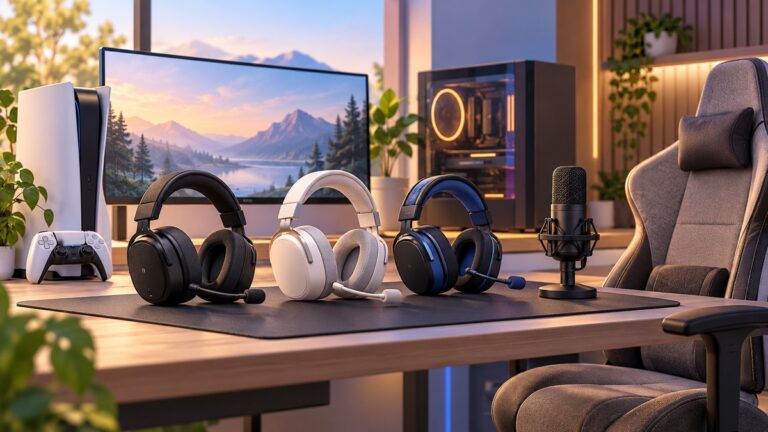
No. Microsoft’s spatial-sound platform supports any pair of headphones, and Crytek specifically recommends stereo headphones for CrySpatial. Hardware with extra drivers or a “7.1” label is optional; comfort, a consistent fit and a clean connection are more important prerequisites for reliable positional judgment.
Recommended Free Tools
What is a practical graphics-and-audio baseline?
Use this starting profile, then tune the costly options for your hardware and the individual game.
| Area | Starting choice | When to change it |
|---|---|---|
| Output resolution | Native or another resolution explicitly supported by the display | Use the game’s upscaler if native resolution cannot hold stable frame times |
| Preset | Medium or High with a stable frame rate | Raise quality after checking dark-scene motion and frame pacing |
| Textures | High if video memory permits | Lower when room-to-room streaming stutters or textures pop in |
| Shadows and volumetrics | High, then reduce the most expensive one | Lower if fog, smoke or shadow-heavy rooms cause hitching |
| Ray tracing/path tracing | Off for the baseline | Enable one feature when its lighting or reflection benefit is clear |
| Upscaling | Quality, or Balanced when needed for performance | Change mode when shimmer, ghosting or softness hides detail |
| HDR | On only with a compatible display and completed calibration | Compare against SDR if highlights clip or blacks lose detail |
| Refresh and VRR | Highest supported refresh rate; VRR when available | Use a cap or V-Sync if tearing persists |
| Audio output | Headphones or Stereo as the game specifies | Use one spatial renderer, not stacked processing |
How should I tune settings for specific horror games?
Use the game’s documented feature names and hardware requirements as the boundary for your choices. Do not copy a preset from a benchmark or vendor guide without checking the title, resolution and GPU assumptions attached to it.
Alan Wake 2
Use NVIDIA’s low, medium and high ray-tracing labels as a title-specific starting point. At 1080p, NVIDIA lists DLSS Quality; at 1440p, Quality or Balanced; and at 4K, Performance. Check the game’s own image quality while moving through foliage, rain and flashlight-lit interiors, because reconstruction artifacts can be more distracting than a lower ray-tracing tier.
Resident Evil Requiem
Path tracing, DLSS Ray Reconstruction, Multi Frame Generation on supported GPUs and Reflex form a feature combination specific to this title. Enable only the features your GPU, driver and game version expose, and assess latency separately from the displayed frame rate. NVIDIA’s 46% Reflex latency-reduction figure is its claim for Resident Evil Requiem, not a universal expectation.
PC Slower Than It Used to Be?
A free scan shows the junk files, broken settings and background clutter dragging Windows down - then fixes them in one click.Free scan · Windows 10 & 11Outdated Drivers Are Slowing You Down
One free scan finds every outdated or missing driver and matches the right update for your exact hardware.Free scan · exact hardware matchHunt: Showdown 1896
For CrySpatial, use stereo headphones, choose Headphones, enable CrySpatial and disable other virtual-surround enhancements, following Crytek’s developer guidance. If you choose a Windows spatial format instead, compare it with the game’s mode rather than enabling both.
What common problems should I troubleshoot?
The game is smooth in menus but stutters in dark areas
- Lower volumetric effects, shadows or ray-traced lighting one step at a time.
- Check video-memory use and texture streaming before lowering resolution.
- Test a frame cap that keeps frame times inside the display’s VRR range.
- Recheck the upscaler for shader compilation stutter, ghosting or unstable foliage.
The image tears or feels uneven
- Verify the selected refresh rate in Windows Advanced display.
- Confirm that the monitor’s VRR mode and the game’s window mode are compatible.
- Try the game’s V-Sync or a conservative frame cap; there is no setting that is optimal for every display.
- Do not infer responsiveness from generated frames alone; evaluate input latency during camera turns and aiming.
Footsteps sound wide but directions are unclear
- Disable extra headset surround processing.
- Check that Windows is outputting to the intended headphones rather than a monitor or controller.
- Use the game’s Headphones, Stereo or binaural option exactly as documented.
- Compare one renderer at a time with a repeatable movement cue.
HDR looks gray or clips bright lights
- Run Windows HDR Calibration again with HDR enabled.
- Check the display’s HDR picture mode and signal range.
- Compare native HDR, Auto HDR and SDR in the same scene.
- Disable Auto SR when using HDR, because Microsoft currently lists Auto SR as unsupported for HDR content.
How should I decide whether an upgrade is necessary?
Buy hardware only to solve a demonstrated limitation. A compatible HDR gaming monitor matters if your current display cannot show HDR correctly; a VRR gaming monitor matters if tearing and uneven frame delivery remain after sensible caps; and a ray-tracing-capable graphics card matters only if the lighting features you want justify the cost and performance trade-off. Comfortable stereo gaming headphones for PC are enough for the spatial-audio paths described above, so a branded multichannel headset is not a prerequisite.
Also popular on Amazon

- Spacious Design: Measuring 21.1" wide and 12" deep, our lap desk comfortably fits most laptops up to 15.6". Extra room for accessories ensures convenience.
- Enhanced Functionality: Packed with handy features, including a 5x9" precision tracking mouse pad and a built-in phone slot for seamless work or video calls. Plus, enjoy laptop support with the integrated device ledge.
- Cool Comfort: Enjoy a stable surface with our lap desk's dual bolster cushion, designed for comfort and airflow, keeping your lap cool during extended use.
- Durable Surface: Work with confidence on our lap desk's solid surface, featuring a blush pink color, ensuring optimal air circulation to prevent your laptop from overheating.
- On-the-Go Convenience: With an integrated handle and lightweight design (2.14 lbs), our lap desk is portable for travel or moving around the house, offering flexibility in any space.
Before upgrading, confirm the game’s feature support, your display connection, available refresh rates, GPU memory and the Windows version involved. Patches and menu labels can change, and a title’s recommended mode may be revised by its developer or hardware vendor.
How we selected these recommendations
The guidance prioritizes readable shadow detail, stable frame delivery, supported display features, game-specific compatibility and accurate directional audio. It uses Microsoft’s Windows HDR, refresh-rate and spatial-sound documentation, Crytek’s explicit Hunt: Showdown 1896 instructions, and NVIDIA’s recommendations and claims for the named games. It does not assume one preset, gamma value, equalizer curve or headset works across all horror games.
Frequently Asked Questions
Can I use HDR and ray tracing at the same time in a horror game?
Usually, yes, when the game, GPU and display support both features, but each adds its own performance and image-quality trade-offs. Calibrate HDR first, then enable ray-traced effects one at a time so you can tell whether a lighting improvement is worth the resulting frame-time change.
Why does my horror game look darker after switching to borderless mode?
Borderless mode can change which Windows display pipeline and HDR or Auto HDR path the game uses. Recheck the selected display, Windows HDR state, the game’s HDR toggle and its brightness controls, then compare exclusive fullscreen and borderless modes if both are available.
Should I use an equalizer to hear footsteps better?
An equalizer changes tonal balance but cannot correct a duplicated or conflicting spatial renderer. First establish the correct headphone output and one spatial path; only then make small EQ changes if the game’s mix or your headphones consistently mask important frequencies.
Does VRR replace a frame-rate cap?
No. VRR can synchronize display refresh to changing output within its supported range, while a cap can keep frame times from running into the display’s ceiling. The useful combination depends on the monitor, game and driver, so check for tearing and pacing during actual play.
Quick Recap
Product prices and availability are accurate as of the date/time indicated and are subject to change. Any price and availability information displayed on Amazon at the time of purchase will apply.