If hpbf201i.dll is missing, Windows is usually trying to load an old HP LaserJet 1100 printer component that is damaged, removed, or incompatible with the current system. Before changing anything, identify which program shows the error and whether it appears during printing, startup, or printer installation.
Use this checklist first:
- Note the name of the program or utility displaying the message.
- Check whether the HP LaserJet 1100 is still installed.
- Identify whether Windows is 32-bit or 64-bit.
- Think back to whether the problem began after uninstalling a printer, updating Windows, restoring an old system image, installing HP software, or an antivirus detection.
- Check whether the error appears only when an old HP utility starts.
The safest solution is to repair or reinstall the complete HP printer package. Do not download hpbf201i.dll by itself and place it in System32.
As an Amazon Associate I earn from qualifying purchases.
What is hpbf201i.dll?
hpbf201i.dll is a legacy Hewlett-Packard printer-driver file associated with the HP LaserJet 1100 Printer series. It is not a Windows system DLL, Microsoft Visual C++ runtime, DirectX component, or .NET library.
Available file metadata identifies it as a Win32, 32-bit driver component. That means the file belongs to the older HP printing software rather than to the 64-bit Windows operating system itself. A 32-bit application or print component can still need a 32-bit DLL on 64-bit Windows, but copying the file into a Windows folder does not correctly install its driver dependencies.
#1 Best Overall

- HP Toner is engineered to work with HP printers to provide consistent quality, reliability and value
- Works with these HP Printers: LaserJet M234sdw,M234dw,M234dwe,M234sdwe,M209dw,M235sdw,M235dwe,M209dwe,M209d,M207dw
- Cartridge yield (approx.): 1,100 pages
- Use HP Toner Cartridges to eliminate toner leaks and premature failures
- Help protect your printer from malicious code and maintain the integrity of your data with HP's tamper-resistant chips, firmware and packaging
The file may be loaded by:
- An HP LaserJet 1100 setup program
- An older HP printer utility
- Print-management software
- A legacy application that invokes the printer driver
- An obsolete startup or printer entry
Typical messages include:
- “This application failed to start because hpbf201i.dll was not found.”
- “The file hpbf201i.dll is missing or corrupted.”
- “Error loading hpbf201i.dll. The specified module could not be found.”
- “The program can’t start because hpbf201i.dll is missing from your computer.”
These are generic loader messages. They do not prove that the DLL itself is the only damaged component. “The specified module could not be found” can also mean that a dependency used by the DLL is missing.
Fix 1: Reinstall the complete HP LaserJet 1100 driver
This is the most likely fix when the message appears during printing or HP printer setup.
Remove the current printer
- Press Windows + I to open Settings.
- Select Bluetooth & devices.
- Select Printers & scanners.
- Select the HP LaserJet 1100.
- Select Remove and confirm.
- Disconnect the printer’s USB cable if it is connected.
- Restart Windows.
On Windows 10, open Settings > Devices > Printers & scanners, select the printer, and choose Remove device.
Remove the old driver package
Removing the printer does not always remove its driver files.
- Press Windows + R.
- Type
printui /s /t2. - Press Enter.
- Open the Drivers tab.
- Select the HP LaserJet 1100 driver if it is listed.
- Select Remove.
- Choose Remove driver and driver package when Windows offers that option.
- Restart the computer.
If the driver is not listed, do not delete unrelated HP or Microsoft drivers. The missing file may instead be referenced by an old utility or startup entry.
Install from an official source
Use HP’s official LaserJet 1100 support page and select the driver for the operating system and architecture actually installed on the computer. HP’s current support page exposes older Windows choices for this product, including Windows 2000, XP, and Vista. That is an important compatibility warning for Windows 10 and Windows 11.
If HP does not offer a package for the current Windows release:
The Tool Desk
Outbyte PC Repair FREERepair Windows errors before they cause bigger problemsFix Now →Outbyte Driver Updater FREEScan for outdated or missing drivers - takes under a minuteDriver Scan →- Open Settings.
- Select Windows Update.
- Select Advanced options.
- Select Optional updates.
- Expand Driver updates.
- Install a compatible HP printer driver if one is offered.
- Restart Windows.
- Return to Printers & scanners and select Add device.
You can also search Microsoft’s Update Catalog for HP LaserJet 1100 drivers. The catalog contains related legacy HP entries, but the presence of an entry does not guarantee that every package contains hpbf201i.dll.
If Windows cannot install the original driver, try the built-in compatible printer-driver selection:
- Open Settings > Bluetooth & devices > Printers & scanners.
- Select Add device.
- Select Add manually if the printer is not found.
- Choose Add a local printer or network printer with manual settings.
- Select the appropriate USB or existing port.
- Choose Windows Update in the manufacturer and model list.
- Select an available compatible HP LaserJet driver.
- Print a test page.
Confirm the result
The repair worked if:
- The HP setup program completes without the DLL message.
- The printer appears without a warning icon.
- A test page prints.
- The old HP utility opens without requesting
hpbf201i.dll. - The error does not return after restarting Windows.
If the installer fails on Windows 10 or 11, that may be a legacy-driver compatibility problem rather than a missing file. Older print drivers can fail because of architecture, driver-signing, or print-spooler restrictions.
Outbyte Driver Updater can reduce the manual work of hunting through driver versions and guessing which device package is stale. Its free scan shows detected driver problems, while repair and driver installation require the full version; reinstalling the complete HP package remains the definitive fix for this specific printer file.
Windows Errors? Fix Them Before They Spread
Repair common Windows errors and clear accumulated junk for a smoother, more stable PC - no reinstall needed.Free scan · no reinstallCrashes, No Sound, or Screen Glitches?
Random freezes, missing sound and display glitches usually trace back to one bad driver. Find and replace yours safely.Free scan · under a minuteFix 2: Check whether Windows is 32-bit or 64-bit
The available metadata identifies hpbf201i.dll as a 32-bit component. Confirm the operating system architecture before installing a replacement driver.
- Press Windows + I.
- Select System.
- Select About.
- Find System type.
You may see:
- 32-bit operating system, x86-based processor
- 64-bit operating system, x64-based processor
- 64-bit operating system, ARM-based processor
A 32-bit printer component can be used by a 32-bit application on 64-bit Windows, but the driver package must support that arrangement. Do not assume that a file labeled “x64” on a third-party page is a valid replacement. Conflicting labels do not verify the actual PE architecture of the file.
Do not copy the DLL into either C:WindowsSystem32 or C:WindowsSysWOW64. On 64-bit Windows, System32 normally contains 64-bit system binaries and SysWOW64 contains 32-bit Windows components. Neither directory is a general-purpose storage location for old printer-driver files.
Fix 3: Check Windows Security quarantine
An antivirus scan may have removed a printer component, although there is no authoritative evidence that this is a common cause for this particular file.
Quick wins for a faster PC:
Scan for outdated or missing drivers - takes under a minuteDriver Scan →Repair Windows errors before they cause bigger problemsFix Now →Rank #2

- HP Toner Cartridges are engineered to work with HP printers to provide consistent quality, reliability and value
- Works with these HP Printers: Color LaserJet Pro 3301fdw,3301sdw,3201dw,3301cdw
- Cartridge yield (approx.): 3,200 pages
- Use HP Toner Cartridges for HP LaserJet printers, including HP 218 Toner Cartridges, to help eliminate toner leaks and reduce the risk of premature failures.
- HP 218X Toner Cartridges help protect your HP laser printers from malicious code and maintain the integrity of your data with tamper-resistant chips, firmware and packaging
- Open Start.
- Type Windows Security.
- Open the app.
- Select Virus & threat protection.
- Select Protection history.
- Review recent detections.
- Expand a detection related to the HP package.
- Check the file path and detection details.
Only restore or allow the file if all of the following are true:
- It came from an official HP installation package.
- The package was downloaded from HP or Microsoft.
- The file path belongs to the printer installation.
- The package can be verified as legitimate.
Do not disable antivirus protection to install an isolated DLL. If the original package was quarantined, download the complete driver again from an official source, scan it, and reinstall it.
If Protection history shows that a different file was removed, the quarantine may not explain the hpbf201i.dll message. Continue with the driver cleanup and compatibility checks.
Fix 4: Repair Windows components with DISM and SFC
Use these commands when the computer has other Windows problems, such as damaged built-in apps, update failures, unexplained crashes, or multiple missing system files. They repair Windows itself, not the HP third-party driver.
What’s actually slowing this PC down?
Pick the symptom - the matching free tool is one click away.
Run DISM
- Open Start.
- Type Command Prompt.
- Right-click Command Prompt.
- Select Run as administrator.
- Select Yes at the User Account Control prompt.
- Enter:
DISM.exe /Online /Cleanup-Image /RestoreHealth
- Press Enter.
- Wait for the operation to finish.
- Restart the computer.
Run System File Checker
After restarting:
- Open Command Prompt as administrator again.
- Enter:
sfc /scannow
- Press Enter.
- Wait until verification reaches 100 percent.
- Restart Windows again.
A useful result is a message saying that Windows Resource Protection found corrupt files and repaired them. If SFC reports that it could not repair some files, run DISM again, restart, and repeat SFC once.
These commands generally will not recreate hpbf201i.dll, because it is an HP printer-driver file rather than a protected Windows system file.
If repeatedly running SFC and DISM is becoming guesswork, Outbyte PC Repair can show detected Windows problems in a scan. Its free scan identifies issues, while repair requires the full version, and it should not replace reinstalling the HP driver when the missing file belongs to that package.
Fix 5: Check the Print and Document Services features
A disabled print feature can prevent old printer software from working correctly.
- Press Windows + R.
- Type
optionalfeatures. - Press Enter.
- Expand Print and Document Services.
- Make sure Internet Printing Client and LPD Print Service are enabled only if your printer setup requires them.
- Leave unrelated features unchanged.
- Select OK.
- Restart Windows.
For a normal USB HP LaserJet 1100 installation, enabling every optional printing feature is not automatically helpful. If the installer specifically requests a Windows feature, enable only the feature it names.
Also check the Print Spooler:
- Press Windows + R.
- Type
services.msc. - Press Enter.
- Find Print Spooler.
- Confirm that its status is Running.
- Double-click it if necessary.
- Set Startup type to Automatic.
- Select Start or Restart.
- Select Apply, then OK.
Try printing again. If hpbf201i.dll still appears, the spooler service is probably not the underlying cause.
Fix 6: Remove stale printer and startup references
If the HP printer was removed years ago but the error appears whenever Windows starts, a stale reference may still be calling the old DLL.
First check startup applications:
- Press Ctrl + Shift + Esc.
- Select Startup apps.
- Look for an old HP printer utility.
- Select it.
- Select Disable.
- Restart Windows.
Then check installed applications:
- Open Settings.
- Select Apps.
- Select Installed apps.
- Search for HP LaserJet or old HP printer utilities.
- Select the relevant entry.
- Select Uninstall.
- Restart Windows.
If the printer is still needed, do not remove the current HP software. Remove only clearly obsolete entries, then reinstall the complete supported package.
Do these 3 things before closing this tab:
1Scan for outdated or missing drivers - takes under a minute2Repair Windows errors before they cause bigger problems3Fix the driver behind crashes, sound loss and screen glitchesFor a device that is no longer connected:
- Right-click Start.
- Select Device Manager.
- Select View.
- Select Show hidden devices.
- Expand Printers, Print queues, and Universal Serial Bus controllers.
- Right-click an obsolete HP LaserJet entry.
- Select Uninstall device.
- Select Attempt to remove the driver for this device if Windows displays that option.
- Restart the computer.
Do not remove a generic Microsoft print component merely because it is old. If you are uncertain which entry belongs to the LaserJet 1100, leave it installed and use the HP package’s uninstall process instead.
Independent reader supportYour contribution helps us test, update, and keep practical guides available for everyone.Fix 7: Do not register the DLL with regsvr32
A common suggestion is:
regsvr32 hpbf201i.dll
That is not a universal repair command. regsvr32 is intended for DLLs that expose registration entry points such as DllRegisterServer. A printer-driver component may be loaded by the print subsystem and may not be a self-registering COM DLL.
Using regsvr32 can produce another error, including a message that the entry point was not found. That does not mean the DLL needs to be downloaded again.
Rank #3
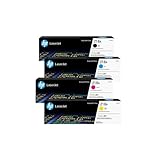
- INCLUDES 4 STANDARD-YIELD CARTRIDGES: Black (W2180A), Cyan (W2181A), Magenta (W2183A), Yellow (W2182A) for sharp text and vibrant color prints.
- COMPATIBLE HP PRINTERS: Works with HP Color LaserJet Pro 3201dw; Color LaserJet Pro MFP 3301fdw, 3301sdw, 3301cdw Series.
- PAGE YIELD: Black cartridge prints up to ~1,300 pages; each color cartridge prints up to ~1,200 pages (ISO/IEC standards).
- RELIABLE PERFORMANCE: Original HP toner prevents leaks, reduces premature failures, and ensures consistent, professional-quality results.
- SECURITY & SUSTAINABILITY: Tamper-resistant chips protect against malicious code; cartridges meet eco-label emissions guidelines and contain recycled content.
Only register this file if an official HP installation instruction explicitly tells you to do so. Otherwise, install the complete printer package and let its installer place and configure the driver files.
Recommended Free Tools
Fix 8: Use System Restore after a recent system change
System Restore may help if the error began immediately after a driver installation, software removal, Windows change, or system-image restoration.
- Press Windows + R.
- Type
rstrui.exe. - Press Enter.
- Select Next.
- Choose a restore point created before the error began.
- Select Scan for affected programs if available.
- Review the programs and drivers that may be removed.
- Select Next.
- Select Finish.
- Allow Windows to restart.
System Restore changes system files, registry settings, drivers, and installed programs while preserving personal files. It does not guarantee that an unsupported HP LaserJet driver will work on Windows 10 or Windows 11. If the problem returns after restoration, use the current driver-support path instead.
What to do when the error remains
If reinstalling the driver does not help, identify the program that is actually requesting the DLL.
Check:
- Event Viewer for application or print-service errors
- Reliability Monitor for the first appearance of the failure
- Task Manager > Startup apps for old HP utilities
- The exact application named in the popup
- The printer queue and Print Spooler status
The error may be caused by a stale registry or startup entry even when the printer itself has been removed. It may also come from an older application that expects a Windows XP-era driver.
Free tools Windows power users keep installed
One-click scans. No signup required.
If HP provides no driver for your edition and architecture of Windows, treat that as a support limitation. Do not copy hpbf201i.dll from an XP installation or another HP printer model into the current system. A separate older Windows computer or virtual machine may be necessary for the legacy software, subject to the hardware and software licensing involved.
Frequently asked questions
Is hpbf201i.dll a Windows file?
No. It is associated with the Hewlett-Packard LaserJet 1100 printer driver and is not a standard Windows system component.
Is hpbf201i.dll safe?
The filename is associated with legitimate HP printer software, but a filename alone does not prove that a copy is authentic. Use a complete package from HP or Microsoft, and inspect antivirus detections and file properties before allowing a quarantined copy.
Can I download hpbf201i.dll separately?
You should not. An isolated DLL may be malicious, have the wrong architecture, lack dependencies, or belong to a different driver revision. Reinstall the complete HP driver package instead.
Should I put it in System32?
No. System32 is not a general DLL repair folder, and placing a 32-bit third-party printer file there can create further version and architecture problems.
Will Visual C++ Redistributable fix this error?
No targeted evidence connects hpbf201i.dll with the Visual C++ runtime. The file belongs to the HP LaserJet 1100 driver package.
Will Windows 11 support the HP LaserJet 1100?
That depends on the exact driver, Windows edition, architecture, and installation path. HP’s current support choices are legacy Windows versions, so compatibility with Windows 10 or Windows 11 should not be assumed.
Why does the message say that a module could not be found when the DLL exists?
The DLL may be present while one of its dependencies is missing, the application may be loading the wrong architecture, or an old configuration may point to an invalid installation path.
Do these 3 things before closing this tab:
1Repair Windows errors before they cause bigger problems2Scan for outdated or missing drivers - takes under a minute3Clear out junk files and repair common Windows errorsWhat is the correct fix if the printer has already been removed?
Uninstall the obsolete HP software and remove the stale printer or startup entry. If the error continues, use Reliability Monitor or Event Viewer to identify the program still requesting the file.
Quick Recap
Product prices and availability are accurate as of the date/time indicated and are subject to change. Any price and availability information displayed on Amazon at the time of purchase will apply.




