ithea.dll is missing or cannot be loaded because an application cannot find part of its ACTiKEY/iTHEA licensing setup. ithea.dll is not a Windows system file or Microsoft runtime, so downloading a replacement DLL is usually the wrong repair.
Start with this diagnostic checklist
Before changing Windows, identify:
- Which program shows the error: note the application name and the executable mentioned in the message.
- When it started: after reinstalling, updating, moving the program to another PC, connecting a USB license key, or antivirus activity.
- How the license is provided: USB key, parallel-port key, local service, license server, or network client.
- Where the file should come from: the original application installer or its publisher, not a random DLL repository.
- Application architecture: a 32-bit application needs its matching 32-bit licensing component, even on 64-bit Windows.
ACTiKEY describes iTHEA as a Windows protection system used with hardware license keys containing their own operating system and memory. The exact application that installed ithea.dll cannot be determined from the filename alone.
As an Amazon Associate I earn from qualifying purchases.
Fix 1: Repair or reinstall the application that reports the error
This is the most likely solution. The DLL normally belongs with the complete protected application, its license service, and its key driver.
Quick wins for a faster PC:
Repair Windows errors before they cause bigger problemsFix Now →Scan for outdated or missing drivers - takes under a minuteDriver Scan →Clear out junk files and repair common Windows errorsFree Scan →If the application has a repair option
- Press Windows + I to open Settings.
- Select Apps.
- Open Installed apps on Windows 11, or Apps & features on Windows 10.
- Find the program that displays the
ithea.dllerror. - Select the three-dot menu, then choose Advanced options if available.
- Select Repair and allow Windows to finish.
- Restart Windows and open the application again.
If no repair option exists, use the program’s original installer:
#1 Best Overall
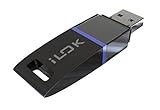
- USB Key for Storing Authorizations
- Portable
- Can Hold Over 500 Authorizations
- Immune from Updates and Crashes
- USB Key for Storing Authorizations
- Close the affected application.
- Back up its settings or project files if the vendor recommends doing so.
- Open Settings → Apps → Installed apps.
- Select the application and choose Uninstall.
- Restart the computer.
- Install the application again from the original publisher or your organization’s approved software source.
- During setup, look for components named Actikey, iTHEA, Protection, License, or Drivers.
- Complete the installation before connecting a USB protection key if the application’s instructions require that order.
- Restart Windows and test the program.
A successful repair normally allows the protected program to start without the DLL message and lets it detect its license key. If the program still fails, search its installation directory for an Ithea, Actikey, Protection, or Drivers folder. Some documented iTHEA installations place setup_ithea.exe in the application’s exe subfolder. Run that installer only when it came with the application or was supplied by its publisher.
Do not copy ithea.dll into C:WindowsSystem32 or C:WindowsSysWOW64 as a default fix. The application may require a particular build in its own directory alongside a service and other licensing files.
Fix 2: Install the complete iTHEA key driver package
If the error appears when you connect a hardware license key, the missing item may be the driver or licensing service rather than the DLL itself.
The Tool Desk
Outbyte PC Repair FREERepair Windows errors before they cause bigger problemsFix Now →Outbyte Driver Updater FREEScan for outdated or missing drivers - takes under a minuteDriver Scan →Install the driver in the correct order
- Disconnect the iTHEA USB key.
- Close the protected application.
- Open the application’s installation folder in File Explorer.
- Check the
exe,Drivers,Protection, orItheafolders. - Run the vendor-supplied
setup_ithea.exe, if present. - Right-click the installer and select Run as administrator.
- Follow the setup wizard.
- Restart Windows if requested.
- Connect the USB key only after the driver installation finishes.
- Start the licensed application.
To check whether Windows recognizes the device:
- Right-click Start and choose Device Manager.
- Expand Universal Serial Bus controllers, Security devices, and Other devices.
- Look for an unknown device, a warning icon, or an entry associated with the license key.
- Right-click the relevant entry and choose Update driver.
- Select Search automatically for drivers when using a package already provided through the application’s official setup.
- If the device remains unknown, uninstall the device from Device Manager, disconnect it, restart Windows, and rerun the official driver installer.
A driver package for another product or another iTHEA-based application may not contain the correct DLL, service, or configuration. Get the current package from the protected application’s publisher or ACTiKEY support. Do not substitute an uppercase ITHEA.dll from an unrelated application directory.
Manually checking hardware IDs, driver dates, and architecture can take time, especially when several devices appear in Device Manager. Outbyte Driver Updater can scan for outdated drivers and identify what needs attention; its free scan shows the findings, while driver installation through the full version is optional. Reinstalling the protected application remains the definitive fix when its own licensing files are missing.
Fix 3: Check whether antivirus quarantined the file
Security software can remove or quarantine a licensing component. Do not restore the file blindly because a genuine file and a modified replacement can have the same filename.
Check Windows Security
- Open Start and search for Windows Security.
- Select Virus & threat protection.
- Under Current threats, select Protection history.
- Look for an event involving
ithea.dllor the protected application. - Open the event and record the original path, detection name, and action taken.
- Confirm that the installer came from the application’s original publisher.
- Verify the file’s path and digital signature with the software vendor before restoring it.
- If the vendor confirms the file is genuine, follow the Windows Security prompt to restore or allow it.
- Reinstall the complete application if the file was removed from a larger installation.
Microsoft’s instructions for reviewing quarantined items are available in Protection history.
Rank #2

- If you have any questions, please feel free to contact us.
- Please check your model to ensure the product fits your machine.
- Highly practical and easy to install.
- 100% brand new and high quality.
- Highly reliable and highly compatible with original equipment.
If antivirus repeatedly removes the file, contact the application publisher before adding an exclusion. An exclusion weakens protection and should not be used to permit an unverified DLL.
Fix 4: Check local, server, and network licensing
iTHEA deployments can use a local workstation license, a license server, or a network client. A file that exists on disk can still fail when the licensing service or network connection is unavailable.
Ask the application administrator which mode is configured.
For a local license
- Confirm that the hardware key is connected.
- Check Device Manager for a driver warning.
- Restart Windows so the licensing service starts again.
- Open the application’s installation folder and rerun its official iTHEA setup if the service is missing.
- Test the application from the same Windows account that normally uses the license.
For a license server or network client
- Confirm that the license server is powered on and connected to the network.
- Check the server name or address in the application’s license settings.
- Verify that the licensing service is running on the server.
- Check Windows Firewall on the server and client.
- Where the application documentation specifies it, allow the required TCP connection on port 1331.
- Retry the application from the client computer.
Do not open a port broadly to the internet. The correct firewall scope depends on the application’s network design and your administrator’s policy.
PC Slower Than It Used to Be?
A free scan shows the junk files, broken settings and background clutter dragging Windows down - then fixes them in one click.Free scan · Windows 10 & 11Crashes, No Sound, or Screen Glitches?
Random freezes, missing sound and display glitches usually trace back to one bad driver. Find and replace yours safely.Free scan · under a minuteIf the error occurs only on one client, reinstall the client’s complete licensing package. If every client fails, investigate the server service and firewall before replacing local files.
Fix 5: Check 32-bit and 64-bit compatibility
Public file records describe ithea.dll as a 32-bit component, but those records are identification clues rather than an authoritative current ACTiKEY specification.
Rank #3

- Model-Specific Software Compatibility: InkSonic InkRIP software is designed for specific printer models to ensure proper compatibility and optimized performance. InkRIP v1.0 supports C13/E13/L8/L13, InkRIP v2.0 supports U13/U13D/VF13, and InkRIP Advanced supports C13A/E13A/H13.
- Stable & Efficient Printing Workflow: Built for daily DTF production, InkRIP software delivers stable data processing, smooth operation, reliable color performance, and consistent output for long-term use.
- Easy to Learn & Use: Selected InkRIP versions feature a lightweight, responsive, and beginner-friendly interface, making setup and daily operation easier for both new users and experienced operators.
- dvanced Printing Functions: Depending on the software version, features may include automatic layout optimization, ink-saving mode, intelligent printing automation, feathered layout, breathable hole printing, 0.1 mm margin control, and high-speed processing.
- Plug-and-Play USB Activation: Supports convenient USB activation with no repeated license entry required. Please select the correct software version for your InkSonic printer model before purchase.
A 64-bit version of Windows can run a 32-bit application through Windows compatibility layers. That does not mean a 64-bit DLL can replace the application’s required 32-bit component.
Use the original application installer to restore the matching files. Do not download a similarly named DLL or copy a file from another computer unless the application publisher explicitly provides that procedure.
If the message says the file is “not designed to run on Windows” or contains an error, treat it as a possible architecture mismatch, damaged installation, or missing dependency. Reinstall the complete program rather than replacing only the named file.
Fix 6: Repair Windows components only as a secondary step
ithea.dll is a third-party application component, not a protected Windows DLL. DISM and SFC will not normally download it or recreate the ACTiKEY licensing service. They are relevant when other Windows components are also malfunctioning.
First install pending updates:
- Open Settings.
- Select Windows Update.
- Choose Check for updates.
- Install available updates.
- Restart Windows.
Then run DISM and SFC:
- Open Start and search for Command Prompt.
- Right-click it and choose Run as administrator.
- Run:
DISM.exe /Online /Cleanup-Image /RestoreHealth
- Wait for it to complete.
- Run:
sfc /scannow
- Restart Windows.
- Test the protected application again.
Microsoft documents this order in its System File Checker guidance.
Repeating SFC and DISM without knowing which component changed can waste time. Outbyte PC Repair can scan for Windows issues and show what needs attention; its free scan identifies findings, while repair through the full version is optional. For this file, reinstalling the application and its official license package remains the definitive repair.
Recommended Free Tools
Fix 7: Use System Restore after a recent change
Use System Restore when ithea.dll worked previously and the failure began immediately after a driver, application, registry, or system change.
Rank #4
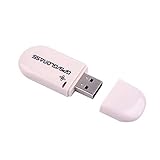
- Works with Windows,Andorid,Linux,Raspberry pi.Support Google Earth.It can not work with IOS system
- Windows and Andorid need driver, Raspberry pi and linux no need driver
- The default output is the product GPs protocol data. You can test the software or serial commands to modify switch PS / GLONASS protocol data
- Note: This dongle only can work outdoor. If you want to let it work indoor, you need have GPS amplifier. Otherwise the GPS can not lock
- If you need some driver links and using videos for VK-172,Please contact us
- Press Windows + R.
- Enter:
rstrui.exe
- Press Enter.
- Select Next.
- Choose a restore point from before the problem began.
- Select Scan for affected programs if available.
- Confirm the restore point and select Finish.
- Let Windows restart and complete the operation.
System Restore does not remove personal files, but it can reverse recently installed applications and drivers. Microsoft explains the process in its System Restore instructions.
Independent reader supportYour contribution helps us test, update, and keep practical guides available for everyone.Why regsvr32 usually does not help
Do not run regsvr32 ithea.dll as a generic missing-DLL repair. regsvr32 is intended for DLLs that expose registration entry points such as DllRegisterServer. A licensing DLL does not become usable merely because it was registered.
If the application publisher specifically instructs you to register its component, use the exact command and file path supplied for that product. Otherwise, repair the complete installation. Microsoft describes the command’s purpose and behavior in its regsvr32 documentation.
Why random DLL downloads are unsafe
A standalone download may be:
- the wrong architecture;
- an incompatible build;
- altered or unsigned;
- missing related services and dependencies;
- placed in the wrong directory;
- a component from an unrelated product with a similar name.
It can also conceal malware. The safe source is the original protected application’s installer, its publisher’s support channel, or an ACTiKEY package explicitly supplied for that application. ACTiKEY’s public product information does not establish a universal standalone ithea.dll download.
What to send the application vendor
Escalate with:
- the exact error text;
- the name and path of the executable showing it;
- the application version, if displayed by the program;
- whether the license is USB, local, server-based, or network-based;
- whether the issue affects one computer or several;
- the original installer source;
- antivirus Protection history details;
- Device Manager findings;
- whether
setup_ithea.exeexists in the installation folder; - results from repairing or reinstalling the complete application.
Do not send a DLL copied from an unrelated computer unless the vendor requests it.
FAQ
Is ithea.dll part of Windows?
No. It is associated with ACTiKEY FRANCE’s iTHEA software-protection system and the application that installed the licensing components.
Best Value

- VK-172 USB GPS Dongle Receiver: Compatible with for GPS/GLONASS positioning system
- Automatic baud rate adaptation: can automatically adapt to the baud rate, and automatically adjust to the appropriate baud rate when any data is output, without the need for users to manually set it frequently
- High-precision positioning: using advanced hardware design and software algorithms, the 2D plane positioning accuracy can reach about 3.5-5m, which can meet a variety of positioning needs
- Compatible with for Windows, Android, Linux, Raspberry PI and Google Earth, not for IOS systems.
- Compatible with for UBlox software: See the picture
Can I fix the error by downloading ithea.dll?
That is not a safe or reliable repair. Restore the complete application and its iTHEA package from the original publisher.
Why does the error appear after connecting a USB key?
The driver or licensing service may not be installed, or the key may have been connected before the vendor’s setup completed. Disconnect it, install the official package, restart Windows, and reconnect it afterward.
What if the DLL exists but Windows still says it is missing?
“Specified module could not be found” can indicate a missing dependency, incompatible architecture, or unavailable licensing service. Reinstall the complete application and check its local or network license configuration.
Should I use SFC or DISM?
Only as a secondary Windows-repair step, especially when other Windows components are failing. These commands do not directly restore a third-party ACTiKEY DLL.
What is the correct first action?
Identify the program producing the message, then repair or reinstall that program with its complete ACTiKEY/iTHEA licensing package.
Do these 3 things before closing this tab:
1Repair Windows errors before they cause bigger problems2Fix the driver behind crashes, sound loss and screen glitches3Clear out junk files and repair common Windows errorsQuick Recap
Product prices and availability are accurate as of the date/time indicated and are subject to change. Any price and availability information displayed on Amazon at the time of purchase will apply.




