
Some links on this page are affiliate links: if you buy through them we may earn a commission, at no extra cost to you.
If Windows or an IDE reports that jlinkarm.dll (also written JLinkARM.dll) is missing, reinstall the latest official SEGGER J-Link Software and Documentation Pack for your Windows architecture. SEGGER identifies deleted or renamed installation files and damaged registry paths as common causes. The installer can restore the shared library, and its DLL Updater can refresh an IDE’s private copy.
Do not download a standalone DLL from a random mirror. First identify whether the message names JLinkARM.dll itself, a Microsoft runtime such as VCRUNTIME140_1.dll or MSVCP140.dll, or a separate Windows component. Those messages require different repairs.
As an Amazon Associate I earn from qualifying purchases.
Free tools Windows power users keep installed
One-click scans. No signup required.
What is JLinkARM.dll, and why does Windows say it is missing?
JLinkARM.dll is a Windows library supplied with SEGGER’s J-Link software. Programs use it to communicate with J-Link debug probes and related tools. Error dialogs may show the lowercase spelling jlinkarm.dll; Windows file names are case-insensitive, so capitalization does not indicate a different file.
Some applications load the newest shared DLL from the SEGGER installation path recorded in Windows, while others ship a private copy inside the application or IDE directory. That distinction explains why one program can fail while another still starts. A successful launch in J-Link Commander does not automatically mean every IDE is using the same file.
Popular on Amazon

- COMPATIBILITY: Designed for use with SEGGER J-Link debug probes, J-Trace superspeed trace probes, and SEGGER Flasher production programming units.
- CONNECTOR TYPE: Features a standard 0.1-inch pitch 20-pin IDC connector, ensuring secure and reliable connections for debugging and programming tasks.
- CABLE LENGTH: Measures approximately 7 inches (18 cm) in length, providing convenient reach between connected devices during development.
- RIBBON CABLE DESIGN: Flat ribbon cable construction keeps wiring organized and manageable in tight workspaces and development environments.
- JTAG INTERFACE: Supports the standard JTAG interface protocol, making it suitable for embedded system debugging and firmware programming applications.
Common causes include:
- The SEGGER installation directory was deleted, renamed, moved, or partially overwritten.
- The file itself was renamed, quarantined, or removed during cleanup.
- A registry path used to locate the newest installed J-Link DLL was deleted or corrupted.
- An IDE contains an older, incompatible, incomplete, or wrong-architecture private copy such as
JLink_x64.dllorJLinkARM.dll. - The dialog actually names a Microsoft Visual C++ runtime DLL rather than JLinkARM.dll.
- The library now loads, but a separate USB-driver or probe-connection problem prevents hardware communication.
These are different failure layers. Repair the filename shown in the message first, then test the J-Link connection separately.
Which error are you seeing?
Read the exact filename in the dialog before changing anything. The repair depends on the library Windows cannot load.
| Error or symptom | Most likely explanation | Correct direction |
|---|---|---|
jlinkarm.dll or JLinkARM.dll not found |
Missing SEGGER installation file, changed installation path, damaged registry entry, or an IDE-local DLL mismatch | Reinstall the current SEGGER package, run the DLL Updater, then repair any private IDE copy |
VCRUNTIME140_1.dll, MSVCP140.dll, or another Microsoft runtime |
A missing Visual C++ Redistributable dependency | Update the J-Link package or install the matching Microsoft redistributable architecture |
No GUI window on a Windows 10 HP notebook; Event Viewer names ISD_Tablet.dll |
A Wacom component problem rather than a missing J-Link library | Update the Wacom Components Driver |
| The DLL loads, but the probe is not detected | USB connection, device-driver, cable, permissions, or probe-state issue | Validate the J-Link hardware path with J-Link Commander and Device Manager |
A filename beginning with VCRUNTIME or MSVCP should send you to the Visual C++ section, not to a DLL-mirror website. An ISD_Tablet.dll entry points to the Wacom driver path. Only the first row is a direct JLinkARM.dll location or installation problem.
What should you check before reinstalling?
A few checks prevent you from applying a DLL fix to the wrong problem and make it easier to identify whether an IDE is using its own copy.
- Write down the complete error text, the executable or IDE that displays it, and whether the failure occurs at launch or when starting a debug session.
- Close the affected IDE, J-Link Commander, flash programmers, debuggers, terminal windows, and any other J-Link-related program. A running process can keep a library locked.
- Note whether Windows is installed on an x64, 32-bit x86, or ARM64 host. Download an installer that matches the host and use a library architecture that matches the application.
- If only one IDE fails while another J-Link utility works, treat it as a possible private-copy problem even if the shared installation is healthy.
- Do not delete random DLLs from
System32,SysWOW64, or an IDE directory while troubleshooting. The J-Link installer is the supported source for the library. - If your organization manages software installation, record whether the existing J-Link package is all-user or per-user. That choice affects both the folder location and the administrator rights available to the DLL Updater.
How do I reinstall JLinkARM.dll on Windows 11 or Windows 10?
Reinstalling the current official package is SEGGER’s primary remedy for a missing or renamed J-Link DLL and for a damaged installation path. It restores the complete software set instead of dropping one unknown file into a Windows folder.
1. Close every J-Link application
Exit the affected IDE and all J-Link utilities. Also stop any build, flashing, or debugging task that may have launched a J-Link helper process. The DLL-update procedure assumes those applications are closed so files can be replaced cleanly.
2. Download the current J-Link package from SEGGER
Use SEGGER’s official J-Link downloads page and select the Windows 64-bit, Windows 32-bit, or Windows ARM installer that matches the host. The package includes the J-Link Software and Documentation Pack and the matching libraries and utilities.
Avoid third-party DLL-mirror sites. A downloaded file can be modified, from an incompatible J-Link release, built for another architecture, or missing the companion files and registry setup that the application expects. Even when such a file makes one dialog disappear, it can leave the installation inconsistent.
3. Run the J-Link Installer
The J-Link Installer is an NSIS installer for the J-Link Software and Documentation Pack. It supports an all-user installation and a per-user installation.
Also popular on Amazon

- COMPATIBILITY: SEGGER J-Link USB debug emulator supports both JTAG and SWD interfaces for comprehensive debugging and programming capabilities
- VERSATILE DEBUGGING: Enables real-time debugging, flash programming, and trace capabilities for embedded systems development
- INTERFACE SUPPORT: Features USB connectivity for easy integration with development environments and debugging software tools
- PROFESSIONAL GRADE: Designed for embedded systems developers, test engineers, and hardware debugging professionals
- DEVELOPMENT TOOL: Essential debug emulator for microcontroller programming, testing, and system verification in embedded applications
- An all-user 64-bit installation normally uses
%ProgramFiles%SEGGERJLink. - An all-user 32-bit installation normally uses
%ProgramFiles(x86)%SEGGERJLink. - A per-user installation normally uses
%UserProfile%SEGGERJLink.
Keep the default path unless your organization has a documented installation layout. An all-user install can be used by multiple Windows accounts but may request administrator approval. A per-user install avoids elevation for that account, but it does not provide the all-user DLL-update option.
Quick wins for a faster PC:
Repair Windows errors before they cause bigger problemsFix Now →Scan for outdated or missing drivers - takes under a minuteDriver Scan →Clear out junk files and repair common Windows errorsFree Scan →Allow the installer to repair or replace the existing package rather than interrupting it halfway through. If Windows shows a security or administrator prompt, verify that the installer came from SEGGER before approving it.
4. Let the DLL Updater run
When the installer offers the DLL Updater and administrator rights are available, allow it to update detected IDE copies. SEGGER’s procedure starts with all J-Link applications closed because the updater must replace files that may otherwise be locked.
The updater is especially important when the shared SEGGER installation is intact but an IDE has copied an older JLinkARM.dll or JLink_x64.dll into its own folder. Updating the shared package alone does not change that private file.
5. Restart the affected application
After installation and updating finish, restart Windows if the installer requests it, then launch the IDE again and repeat the operation that produced the error. If the application now opens, the missing-library portion of the problem is resolved. Continue to the hardware-validation section if the probe still cannot connect.
What if the installer finishes but the program still cannot find the DLL?
Check which copy the failing application is trying to load. SEGGER documents three practical locations: the shared installation, the registry-selected path, and an IDE-local directory.
Check the shared installation directory
Open File Explorer and inspect the location that matches your installation type. Confirm that the SEGGER folder exists and that the expected J-Link files are present. If the directory is missing or the DLL was renamed during cleanup, rerun the official installer. Copying a DLL from another computer can introduce a release or architecture mismatch.
If you have both all-user and per-user installations, make sure the application is not still pointed at an obsolete folder. Keep one intended installation current instead of accumulating copies in several locations.
Repair a registry-selected installation path
Some applications do not carry their own J-Link library. Instead, they load the newest installed copy from a path saved in the Windows registry. If that entry points to a drive or folder that no longer exists, reinstalling the J-Link package is the safest way to recreate the supported path.
Also popular on Amazon

- COMPATIBILITY: Designed specifically for J-Link debug probes to interface with 19-pin Cortex-M target systems
- ADAPTER TYPE: Debug interface socket adapter providing seamless connection between J-Link and Cortex-M development boards
- PROFESSIONAL DESIGN: Precision-engineered connector ensuring reliable signal integrity for debugging and programming tasks
- EASY INTEGRATION: Simple plug-and-play functionality for quick setup with compatible SEGGER J-Link debug tools
- APPLICATION: Ideal for embedded development and debugging of Cortex-M based microcontroller systems
A registry error can look like a missing file even when a correctly named DLL is visible elsewhere on disk. Avoid editing unknown registry values by hand unless your administrator or SEGGER support has given you an exact instruction and backup procedure. Deleting additional entries can make other J-Link tools fail.
Replace an IDE-local copy only when necessary
If the DLL Updater cannot detect the IDE’s private copy, close the IDE and make a backup of its existing files. Then replace the IDE-local JLink_x64.dll and/or JLinkARM.dll with the newly installed files from the matching SEGGER directory. Preserve the original files in a separate backup folder so you can restore them if the IDE requires a specific version.
Do not mix a 32-bit library with a 64-bit application or the reverse. If the IDE has separate folders for different host architectures, update only the folder used by the failing executable. A private copy may also be restored by an IDE update, so note the change in your maintenance records.
All-user versus per-user installation: which should you choose?
| Choice | Typical location | Permission and update effect |
|---|---|---|
| All-user, 64-bit | %ProgramFiles%SEGGERJLink |
Available system-wide; administrator rights may be required, including for the all-user DLL Updater |
| All-user, 32-bit | %ProgramFiles(x86)%SEGGERJLink |
Useful for a 32-bit host or installation; elevation may be required |
| Per-user | %UserProfile%SEGGERJLink |
Avoids elevation for that account, but cannot use the all-user DLL-update option |
Choose the scope that matches how the computer is administered. On a shared engineering workstation, an all-user installation is generally easier to keep consistent. On a locked-down personal account where elevation is unavailable, a per-user installation may be the practical route. Whichever scope you choose, make sure the IDE and registry path refer to that installation rather than an older one.
What’s actually slowing this PC down?
Pick the symptom - the matching free tool is one click away.
How do I fix VCRUNTIME140_1.dll or MSVCP140.dll errors?
A Microsoft runtime message is not the same as a missing JLinkARM.dll message. SEGGER notes that Windows J-Link package versions V7.94l through V7.96n were shipped without the Microsoft redistributable DLLs. For those versions, update to the most recent J-Link package or install the matching Microsoft Visual C++ Redistributable from Microsoft.
Choose the redistributable architecture required by the application and host: x64, ARM64, or x86. Installing only x64 may not satisfy a 32-bit IDE running on 64-bit Windows; likewise, an ARM64 application needs the ARM64 package. Restart the application after the runtime installation. Do not rename a J-Link DLL to impersonate a Microsoft runtime file, and do not place a runtime DLL in an arbitrary project folder as a substitute for the supported installer.
What does an ISD_Tablet.dll error on a Windows 10 HP notebook mean?
If the application shows no GUI window and Windows Event Viewer names ISD_Tablet.dll, SEGGER identifies a Wacom component issue. This is separate from JLinkARM.dll. Update the Wacom Components Driver, then retry the J-Link application. Reinstalling or downloading JLinkARM.dll will not repair a Wacom component conflict.
How can I tell whether the DLL is fixed but the J-Link hardware is not?
A program opening successfully proves only that its library-loading stage completed. It does not prove that Windows can communicate with the physical probe.
Do these 3 things before closing this tab:
1Repair Windows errors before they cause bigger problems2Fix the driver behind crashes, sound loss and screen glitches3Clear out junk files and repair common Windows errors- Connect the J-Link to the computer by USB and use a known-good cable and port if available.
- Start J-Link Commander.
- Confirm that the output reports “USB connection O.K.”.
- Open Windows Device Manager and check whether the J-Link device appears without a warning symbol.
- Verify that the J-Link USB driver is installed and enabled.
If J-Link Commander cannot establish USB communication, continue with Device Manager, the USB connection, and the probe driver rather than copying more DLL files. If Commander connects but one IDE still fails, return to that IDE’s private DLL and architecture settings. A physical J-Link debug probe is optional hardware context for users who need to debug a target; buying a probe does not repair a missing Windows library.
Also popular on Amazon
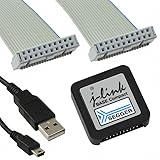
- DEBUG TOOL: Professional-grade J-Link Base Compact debugger for embedded systems development and programming
- COMPATIBILITY: Works with a wide range of microcontrollers and development environments for versatile debugging capabilities
- COMPACT DESIGN: Space-saving form factor makes it ideal for desktop development setups while maintaining full functionality
- PERFORMANCE: High-speed USB interface ensures quick flash programming and efficient debugging operations
- SOFTWARE SUPPORT: Includes access to SEGGER debugging software suite for comprehensive development tools
What are the most common failed fixes?
| Attempt | Why it fails | Better action |
|---|---|---|
| Downloading the first JLinkARM.dll result from a mirror | The file may be modified, the wrong architecture, or from an incompatible J-Link release | Install the complete package from SEGGER |
Copying a DLL into System32 or SysWOW64 |
It bypasses the installation and registry paths used by J-Link applications and can create version conflicts | Use the installer or the documented IDE-local replacement |
| Replacing only the shared DLL while an IDE uses its own copy | The IDE continues loading its stale private file | Run the DLL Updater or replace the private copy after backing it up |
| Installing x64 files into a 32-bit application | The executable cannot load a library of the wrong architecture | Match Windows and application architecture |
| Treating a VCRUNTIME or MSVCP message as a J-Link DLL error | The missing component belongs to Microsoft’s runtime | Update J-Link or install the matching Visual C++ Redistributable |
| Editing an unknown registry value | A manual change can point other tools to an invalid or incompatible location | Rerun the official installer and seek an exact support instruction if needed |
| Stopping after the dialog disappears | The library can load even when USB communication or the J-Link driver is broken | Confirm “USB connection O.K.” and check Device Manager |
When should you consider the repair complete?
Consider the repair complete only when the affected application starts without the missing-library message and, if you use a physical probe, J-Link Commander confirms a USB connection. A successful reinstall does not by itself prove that the IDE is using the intended copy or that the probe is reachable.
For a repeatable handoff, record the installed package architecture, whether it is all-user or per-user, the folder used by the IDE, and the result in Device Manager. This makes a later IDE upgrade easier to diagnose if it installs another private DLL.
As an optional shortcut after trying the manual steps, Outbyte PC Repair can address more than 100 common Windows issues where possible, including broken system elements and shared DLL problems, while also offering cleanup, privacy and vulnerability checks. It complements antivirus software rather than replacing it; results vary, and no tool repairs every crash. It runs on Windows 11, 10, 8 and 7 with a free trial by category for at least two days before a subscription.
Recommended Free Tools
Frequently Asked Questions
Can I download JLinkARM.dll as a standalone file?
The safer approach is to install the complete SEGGER J-Link Software and Documentation Pack, because the package supplies the library together with the matching tools and paths. A standalone file from an unverified site may be the wrong release or architecture and can leave the underlying installation problem unresolved.
Why does changing JLinkARM.dll to jlinkarm.dll not help?
Windows treats those spellings as the same filename, so capitalization changes do not repair a missing path, registry entry, or incompatible private copy. The application must be able to locate and load a compatible library.
Why does J-Link Commander work while my IDE still reports a missing DLL?
Commander may be loading the shared installation while the IDE is loading a private copy from its own directory. That pattern points to the IDE’s local files or architecture selection, not necessarily to a failed USB probe.
Which SEGGER folder should I check on Windows 11 or 10?
All-user 64-bit installs normally use %ProgramFiles%SEGGERJLink, all-user 32-bit installs use %ProgramFiles(x86)%SEGGERJLink, and per-user installs use %UserProfile%SEGGERJLink. The exact folder depends on the installation scope you selected.
The Tool Desk
Outbyte Driver Updater FREEFix the driver behind crashes, sound loss and screen glitchesFind Drivers →Outbyte PC Repair FREERepair Windows errors before they cause bigger problemsFix Now →Why does the DLL Updater need administrator rights?
Updating an all-user installation or files under protected program directories can require elevation. A per-user installation avoids that elevation for the account, but it cannot use the all-user DLL-update option.
What should I do if the error names VCRUNTIME140_1.dll or MSVCP140.dll?
Treat it as a Microsoft Visual C++ Redistributable dependency issue. Update the J-Link package or install Microsoft’s matching x64, ARM64, or x86 redistributable; do not rename or download JLinkARM.dll as a substitute.
Does a successful DLL repair guarantee that my debugger can connect?
No. Library loading and probe communication are separate stages. Confirm the USB connection in J-Link Commander and check the J-Link entry and driver status in Device Manager before troubleshooting the target board or IDE settings.
What if Event Viewer mentions ISD_Tablet.dll instead?
On the documented Windows 10 HP notebook scenario, SEGGER identifies a Wacom component problem. Update the Wacom Components Driver; reinstalling JLinkARM.dll will not resolve that conflict.
PC Slower Than It Used to Be?
A free scan shows the junk files, broken settings and background clutter dragging Windows down - then fixes them in one click.Free scan · Windows 10 & 11Outdated Drivers Are Slowing You Down
One free scan finds every outdated or missing driver and matches the right update for your exact hardware.Free scan · exact hardware matchThe Bottom Line
Install the current official SEGGER J-Link package for the correct Windows architecture, let its DLL Updater refresh IDE copies, and repair an IDE-local file only when necessary. If the message names a Microsoft runtime, install the matching Visual C++ Redistributable instead. Finally, verify “USB connection O.K.” in J-Link Commander and the driver state in Device Manager.
Quick Recap
Product prices and availability are accurate as of the date/time indicated and are subject to change. Any price and availability information displayed on Amazon at the time of purchase will apply.

