What’s actually slowing this PC down?
Pick the symptom - the matching free tool is one click away.
kbdbgph.dll is a genuine Microsoft Windows component for the Bulgarian Phonetic keyboard layout. If Windows reports that kbdbgph.dll is missing, not found, corrupted, or unable to load, repair Windows and the keyboard feature rather than downloading a replacement DLL.
Start with this diagnostic checklist
Before changing anything, note:
- Which program or Windows action triggers the message: sign-in, switching keyboard layouts, a language installation, or an older application.
- When the problem began: after an update, antivirus action, cleanup utility, language change, or manual file replacement.
- Your Windows architecture: open Settings > System > About and check System type.
- Whether Bulgarian Phonetic is actually needed: if not, removing the layout may stop the error.
The exact wording varies by Windows version and loader context. Common variants include:
As an Amazon Associate I earn from qualifying purchases.
- “The program can’t start because kbdbgph.dll is missing from your computer.”
- “The code execution cannot proceed because kbdbgph.dll was not found.”
- “Error loading kbdbgph.dll. The specified module could not be found.”
- “kbdbgph.dll is either not designed to run on Windows or it contains an error.”
- “KBDBGPH.DLL file could not be loaded.”
A message naming this file does not prove that a particular game, installer, or runtime package owns it. Windows loads keyboard-layout DLLs when the associated input layout is activated.
What kbdbgph.dll does
kbdbgph.dll is the Bulgarian Phonetic Keyboard Layout module supplied as part of Microsoft Windows. It translates keyboard input according to the Bulgarian Phonetic layout when Windows activates that layout.
#1 Best Overall

- [Compatible] Many laptop model names are quite similar, but they are not exactly identical. You can utilize the 'CTRL+F' shortcut keys to ensure that the keyboard model we offer matches your laptop's precisely.
- [High Quality] Our keyboards have been tested. They feature responsive keys for smooth typing, clear characters on the keycaps, and a comfortable tactile feel.
- [Item specifics] Brand: AzubayCom || without Frame or without Cover || without Backlight || Black Color || BG Bulgarian български клавиатура Layout
- [Key Hinges] If you're purchasing a keyboard for the purpose of swapping the keycaps, please contact us to check the design of the key hinges.
- [Installation] The process of installing the keyboard is rather intricate and demands practical skills. (It might even require welding tools to melt the plastic points.) We strongly recommend that you understand the installation process before your order.
It is not:
- A Visual C++ Redistributable file
- A DirectX component
- A .NET library
- A game middleware file
- A printer, graphics, or hardware driver
- A general-purpose DLL that an application should copy beside its executable
Bulgarian Phonetic is also different from other Bulgarian layouts, including Bulgarian Typewriter and Bulgarian Phonetic Traditional. Selecting the wrong layout can change how keys behave even when Windows itself is working correctly.
Windows normally stores the file at:
%windir%System32KBDBGPH.DLL
On 64-bit Windows, System32 is the native 64-bit system directory. Windows uses %windir%SysWOW64 for many 32-bit system components through file-system redirection. Do not assume that a 32-bit copy downloaded from another machine belongs in System32.
Windows also needs the file to match the installed build, architecture, language components, and servicing state. A file that looks correct by name can still be wrong.
Outdated Drivers Are Slowing You Down
One free scan finds every outdated or missing driver and matches the right update for your exact hardware.Free scan · exact hardware matchPC Slower Than It Used to Be?
A free scan shows the junk files, broken settings and background clutter dragging Windows down - then fixes them in one click.Free scan · Windows 10 & 11Fix 1: Install updates and restart
An incomplete update or language-feature installation can leave the keyboard layout unavailable or damaged.
- Open Start > Settings.
- Select Windows Update. On some Windows 10 installations, select Update & Security > Windows Update.
- Click Check for updates.
- Install all available updates.
- Restart the computer, even if Windows does not insist on restarting.
- Try switching to Bulgarian Phonetic again.
If the error disappears after the restart, the missing component was likely restored through Windows servicing. If the message remains, continue with component repair.
Fix 2: Repair Windows with DISM and SFC
This is the most important repair for a missing or corrupted Windows keyboard-layout DLL. DISM repairs the Windows component store; SFC then uses that repaired source to replace protected files.
- Open Start.
- Type
Command Prompt. - Right-click Command Prompt and select Run as administrator.
- Approve the User Account Control prompt.
- Run this command:
DISM.exe /Online /Cleanup-Image /RestoreHealth
- Wait for DISM to finish. Do not close the window if progress appears to pause.
- Then run:
sfc /scannow
- Leave the window open until SFC reaches 100 percent.
- Restart Windows and test the keyboard layout again.
Microsoft’s repair guidance recommends DISM before SFC. If SFC reports that it found and repaired corrupt files, restart and test. If it reports that it found no integrity violations, the problem may be the keyboard configuration rather than the file itself.
If SFC cannot repair some files, run Windows Update again, restart, and repeat the DISM and SFC sequence. Persistent failures may require Windows recovery options or installation media.
Rank #2

- The Best GIFT for any occasion
- High-quality stickers for different keyboards Desktop, Laptop and Notebook
- The Bulgarian Alphabet is spread onto transparent - matt sticker, with blue color lettering
- Stickers are made of high-quality transparent - matt vinyl, thickness - 80mkn, typographical method.
- Applying stickers on you keyboard properly once, and you can be aware that letters will stay for ever.
If repeatedly hunting through Windows components and interpreting SFC/DISM output is slowing you down, Outbyte PC Repair can scan for the reported problems; its free scan shows what it found, while repair is performed by the full version. It is optional, and Windows Update, DISM, and SFC remain the appropriate built-in repair path.
Fix 3: Remove and add Bulgarian Phonetic again
If Windows is intact but the input-language registration is broken, remove the layout and add it again.
- Open Start > Settings.
- Select Time & language.
- Select Language & region.
- Find the language that contains the Bulgarian keyboard.
- Click the ** three dots beside it and choose Language options**.
- Under Keyboards, select Bulgarian (Phonetic).
- Click Remove.
- Restart Windows.
- Return to the same Language options page.
- Select Add a keyboard.
- Choose Bulgarian (Phonetic).
- Test it from the keyboard-language indicator on the taskbar.
If the layout does not appear in the list, use Add a language, install the relevant Bulgarian language feature, restart, and then check Language options again.
Quick wins for a faster PC:
Scan for outdated or missing drivers - takes under a minuteDriver Scan →Repair Windows errors before they cause bigger problemsFix Now →If you do not need Bulgarian Phonetic, removing it may be the correct solution. The file is normally loaded when Windows activates the layout, including at sign-in or when switching input languages.
Fix 4: Check Microsoft Defender quarantine
Security software can quarantine a genuine system file, although a detection can also indicate tampering or malware.
- Open Start > Settings > Privacy & security > Windows Security.
- Select Virus & threat protection.
- Choose Protection history.
- Look for an event involving
KBDBGPH.DLL. - Expand the event and review its location, detection name, and action.
- Do not restore the file automatically.
- Restore it only if you have confirmed that it is the genuine Microsoft system file and the detection is a false positive.
If the file was found outside the Windows system directory, treat it cautiously. A file beside an old executable may be an unrelated copy or a potential DLL-hijacking risk.
If you suspect malware, run a full Microsoft Defender scan. If the file is repeatedly quarantined or returns after repair, use an offline scan and then repair Windows with DISM and SFC. A missing file does not prove malware, and quarantine does not prove a false positive.
Fix 5: Check drivers only if the timing points to hardware
A keyboard driver is normally not the source of kbdbgph.dll. This file is a Windows input-layout module, not a device driver. However, a driver or vendor keyboard utility may be involved if the warning began immediately after installing keyboard software or changing hardware.
To check the device driver:
- Right-click Start.
- Select Device Manager.
- Expand Keyboards.
- Right-click the affected keyboard and select Properties.
- Open the Driver tab.
- Select Update Driver.
- Choose Search automatically for drivers.
- Restart Windows if a driver is installed.
If the issue began after an update, open the same Driver tab and use Roll Back Driver if that button is available. Avoid uninstalling a driver unless you have a replacement or Windows can reinstall it automatically.
Rank #3

- 【ENHANCE YOUR WORKSPACE】Whether you are working from home or taking online courses, our keyboard will give you slim size, comfortable and ergonomic feel. Purpose built for Windows/Apple/Androids Systems, it features a 78-key layout, 6 multimedia keys, 10 languages, 13 shortcut keys, and visually stunning aluminum body.
- 【STRONG WIRELESS CONNECTION】Connect With Bluetooth 3.0, the cordless keyboard establishes a stable connection from up to 32ft away via Bluetooth. This eliminates excess cables and clutter, providing a clean workspace.
- 【A SOPHISTICATED TYPING EXPERIENCE】Each keycap on our low profile wireless USB keyboard is designed with a concave shape and scissor flexor technology. This allows for smooth and responsive keystrokes. Also, for wrist comfort, an angled kickstand is integrated.
- 【SIMPLE SETUP】This slim keyboard is completely connect and play. Simply connect Bluetooth with your computer and begin. Also, two AAA batteries provides up to 2-3 months of run time. (not include batteries).
- 【ADD LANGUAGES LAYOUT ON PC】-Open the start menu and select "Control Panel". -Select "Change keyboards or other input methods" under the Clock, Language, and Region section. -In the new window, click on the button that says "Change keyboards...". -Another window will open and show all currently installed keyboards. -Click "Add..." -International should now show on the list of keyboards installed. Click "Apply" and then "OK".
Manually checking several driver versions is tedious when the real issue is a stale input device package. Outbyte Driver Updater can scan and show outdated drivers, while driver installation is handled by the full version; it is optional and does not replace the Windows repair steps for kbdbgph.dll.
Do not register this DLL with regsvr32
regsvr32 is used for DLLs that provide registration entry points such as DllRegisterServer. A keyboard-layout DLL is loaded by Windows’ input system and exposes the keyboard-layout entry point used to describe its key mapping.
Do these 3 things before closing this tab:
1Repair Windows errors before they cause bigger problems2Fix the driver behind crashes, sound loss and screen glitches3Clear out junk files and repair common Windows errorsTherefore, this is not an appropriate repair:
regsvr32 kbdbgph.dll
It may produce an error because the file is not a self-registering COM-style DLL. It also does not repair the Windows component store or restore a missing language feature.
Independent reader supportYour contribution helps us test, update, and keep practical guides available for everyone.Do not download kbdbgph.dll from a DLL archive
Do not copy a random kbdbgph.dll into System32, SysWOW64, an application folder, or the folder beside an executable. This can introduce:
- Malware or a modified system file
- The wrong Windows build
- The wrong architecture
- An invalid signature
- Conflicts with Windows servicing
- DLL hijacking opportunities
- A copy that fails to fix the underlying language configuration
There is no verified official Microsoft standalone download for this DLL. Safe sources are Windows itself, Windows Update, the relevant language or keyboard installation, Windows recovery, or official Windows installation media.
A file copied from another PC is not automatically safe or compatible. It may differ in build, architecture, language, edition, or servicing state.
The Tool Desk
Outbyte Driver Updater FREEScan for outdated or missing drivers - takes under a minuteDriver Scan →Outbyte PC Repair FREEClear out junk files and repair common Windows errorsFree Scan →If Windows still cannot repair the file
Use recovery options when DISM, SFC, and language-layout repair do not resolve the problem.
Reinstall the current Windows version
On supported Windows 11 installations:
- Open Start > Settings.
- Select System > Recovery.
- Find Fix problems using Windows Update.
- Select Reinstall now.
- Follow the prompts.
This reinstalls the current Windows version while preserving supported apps, files, and settings.
Use System Restore
If the problem began immediately after an update, cleanup utility, driver change, or security-product action:
Rank #4
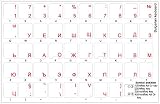
- The Best GIFT for any occasion
- High-quality stickers for different keyboards Desktop, Laptop and Notebook
- The Bulgarian Alphabet is spread onto transparent - matt sticker, with red color lettering
- Stickers are made of high-quality transparent - matt vinyl, thickness - 80mkn, typographical method. Clear transparent background makes stickers invisible, and allows existing characters to show through.
- Applying possess doesn't take more than 10-15min. English letters located underneath each sticker - will accurately indicate buttons on with you will apply corresponding stickers.
- Open Start and search for
Create a restore point. - Open the result.
- Select System Restore.
- Choose a restore point from before the problem began.
- Follow the wizard.
System Restore rolls back system files and settings but does not normally remove personal files.
Free tools Windows power users keep installed
One-click scans. No signup required.
If Windows cannot boot normally, use Windows recovery options or official installation media. When SFC reports files it cannot repair, the CBS log can help identify the affected component, but repairing the Windows installation is safer than manually replacing one DLL.
FAQ
Is kbdbgph.dll part of Visual C++, DirectX, or .NET?
Usually no. It is a Microsoft Windows keyboard-layout component. Reinstalling unrelated runtimes is not a supported fix for this file.
Does kbdbgph.dll belong to a particular game or application?
No specific third-party program has been verified as its owner. If an old application reports the error, it may be incorrectly trying to load a Windows layout DLL. Repair Windows and check the active keyboard layouts before reinstalling that application.
What is the difference between Bulgarian Phonetic and Bulgarian Typewriter?
They are separate keyboard layouts with different key mappings. Adding Bulgarian Typewriter will not necessarily replace or repair Bulgarian Phonetic.
Does Windows 10 use the same repair process?
Yes. Install updates, run DISM followed by SFC, and remove and re-add the keyboard layout through Settings > Time & language. Menu wording can vary slightly between Windows 10 and Windows 11.
What does “specified module could not be found” mean?
It can mean that the named DLL is missing, but it can also indicate a missing dependency or damaged Windows component. Repairing only the named filename may not resolve the loader error.
Should I copy the file from another computer?
No. The copy may have the wrong architecture, Windows build, signature, or servicing state. Restore it through Windows servicing instead.
Quick Recap
Product prices and availability are accurate as of the date/time indicated and are subject to change. Any price and availability information displayed on Amazon at the time of purchase will apply.
Recommended Free Tools




