Do these 3 things before closing this tab:
1Repair Windows errors before they cause bigger problems2Fix the driver behind crashes, sound loss and screen glitches3Clear out junk files and repair common Windows errorsmxdwdui.dll is a genuine Microsoft Windows printer-driver component, not a game DLL or general-purpose runtime. If Windows says mxdwdui.dll is missing, could not be loaded, or is corrupted, repair Microsoft XPS Document Writer first rather than downloading an individual file.
Microsoft describes the file as a configuration and user-interface plug-in for the Microsoft XPS Document Converter, used by XPSDrv printer drivers through the IPrintOemUIMXDC interface. The component belongs to the Windows XPS printing path, which applications can use when they open printer properties or print through Microsoft XPS Document Writer. See Microsoft’s XPSDrv driver documentation.
As an Amazon Associate I earn from qualifying purchases.
What mxdwdui.dll does
Microsoft XPS Document Writer is a print-to-file driver. It lets a Windows application create an XPS document instead of sending output to a physical printer. mxdwdui.dll supplies configuration and interface functionality for that print path.
That is why a normal application, accounting program, PDF workflow, or game launcher might mention the file without including it. The application may simply be asking Windows to enumerate printers, display printer preferences, or use Microsoft XPS Document Writer.
#1 Best Overall

- Portable Travel Printer with Carrying Case [Compact & Space-saving]: Inkless portable printer weighs only 1.5lb, built-in high-capacity rechargeable battery, print 160 sheets of 8.5'' x 11'' thermal paper per charge. The package includes a thermal printer, a carrying case, 4 rolls of thermal paper (1 roll letter size thermal paper inside the printer & 4.33"/3.14"/2.08'' size), USB-C & USB-A cable, user guide. Ideal for on-the-go printing during business travel, in car or truck, small office, construction site, school and home use
- Inkless Printer [Cost-Effective & Inkless Printing]: The Bluetooth mobile printer adopt advanced thermal technology, no ink, toner, or ribbon required during printing, no clogging and cleaning problems! (Note: Only support the thermal paper, Not support regular copy paper. Only support black and white printing.)
- Wireless Bluetooth Printer [High Compatibility]: The portable thermal printer compatible with iPhone, Android Phone, iPad, Tablet via Bluetooth. You can print documents, contracts, bills, receipts, web pages, notes, lists anytime, anywhere. You can also use the USB-C cable to connect your laptop and computer for printing. (Note: Laptop and computer only work with USB connection, need to download the driver first: a285m.labelife.cc)
- Thermal Printer [Multi-Size Printing]: The wireless portable printer with built-in paper bin, support thermal roll paper, folded and single sheet thermal paper. This small wireless printer also supports 5 sizes of thermal paper: 8.5“ X 11” US Letter, A4, 4.33'' (110mm), 3.14'' (80mm), 2.08'' (53mm) width thermal paper, can meet most of your needs
- Mobile Printer [High Quality Printing]: The compact printer designed for people who work outside. A wireless inkless portable printer good for mobile notaries, truck drivers, business travelers, office workers, teachers and students
The file is normally associated with paths under the print spooler rather than a regular application directory, including:
C:WindowsSystem32spooldriversx643mxdwdui.dll
C:WindowsSystem32spooldriversW32X863mxdwdui.dll
C:WindowsSystem32spooltoolsMicrosoft XPS Document Writermxdwdui.dll
The exact location depends on the Windows release, installed driver package, and printer architecture. It is not normally expected directly in C:WindowsSystem32 or C:WindowsSysWOW64.
Historical Windows inventories list 32-bit files such as version 0.3.7600.16385 at approximately 0.2 MB and version 0.3.7601.17514 at approximately 0.21 MB. These are legacy references, not a specification for every Windows 10 or Windows 11 installation.
Recommended Free Tools
Fix 1: Re-enable Microsoft XPS Document Writer
Time needed: 5–10 minutes, plus any restart
This is the safest and most likely fix when the error appears during printing, printer setup, printer-property access, or use of software that depends on the XPS printer.
- Press Windows + I to open Settings.
- Select System.
- Select Optional features.
- Scroll to the related settings area and select More Windows features.
- In the Windows Features dialog, clear Microsoft XPS Document Writer.
- Select OK and allow Windows to apply the change.
- Restart Windows if prompted.
- Return to Settings > System > Optional features > More Windows features.
- Enable Microsoft XPS Document Writer again.
- Select OK and restart if Windows requests it.
Microsoft documents this disable-and-enable process as the repair path for Microsoft XPS Document Writer. The operation causes Windows to rebuild or restore the feature’s printer components instead of forcing an unrelated application to load a loose DLL.
After restarting, open Settings > Bluetooth & devices > Printers & scanners. Confirm that Microsoft XPS Document Writer appears, then print a test page or use Microsoft Print to PDF as a separate test. If printing works and the original application opens normally, the repair is complete.
On some current Windows installations, the XPS writer uses a v4 driver package rather than the older XPSDrv layout. Do not assume that every Windows 11 installation will contain the same legacy mxdwdui.dll path.
The Tool Desk
Outbyte Driver Updater FREEScan for outdated or missing drivers - takes under a minuteDriver Scan →Outbyte PC Repair FREERepair Windows errors before they cause bigger problemsFix Now →Fix 2: Repair Windows with DISM and SFC
Time needed: 10–30 minutes
Use this step if Windows Features cannot enable XPS Document Writer, the feature disappears again, or the error started after a failed update, system cleanup, or component-store problem.
Rank #2

- ✅PRINT ANYWHERE WITHOUT THE INK HASSLE:Say goodbye to messy ink cartridges. This portable printer creates sharp 300DPI documents faster than you can staple papers – we’re talking 4-6 seconds per A4 page. Whether you’re printing contracts at a coffee shop or boarding passes at the airport, it delivers professional results every time(❗Supports thermal paper only)
- ✅TOUGH ENOUGH FOR DAILY USE:Weighing less than a hardcover book (1.2lb/530g), it slides easily into backpacks or tote bags. The textured grip prevents slips, and the matte finish hides scuffs from daily commutes. At 10.2 inches long, it fits neatly beside your laptop in any work bag
- ✅BATTERY LIFE THAT KEEPS UP WITH YOU:One full charge handles 200pages – enough to print a 200-page manual plus your weekly meeting notes. The 2000mAh battery lasts through 4 hours of continuous use, though you’ll need to buy thermal paper separately (standard 3.1" width works fine)
- ✅COMPREHENSIVE COMPATIBILITY:Pair with smartphones via Bluetooth in 90 seconds – no tech degree required. The free HerePrint app lets you print photos directly from Instagram or turn handwritten notes into PDFs. For laptops, just plug in the USB cable: it acts like a regular printer for Word docs, Excel sheets, or even IKEA instruction PDFs(Note: To ensure print quality, do not print images that are entirely black)
- ✅FROM OFFICE TO LIFE: Print last-minute permission slips at school pickup Create parking passes for weekend events Keep food truck orders organized with instant receipts Document rental property inspections on-site Make scavenger hunt lists during family trips
First install pending Windows updates:
- Open Settings.
- Select Windows Update.
- Select Check for updates.
- Install available updates.
- Restart Windows, even if Windows Update does not insist on it.
Then open an elevated Command Prompt:
- Open Start.
- Type
Command Prompt. - Right-click Command Prompt.
- Select Run as administrator.
- Approve the User Account Control prompt.
Run these commands separately:
DISM.exe /Online /Cleanup-image /Restorehealth
Wait for DISM to finish. Then run:
sfc /scannow
DISM repairs the Windows component source that SFC uses, so run DISM before SFC. Do not close the window while either scan is running.
Restart Windows after both commands complete. Try the XPS Document Writer again. If SFC reports that it repaired corrupted files, test the affected application and printer. If it reports that some files could not be repaired, repeat the feature repair in Fix 1 and review the servicing logs at:
C:WindowsLogsDISMdism.log
C:WindowsLogsCBSCBS.log
If DISM cannot find repair files, it may require a matching Windows installation source. Use Microsoft’s documented System File Checker repair procedure, including its instructions for supplying a repair source.
When manually repeating SFC and DISM becomes guesswork, Outbyte PC Repair can scan for the damaged Windows components and show what needs attention; its free scan identifies issues, while repair is handled by the full version. It is optional, and Windows servicing remains the primary fix for this Microsoft component.
Fix 3: Check whether the XPS printer and driver exist
Time needed: 5–15 minutes
A missing printer entry or stale driver can produce a file error even when Windows itself is otherwise intact.
Open an elevated PowerShell window:
- Open Start.
- Type
PowerShell. - Right-click Windows PowerShell or PowerShell.
- Select Run as administrator.
Search the spooler folders:
Get-ChildItem "$env:windirSystem32spool" -Filter mxdwdui.dll -Recurse -ErrorAction SilentlyContinue
Then inspect XPS-related printer drivers:
Get-PrinterDriver |
  Where-Object Name -match "XPS" |
  Format-List Name,DriverPath,InfPath,PrinterEnvironment
A result under spooldriversx64, spooldriversW32X86, or spooltools is consistent with the way Windows stores printer-driver files. No result does not automatically mean Windows is broken, particularly if the current XPS writer uses different packaging.
Check the printer list:
- Open Settings.
- Select Bluetooth & devices.
- Select Printers & scanners.
- Search for Microsoft XPS Document Writer.
If it is absent, return to Windows Features, disable and re-enable the feature, then restart. If the driver is present but the printer entry is damaged, remove the XPS printer from Printers & scanners, restart the Print Spooler service, and enable the feature again.
Windows Errors? Fix Them Before They Spread
Repair common Windows errors and clear accumulated junk for a smoother, more stable PC - no reinstall needed.Free scan · no reinstallOutdated Drivers Are Slowing You Down
One free scan finds every outdated or missing driver and matches the right update for your exact hardware.Free scan · exact hardware matchTo restart the spooler:
- Press Windows + R.
- Type
services.msc. - Press Enter.
- Find Print Spooler.
- Right-click it and select Restart.
For a current v4 driver that is already installed, PowerShell can recreate the printer:
Add-Printer -Name "Microsoft XPS Document Writer" `
  -DriverName "Microsoft XPS Document Writer v4" `
  -PortName "portprompt:"
This command works only when the specified driver exists on the system. If PowerShell reports that the driver cannot be found, repair the Windows feature or reinstall the official driver package instead.
Rank #3

- One-cable port expansion: Turn one USB-C port into 5 – 4K HDMI + 4 USB 3.0 ports. No more swapping cables. Connect your monitor, flash drives, keyboard, and mouse through a single connection.
- Stunning 4K HDMI output: Enjoy ultra-clear 4K visuals at 30Hz on external displays or TVs. Perfect for presentations, movies, or expanding your workspace – a must‑have for MacBook and laptop users.
- Fast 5Gbps data transfer: Four USB 3.0 ports each deliver 5Gbps speeds – Move photos, videos, and large files in seconds. Ideal for content creators and remote workers.
- Universal plug-and-play: No drivers needed. Works with MacBook Pro/Air/Neo, iMac, iPad Pro, Pixelbook, Surface, XPS, ThinkPad, and any USB‑C or Thunderbolt 3/4 laptop. Just plug and go.
- Compact, durable & travel-ready: Premium aluminum construction for better heat dissipation and durability. Pocket‑sized and lightweight – the perfect travel hub for home, office, or on‑the‑go setups.
Fix 4: Reinstall the printer driver and check architecture
Time needed: 10–25 minutes
Printer drivers are architecture-specific. On 64-bit Windows, native 64-bit applications generally use the x64 printer environment, while a 32-bit application may use the W32X86 environment. That does not mean the same DLL can be copied between folders.
Do not substitute a 32-bit file for a 64-bit driver component, or the reverse. A mismatch can cause “not designed to run on Windows,” bad-image, or module-load errors.
Free tools Windows power users keep installed
One-click scans. No signup required.
To inspect the driver environment, run:
Get-PrinterDriver |
  Format-List Name,DriverPath,InfPath,PrinterEnvironment
For a third-party printer that may be interfering with the spooler:
- Open Settings > Bluetooth & devices > Printers & scanners.
- Select the affected printer.
- Select Remove.
- Restart Windows.
- Reinstall the driver from Windows Update or the printer manufacturer’s official Windows package.
- Test Microsoft XPS Document Writer again.
If the issue affects only a 32-bit application, test printing from a 64-bit Windows application as well. Different results can point to a driver-environment mismatch, although they do not prove that mxdwdui.dll itself is defective.
Driver version hunting is especially tedious when several printer packages are installed. Outbyte Driver Updater can scan for stale drivers and identify available updates; its free scan shows the findings, while driver installation is performed by the full version. It is optional, and reinstalling the correct Microsoft or manufacturer package remains the safer definitive repair.
Fix 5: Check Windows Security quarantine
Time needed: 5 minutes
Antivirus software can quarantine a printer component after an update or driver installation. This is not established as a common cause for this particular file, but it is worth checking when the error began immediately after a security event.
What’s actually slowing this PC down?
Pick the symptom - the matching free tool is one click away.
- Open Windows Security from the Start menu.
- Select Virus & threat protection.
- Select Protection history.
- Review recent quarantined items.
- Restore a file only when its location, publisher, and installation context clearly identify it as the genuine Microsoft component.
Do not disable antivirus protection merely to restore a DLL. If the item is uncertain, leave it quarantined and repair XPS Document Writer through Windows Features instead.
Independent reader supportYour contribution helps us test, update, and keep practical guides available for everyone.Fix 6: Use System Restore after a recent system change
Time needed: 15–30 minutes
If the error began after a driver installation, cleanup utility, update, or failed upgrade, System Restore may reverse the related system changes.
- Open Start and search for Create a restore point.
- Open the result.
- Select System Restore.
- Choose a restore point from before the problem began.
- Review the affected programs and drivers.
- Select Finish and allow Windows to restart.
System Restore normally leaves personal files unchanged, but it can roll back system files, settings, drivers, and installed programs. Use it only when the restore point predates the failure and you understand the changes it will reverse. Microsoft’s System Restore guidance explains the process.
Rank #4
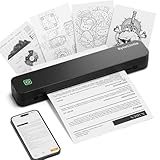
- Ultra-Lightweight & Travel-Ready: Ditch the bulky office machines! Weighing just 0.88 lbs (under 0.9 pounds), this compact wireless printer for travel is lighter than a bottle of water. It slips effortlessly into your backpack, briefcase, or car console. Whether you are commuting, heading on a business trip, or studying at a coffee shop, it is your ultimate on-the-go companion for instant mobile printing anywhere.
- Seamless Bluetooth & USB Setup: Wirelessly connect your iOS (13+) or Android device via Bluetooth exclusively through the free SharpFox App (Please do NOT pair directly in your phone's Bluetooth settings). Need to print from a computer? Simply plug the included USB cable into your Windows or Mac laptop and download the driver. (Note: Chromebooks are NOT supported; PC/Mac supports wired USB connection only).
- 100% Inkless Tech & Bonus Starter Kit: Say goodbye to expensive ink cartridges, clogged toners, and messy ribbons! Our advanced thermal direct technology is cost-effective, eco-friendly, and zero-maintenance. Out of the box, you get 2 rolls and 10 sheets of premium US Letter thermal paper to start printing instantly! (Important: Prints in B&W only. Requires thermal paper; standard copy paper and gap labels are incompatible).
- Long-Lasting Battery & Crisp Resolution: Never hunt for a wall outlet mid-print again. The built-in rechargeable battery operates for up to 4 hours, effortlessly printing around 200 sheets on a single charge. It flawlessly handles both roll and fan-fold thermal paper, delivering high-quality, smudge-proof prints of your PDFs, Word documents, images, and web content directly from your smartphone.
- Versatile for Business, School & Tattoo Artists: Seamlessly adapting to diverse environments, this mobile printer handles multi-purpose printing—from daily invoices and study notes to specialized tattoo transfer stencils! It supports flexible media sizes from 2 to 8.5 inches. For the best results, always ensure the paper size setting on your phone or PC matches the actual thermal paper loaded.
Why regsvr32 usually does not fix this file
Do not start with:
regsvr32 mxdwdui.dll
regsvr32 is intended for DLLs that provide registration exports such as DllRegisterServer. mxdwdui.dll is a printer-driver UI plug-in installed as part of a driver package, not normally a self-registering COM component. A registration error is therefore expected and does not repair the XPS print path. Microsoft explains the command’s purpose in its regsvr32 documentation.
Why downloading mxdwdui.dll is a bad fix
Avoid DLL download websites and random forum attachments. A loose replacement can contain malware, belong to a different Windows build, use the wrong architecture, or omit the printer package’s INF and catalog files. Copying it into a game folder or directly into System32 often leaves the damaged XPS feature untouched.
The supported sources are:
- Windows Optional Features servicing
- Windows Update
- A matching Windows repair source used with DISM
- The official Microsoft printer-driver package or Microsoft Update Catalog
If manual replacement is unavoidable during advanced recovery, use a verified file from the same Windows build and printer architecture, preserve the associated driver-package files, and reinstall the driver afterward. Feature repair is safer.
Likely causes of the error
| Likely cause | What usually resolves it |
|---|---|
| XPS Document Writer is disabled or incomplete | Disable and re-enable the Windows feature |
| Windows component-store corruption | Run DISM, then SFC |
| Failed update or upgrade | Install pending updates, restart, then repair servicing |
| Wrong or stale printer architecture | Remove and reinstall the correct driver package |
| Damaged Print Spooler state | Restart the spooler and recreate the printer |
| Security quarantine | Review Protection history and repair the feature |
| Application-specific corruption | Repair or reinstall the affected application after Windows repair |
If only one application reports the error, that application may be the first place where Windows touches the broken printer path. It does not prove that the application ships mxdwdui.dll. Repair the Windows XPS component first, then repair or reinstall the application if it still fails.
FAQ
Is mxdwdui.dll a genuine Windows file?
Yes. It is a Microsoft XPS printer-driver UI plug-in used with the Microsoft XPS Document Converter and XPS printing components.
Quick wins for a faster PC:
Repair Windows errors before they cause bigger problemsFix Now →Scan for outdated or missing drivers - takes under a minuteDriver Scan →Is mxdwdui.dll a game or Visual C++ dependency?
No. It is not a Visual C++ runtime, DirectX file, .NET component, or general game library. A game or application may mention it indirectly if it accesses Windows printer services.
Is mxdwdui.dll always 32-bit?
No. The relevant printer-driver environment depends on Windows and the driver package. Older inventories list 32-bit versions, while 64-bit Windows can contain separate x64 and W32X86 printer components.
Can I leave XPS Document Writer disabled?
Usually, yes, if you never print to XPS and no business application depends on the virtual printer. If software such as an accounting or document workflow application requires it, re-enable the feature.
What if the file is not in System32?
That can be normal. Search under C:WindowsSystem32spooldrivers and C:WindowsSystem32spooltools instead.
What if none of these fixes works?
Check dism.log and CBS.log, inspect the printer-driver inventory, remove stale XPS printer entries, review antivirus history, and test another Windows user profile. If the feature is unavailable entirely, DISM may need a matching Windows installation source.
Quick Recap
Product prices and availability are accurate as of the date/time indicated and are subject to change. Any price and availability information displayed on Amazon at the time of purchase will apply.




