An RTX 3080 crashing games is not automatic proof that the card is defective. A recent game patch, damaged files, an unstable overclock, a bad driver installation, overheating, inadequate or failing power delivery, and other components can produce the same symptoms. Work from reversible software checks toward cooling, power verification, and cross-testing before seeking a replacement.
What an RTX 3080 game crash usually means
NVIDIA’s troubleshooting separates crashes into two broad groups. Software problems include a game update, damaged installation files, a driver change, overclocking, missing motherboard chipset support, or a conflict with an overlay or background utility. Hardware-related causes include dust-restricted airflow, abnormal fan behavior, overheating, power-supply limits, and failures elsewhere in the system. The failure pattern helps you choose the first test, but it does not prove a cause by itself.


As an Amazon Associate I earn from qualifying purchases.
| Failure pattern | Best first checks | What the result can indicate |
|---|---|---|
| Crash to desktop in one game | Game update history, publisher notices, file verification, driver release notes | A title-specific patch, damaged files, or a game-and-driver interaction |
| Black screen followed by a driver reset | Return GPU settings to stock, reinstall the driver, inspect temperatures and overlays | Driver instability, an overclock, heat, or another software conflict |
| Full reboot during demanding play | Power connectors and PSU condition, cooling, stock settings, cross-testing | Power delivery, overheating, or a fault exposed by high load |
| Freeze or blue screen across several workloads | Chipset and graphics drivers, memory and CPU stability, component isolation | A platform or component problem that may not be the GPU itself |
Record the symptom before changing anything
Write down exactly what happens and when. Distinguish a crash to desktop from a black screen, a driver reset, a complete reboot, a hard freeze, or a blue screen. Record the game, resolution, graphics API, whether the failure occurs at launch or after several minutes, and any driver or event-log error. Note the installed NVIDIA driver version and whether the problem began after a game patch, driver update, hardware change, or settings change.
This record gives you a repeatable test. Use the same game scene or benchmark-like workload after each change, and change one category at a time. If the crash appears only in one title, do not assume every RTX 3080 is affected; if every demanding game fails in the same way, prioritize system-wide checks.
#1 Best Overall
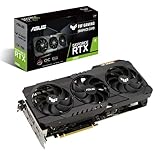
- NVIDIA Ampere Streaming Multiprocessors: The building blocks for the world’s fastest, most efficient GPU, the all-new Ampere SM brings 2X the FP32 throughput and improved power efficiency.
- 2nd Generation RT Cores: Experience 2X the throughput of 1st gen RT Cores, plus concurrent RT and shading for a whole new level of ray tracing performance.
- 3rd Generation Tensor Cores: Get up to 2X the throughput with structural sparsity and advanced AI algorithms such as DLSS. Now with support for up to 8K resolution, these cores deliver a massive boost in game performance and all-new AI capabilities.
- This GeForce RTX 3080 graphics card with LHR (lite hash rate) delivers 43 MH/s ETH hash rate (est.).
- OC edition: Boost clock 1815 MHz (OC mode)/1785 MHz (Gaming mode)
1. Check recent game and driver changes
Look for a game-specific issue
Ask whether the affected game was updated immediately before the crashes. Check the game’s publisher for known issues and workarounds, then use the launcher or platform’s file-verification feature to repair damaged files. A successful repair that stops the crashes points to the game installation rather than a defective graphics card.
Compare your driver with current release notes
Review the release notes for the NVIDIA driver you have installed and for newer available releases. Problems can be limited to a particular game and driver combination. For example, NVIDIA’s 581.08 release notes, published on 2025-08-19, listed Forza Motorsport crashes when Smooth Motion was enabled and stability issues in Gray Zone Warfare. Those entries illustrate why a crash can be version-specific instead of a universal RTX 3080 fault. If the notes identify your title and feature, follow the listed workaround or test a driver version that does not exhibit the documented issue.
2. Return the entire system to stock settings
Disable GPU overclocks, undervolts, CPU overclocks, and memory profiles, then retest. NVIDIA specifically advises lowering or removing overclocks when instability or overheating is suspected. A setting that works in light applications can fail only after a game has sustained the card’s power and heat load.
For a clean test, also turn off overlays, recording tools, hardware-monitoring utilities, RGB control tools, and other nonessential background applications. An overlay conflict can look like a graphics driver failure, and monitoring software can itself alter clocks or fan behavior. Re-enable these programs individually only after the game is stable at stock settings.
3. Reinstall the NVIDIA driver and update chipset software
- Note your current version and preferred settings. Save any custom control-panel profiles so you can recreate them after testing.
- Install the NVIDIA driver again using the normal recommended installer method. Choose the clean-install option when the installer offers it, and restart Windows when prompted.
- Use Safe Mode only if an advanced cleanup is necessary. NVIDIA’s guidance allows an experienced user to remove older installations in Safe Mode before installing the current driver. Avoid deleting files or registry entries manually unless you understand the recovery implications.
- Install current motherboard chipset drivers. Get them from the chipset or motherboard manufacturer. Generic drivers supplied by Windows may be insufficient for intensive workloads, even when the graphics driver appears current.
- Retest at stock settings with overlays closed. If the crash began immediately after a driver change and disappears after reinstalling, the installation or version was the likely trigger. If it persists across clean driver installations, continue to hardware and platform checks.
4. Check dust, airflow, fans, and temperatures
NVIDIA states: “When your PC overheats, your PC will freeze, reboot or simply crash.” Shut the computer down, disconnect power, and inspect the case and graphics card for dust. Make sure front-to-rear ventilation is not blocked and that the GPU fans start and behave normally under load.
Use a safe compressed-air dust remover carefully to clear buildup; do not clean a powered system. Afterward, monitor temperatures, fan behavior, clock speeds, and the exact time of failure during a repeatable game workload. A single temperature reading is not a complete diagnosis: correlate the reading with whether fans ramped correctly, clocks dropped, the display went black, or Windows rebooted.
Rank #3

- Item Package Quantity - 1
- Product Type - VIDEO CARD
- This pre-owned product has been professionally inspected, tested and cleaned by Amazon qualified vendors.
- Accessories may not be original, but will be compatible and fully functional. Product may come in generic box.
If the card overheats or becomes unstable, improve unobstructed airflow and, for testing, lower core or memory clocks as NVIDIA recommends. A lower clock that restores stability is useful evidence of a thermal or operating-point problem, but it does not by itself identify whether the cause is dust, case airflow, the card’s cooler, or another component.
The Tool Desk
Outbyte Driver Updater FREEScan for outdated or missing drivers - takes under a minuteDriver Scan →Outbyte PC Repair FREEClear out junk files and repair common Windows errorsFree Scan →5. Verify the RTX 3080 power path
The RTX 3080 User Guide specifies a 750 W system power supply and two PCIe 8-pin power connectors. The same guidance notes that a lower rating may work depending on the complete system and should be checked with the PSU vendor. Treat 750 W as the official reference point, not as a guarantee that any 750 W unit is suitable.
- Confirm that the power supply is a quality unit appropriate for the rest of your system and that it is not old, damaged, or showing other instability.
- Make sure both PCIe 8-pin connectors are fully seated in the graphics card.
- Follow the cable arrangement specified by the PSU and graphics-card manufacturers rather than improvising adapters or loose connections.
- Check the CPU, drives, fans, and other components when estimating total system demand; the GPU is not the only load on the PSU.
A correctly labeled wattage does not prove that the PSU is healthy or compatible. Conversely, a crash under load does not prove that the PSU is the cause. If the issue changes when you use a known-good, adequately rated supply, that comparison is stronger evidence than the label alone.
Rank #4
6. Isolate the failing component
When software, stock settings, cooling, and power checks do not resolve the problem, cross-test. NVIDIA recommends trying the RTX 3080 in another computer or trying another graphics card in the same computer.
- Install the RTX 3080 in a different, known-stable system with suitable power and cooling. Use stock settings and a repeatable game workload.
- Alternatively, install another known-good GPU in the original computer and repeat the same workload.
- Compare the results with the original symptom record. If the failure follows the RTX 3080 to another system, suspicion shifts toward the card. If another GPU fails in the original system, investigate the motherboard, PSU, memory, CPU, storage, or operating-system installation.
- Keep the test controlled: use the appropriate driver for the test card, close overlays, and avoid changing several hardware variables at once.
Intensive games can expose marginal system memory, CPU, motherboard, storage, or power problems that look like a graphics-card fault. A cross-test that does not reproduce the crash is valuable evidence even when it does not immediately identify the failed part.
Free tools Windows power users keep installed
One-click scans. No signup required.
Use the failure pattern to choose the next branch
Only one game crashes
Prioritize that game’s update history, known-issue page, file verification, graphics settings, and the NVIDIA release notes for your driver. Do not replace hardware until another demanding workload or a controlled cross-test reproduces the fault.
Several games crash after a driver update
Return all clocks and memory settings to stock, close overlays, reinstall the NVIDIA driver, and update chipset drivers. If the crashes began with a documented game-and-driver issue, follow the publisher or NVIDIA workaround before changing hardware.
The screen goes black and the PC reboots
Check temperatures and fan behavior, then verify both PCIe connectors and the PSU’s condition and capacity for the complete system. A full reboot warrants power and thermal checks earlier than a simple desktop crash, but cross-testing remains necessary before declaring the card defective.
The computer freezes or blue-screens across workloads
Record the stop or driver error, remove every overclock, reinstall graphics and chipset drivers, and test memory, CPU, motherboard, storage, and PSU through component isolation. The GPU may be involved, but the broad symptom pattern points to a system-level investigation.
Windows Errors? Fix Them Before They Spread
Repair common Windows errors and clear accumulated junk for a smoother, more stable PC - no reinstall needed.Free scan · no reinstallOutdated Drivers Are Slowing You Down
One free scan finds every outdated or missing driver and matches the right update for your exact hardware.Free scan · exact hardware matchWhen to seek warranty or replacement help
Contact NVIDIA Customer Care or the graphics-card board partner when the RTX 3080 remains the repeatable source after repaired game files, clean driver checks, stock settings, cooling inspection, power verification, and cross-testing. Provide the symptom record, driver version, affected games, temperatures and fan behavior, PSU details, and the result of the cross-test. NVIDIA’s warranty guidance says Customer Care can help troubleshoot and process a replacement when a product is found defective; eligibility and the available remedy depend on the applicable warranty terms and purchase history.
Do not treat one failed launch, one event-log entry, or one high temperature as conclusive on its own. The strongest hardware case is a repeatable failure that follows the card to another suitable system while another GPU works in the original computer.
Quick Recap
As an optional shortcut after the manual checks, Outbyte Driver Updater scans more than 100 devices for outdated, corrupted, or missing drivers, installs only official drivers, shows current and recommended versions, and supports driver backup, restore, and scheduled scans. It runs on Windows 11, 10, 8, and 7; its two-day free trial requires no credit card, followed by a subscription. Results vary, and no utility repairs every crash.
Product prices and availability are accurate as of the date/time indicated and are subject to change. Any price and availability information displayed on Amazon at the time of purchase will apply.




