Do these 3 things before closing this tab:
1Clear out junk files and repair common Windows errors2Fix the driver behind crashes, sound loss and screen glitches3Repair Windows errors before they cause bigger problemsFor smoother play in Persona 4 Golden on PC, keep the game at your display’s native resolution and 100% rendering scale if it already runs well. If it slows down, lower rendering scale first, then reduce shadow quality; try turning off anti-aliasing and anisotropic filtering only if you still need more headroom. These are practical starting points, not a guaranteed preset: results depend on your hardware and the scenes you play.
Use this settings order when performance drops
Change one option at a time and revisit a scene where you noticed slowdown. That makes it easier to see whether a change helped and to restore image quality without guessing. The order below is a practical inference from the available graphics controls, not a controlled benchmark.
- Check rendering scale. Start at 100%. If play is not smooth, lower it in small steps; the game offers increments of 25 percentage points. Lower scale reduces internal rendering resolution and can make the image less sharp. If performance is already good and you want a sharper image, values above 100% render above the display resolution, but increase graphics workload.
- Reduce shadow quality. Try Medium, then Low if needed. The game offers Low, Medium, and High shadow settings; lower quality is a sensible next trade-off between visual detail and performance headroom.
- Turn off anti-aliasing if slowdown continues. This toggle smooths jagged edges when enabled. Switching it off may reduce graphics workload, at the cost of rougher-looking edges.
- Reduce anisotropic filtering if you still need headroom. Try Low or Off instead of High. This setting affects texture clarity, particularly at angles, so lower values can make surfaces look less crisp.
- Recheck your problem scenes, then restore quality selectively. Raise one option at a time and keep the highest settings that remain smooth on your PC.
PC Gamer documented these menu options in its 2020 launch-era review. PCGamingWiki also notes that changing rendering scale affects HUD rendering, not just the game scene.
What each display and graphics option changes
| Setting | Available choices | Main trade-off |
|---|---|---|
| Rendering scale | 25%–200% in 25% steps | Lower values reduce internal resolution and sharpness; values above 100% can improve clarity through supersampling but require more rendering work. |
| Shadow quality | Low, Medium, High | Lower quality is a reasonable performance-oriented choice; higher quality preserves more shadow detail. |
| Anti-aliasing | On, Off | On smooths jagged edges; Off may reduce workload but makes edges more noticeable. |
| Anisotropic filtering | Off, Low, High | Higher filtering can preserve texture clarity at angles; lower values trade some clarity for a lighter graphics workload. |
| Display mode | Windowed, Fullscreen, Borderless | Choose according to compatibility and preference. The available evidence does not establish that one mode is always faster. |
| Resolution | Selectable in the game | Choose a resolution suitable for your display and hardware; lower output resolution can reduce image detail. |
| V-Sync | On, Off | Consider visual smoothness and tearing. PC Gamer observed tearing on a low-end setup with V-Sync disabled; the best choice depends on your display and system. |
Steam advertises variable frame rates and Full HD support, but that does not mean every PC can sustain a particular frame rate or resolution. PC Gamer reported more than 60 fps at 5120×2880 (200% rendering scale) on an Intel i7-6700K and NVIDIA GTX 980 in its 2020 test; that dated result describes that system and test, not a promise for other hardware or the current build.
The Tool Desk
Outbyte Driver Updater FREEScan for outdated or missing drivers - takes under a minuteDriver Scan →Outbyte PC Repair FREERepair Windows errors before they cause bigger problemsFix Now →#1 Best Overall

- Package includes a variety of laptop stickers ranging in size from 1 inches to 2.5 inches. You would receive the patterns you see in the pictures.
- Each stickers are made of high quality vinyl material, we use high-precision printing technology, the pattern is precise and clear, repeated sticking without residue.
- Novelty stickers pack can be sticked on laptop, skateboard, luggage, phone, truck, car, bumper, bike, scrapbook, journal, notebook, bicycle, snowboard, guitar, helmet, water bottle, tool box and whatever your heart desires
- Best gifts choice for kids, teens, girls, boys, adults, and sticker collectors to share with their friends, students, teachers, colleagues. Perfect as party supplies, party favors, reward charts, motivational stickers.
- Customer satisfaction is our greatest motivation. Any questions with products, please don't hesitate to contact us.
Check whether your PC meets Steam’s published requirements
Steam lists the following minimum and recommended specifications. They are store-published requirements, not a guarantee of a specific frame rate or smoothness level.
| Component | Minimum | Recommended |
|---|---|---|
| Operating system | 64-bit Windows 8.1 | Windows 10 |
| Processor | Intel Core 2 Duo E8400 or AMD Phenom II X2 550 | Intel Core i5-650 or AMD Phenom X4 940 |
| Memory | 2 GB RAM | 4 GB RAM |
| Graphics | NVIDIA GeForce GTS 450 or AMD Radeon HD 5770 | NVIDIA GeForce GTX 460 or AMD Radeon HD 6870 |
| DirectX | Version 11 | Version 11 |
| Available storage | 14 GB | 14 GB |
The Steam application is now 64-bit. In an update notice revised January 6, 2023, SEGA said the Steam game would be updated on January 19, 2023, and that 32-bit versions would no longer be playable after the update. SEGA specified a 64-bit Windows OS requirement and said existing save data was expected to be unaffected. See SEGA’s update notice. Steam’s listing also carries a separate Steam Client support note for Windows 10 and later beginning January 1, 2024; that is a Steam Client policy, not a game-performance specification.
Rank #2
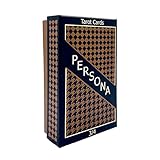
- Both Major & Minor Arcana
- Rigid Storage Box w/ Matte Finish
If only cinematics stutter
If gameplay is smooth but cinematics stutter, do not assume that lowering graphics settings will fix it. The available settings evidence does not establish a current, universally applicable cutscene fix. Check current game-specific support information for that separate issue rather than treating it as a general performance setting.
Quick Recap
Best Value

- Video Game design. Official Persona 4 Golden merchandise! Design by ATLUS!
- Apparel for Men, Women, Persona 4 Golden T-Shirts, ATLUS T-shirts, ATLUS apparel, SEGA T-shirts, SEGA apparel, Video Game, Gaming T-shirts, Gaming apparel, Persona, Izanagi
- Lightweight, Classic fit, Double-needle sleeve and bottom hem
Rank #4

- Video Game design. Official Persona 4 Golden merchandise! Design by ATLUS!
- Apparel for Men, Women, Persona 4 Golden T-Shirts, ATLUS T-shirts, ATLUS apparel, SEGA T-shirts, SEGA apparel, Video Game, Gaming T-shirts, Gaming apparel, Persona
- Lightweight, Classic fit, Double-needle sleeve and bottom hem
Rank #3
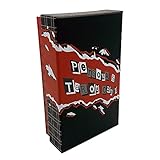
- Both Major & Minor Arcana
- 310gsm Linen Cardstock
- Rigid Matte Box for Display
- Made with strong material and easy to install and use
Sources for the settings and requirements
- Steam store listing — published system requirements, Full HD support, variable frame rates, and controller note.
- SEGA Support: “Upcoming Changes to Persona 4 Golden on Steam” — 64-bit update and operating-system requirements; updated January 6, 2023.
- PC Gamer’s 2020 PC review — launch-era settings description and its dated performance test.
- PCGamingWiki: Persona 4 Golden — notes on the anti-aliasing toggle and rendering-scale effect on HUD rendering.
Product prices and availability are accurate as of the date/time indicated and are subject to change. Any price and availability information displayed on Amazon at the time of purchase will apply.




