“The program can’t start because scardsvr.dll is missing from your computer.”
The scardsvr.dll error usually means Windows cannot load part of its built-in Smart Card service, not that a game or ordinary application needs a separate DLL download. On Windows 11 and Windows 10, repair Windows first, then check the Smart Card service, reader driver, middleware, and the application that displayed the message.
Which fix applies to you
Use the path that matches your symptoms:
- The error appears immediately after a Windows update, crash, or forced shutdown: repair Windows with DISM and SFC.
- You use a smart card, USB reader, government ID card, certificate, corporate login, or PKI application: check the
SCardSvrservice and reader stack. - Windows Security recently quarantined the file: inspect Protection history before restoring anything.
- Only one application reports the error while Windows itself appears healthy: repair or reinstall that application after confirming the Windows component.
- The reader is not listed in Device Manager: reinstall the reader driver or vendor middleware.
- SFC cannot repair the file: rerun DISM with a matching Windows repair source, then consider a Windows repair installation.
- You are considering a DLL download or
regsvr32: stop there. Neither is the normal repair for this Windows service DLL.
What scardsvr.dll is
scardsvr.dll, also known as SCardSvr.dll, is a genuine Microsoft Windows system component. Its description is Smart Card Resource Management Server, and it provides the basic infrastructure used by smart-card readers and applications through Windows PC/SC interfaces.

As an Amazon Associate I earn from qualifying purchases.
Microsoft documents the related service as SCardSvr. Its service configuration loads the DLL from:
Recommended Free Tools
%SystemRoot%System32SCardSvr.dll
The service is demand-started. It may be stopped when no smart-card reader or application needs it, so a stopped service is not automatically evidence of a damaged file.
#1 Best Overall

- Fully Compliant - Complies With All Major Industry Standards, Including Iso/Iec 7816, Usb Ccid, Pc/Sc, And Microsoft Whql. As Well As, Emv 2011 Ver 4.3 Level 1 And Gsa Fips 201.
- Seamless Integration - With Identiv-Specific Smartos You’Ll Get Easy, Complete Support Of All Major Contact Smart Card Ics And Technologies In One Simple Reader.
- Universal Compatibility - Works With Virtually All Contact Chip Cards And Pc Operating Systems, Including Windows, Macos, Linux And Android.
- Fast And Convenient- Shorten Your Transaction Time With A Reader That’S Optimized For Speed. It’S Ultra-Compact And Robust Design Is Streamlined For Mobile Operation, Making This Reader The Best Choice For Convenience, Security And Reliability.
- Ergonomic and cost efficient design
The file is not a Visual C++ runtime, DirectX component, .NET package, game library, or general application dependency. A program may display the error while trying to use smart-card functions, but the underlying component belongs to Windows.
File versions, sizes, and architecture vary with the installed Windows build, servicing level, language, and whether Windows is 32-bit or 64-bit. Do not use an old version table to choose a replacement file.
Recognize the error
The wording varies by Windows version and by the program showing the message. You may see:
Free tools Windows power users keep installed
One-click scans. No signup required.
- “The program can’t start because scardsvr.dll is missing from your computer.”
- “The code execution cannot proceed because scardsvr.dll was not found.”
- “There was a problem starting scardsvr.dll. The specified module could not be found.”
- “Error loading scardsvr.dll. The specified module could not be found.”
- “scardsvr.dll is either not designed to run on Windows or it contains an error.”
- “scardsvr.dll is corrupted.”
- “scardsvr.dll file could not be loaded.”
A related smart-card error is:
SCARD_E_NO_SERVICE (0x8010001D)
The smart card resource manager is not running.
That message usually points to the Smart Card service or the surrounding reader stack rather than to a missing application runtime.
If you never use a smart card, the error may affect only the application or service that attempted to access smart-card functions. If you do use one, certificate login, card enumeration, signing, authentication, and reader access may all fail.
Fix 1: Install updates, then repair Windows
This is the safest first repair for a missing, corrupt, or unable-to-load system DLL.
Install pending updates
- Press Windows + I to open Settings.
- Select Windows Update.
- On Windows 11, select Check for updates. On Windows 10, select Check for updates in the Windows Update page.
- Install all available updates.
- Restart the computer, even if Windows does not immediately require it.
- Test the application or smart-card operation again.
If the error remains, repair the Windows component store.
Do these 3 things before closing this tab:
1Scan for outdated or missing drivers - takes under a minute2Clear out junk files and repair common Windows errors3Fix the driver behind crashes, sound loss and screen glitchesRank #2

- Advanced Realtek Chipset; PIV, EMS, ISO-7816 & EMV2 2000 Level 1, CE, FCC, VCCI and Microsoft WHQL certifications.
- Supports ActivClient, AKO, OWA, DKO, JKO, NKO, BOL, GKO, Marinenet, AF Portal, Pure Edge Viewer, ApproveIt, DCO, DTS, LPS, Disa Enterprise Email and etc. CAC chip cards
- Sleek ergonomic flat design, precise slot, convenient to horizontally plug card
- Compatible with Windows10/11, Mac OS 10.15 or later. Driver free, plug and play.
- New generation DOD Military CAC USB smart chip card reader, no firmware upgrade requirements
Run DISM and SFC
- Open Start.
- Type
Command Prompt. - Right-click Command Prompt and select Run as administrator.
- Select Yes if User Account Control asks for permission.
- Run this command:
DISM.exe /Online /Cleanup-Image /RestoreHealth
- Wait for it to finish. Do not close the window if progress appears to pause.
- Then run:
sfc /scannow
- Wait until verification reaches 100 percent.
- Restart Windows.
- Try the affected application or run the smart-card test described below.
DISM repairs the Windows component source that SFC uses, which is why DISM should come first. If SFC reports that it found and repaired corrupted files, restarting and retesting is the correct next step.
Repeating SFC without knowing whether the component store changed can make this repair process unnecessarily slow. Outbyte PC Repair can provide a scan that shows what needs attention, while its full version performs the repair; it is optional, and the built-in Microsoft commands remain the appropriate first-line method.
If DISM cannot find repair files
If DISM reports that source files could not be found, use a legitimate matching Windows installation source:
DISM.exe /Online /Cleanup-Image /RestoreHealth /Source:C:RepairSourceWindows /LimitAccess
Replace C:RepairSourceWindows with the path to the matching repair source. The source must correspond appropriately to the installed Windows edition and architecture. After DISM completes, run:
What’s actually slowing this PC down?
Pick the symptom - the matching free tool is one click away.
sfc /scannow
Restart and test again.
Fix 2: Check and restart the Smart Card service
A valid DLL can still produce smart-card errors if its service is stopped, disabled, or misconfigured.
Check the service from Command Prompt
- Open Command Prompt as administrator.
- Run:
sc queryex SCardSvr
- Review the result.
If the service is running, Windows can load the service component. If it is stopped, restart it with:
net stop SCardSvr
net start SCardSvr
If the stop command says the service is not running, proceed with the start command. A demand-started service may normally be stopped until a reader or application requests it.
You can also check it graphically:
- Press Windows + R.
- Type
services.mscand press Enter. - Find Smart Card.
- Open it and confirm that the service is not disabled.
- Use Start if it is stopped.
- Leave its startup behavior at the Windows-managed setting unless your organization has given you a specific policy.
Do not import a registry file from a forum if the service entry is missing. Repair Windows instead.
The Tool Desk
Outbyte Driver Updater FREEFix the driver behind crashes, sound loss and screen glitchesFind Drivers →Outbyte PC Repair FREEClear out junk files and repair common Windows errorsFree Scan →Rank #3

- Compact And Lightweight Dongle Form-Factor Card Reader
- Accepts Cards In Id1 Format (Iso8716)
- Ccid Compliant
- Compact and lightweight dongle form-factor card reader
- Accepts cards in ID1 format (ISO8716)
Fix 3: Test the reader and smart-card stack
If the service starts but your card or reader still does not work, the DLL may not be the real problem.
Check Device Manager
- Right-click Start.
- Select Device Manager.
- Expand Smart card readers.
- Confirm that the reader appears without a warning icon.
- If it is missing, expand Universal Serial Bus controllers and check for an unknown or malfunctioning device.
- Try another USB port and reconnect the reader.
- Right-click the reader and select Update driver.
- If the problem began after a driver change, open Properties, select the Driver tab, and review the available rollback option.
- Restart Windows after any driver installation or removal.
Install reader drivers and smart-card middleware only from the reader manufacturer, certificate provider, government service, or corporate IT source that supplied the device or card.
Finding the correct driver manually can mean identifying the reader model, architecture, card middleware, and Windows release separately. Outbyte Driver Updater can scan for outdated drivers and install updates with its full version; it is optional, and the hardware provider’s official driver remains the safest choice for specialized smart-card equipment.
Run certutil
With the reader connected and the card inserted, open an elevated Command Prompt and run:
certutil -scinfo
Follow any prompts. A successful result should enumerate the smart card and expose certificate information. If no reader is found, concentrate on USB connectivity and the reader driver. If the reader is found but the card or certificates fail, repair the card middleware, certificate provider software, card insertion, or organizational policy.
Microsoft’s Smart Card troubleshooting guidance documents these service and diagnostic commands.
Fix 4: Check Windows Security quarantine
Antivirus software can remove or quarantine a system file after a detection.
- Open Start and search for Windows Security.
- Open it and select Virus & threat protection.
- Select Protection history.
- Review recent detections.
- Open the relevant entry and note the detected path and detection name.
- Restore or allow the file only if the file is in the expected Windows system location, its Microsoft digital signature is valid, and you have good reason to believe the detection is a false positive.
- Run a full Microsoft Defender scan afterward.
Do not disable antivirus protection merely to make the error disappear. Restoring a genuinely malicious file can compromise the computer. If the file was removed and you cannot verify it, use DISM and SFC to restore the Windows copy.
Quick wins for a faster PC:
Scan for outdated or missing drivers - takes under a minuteDriver Scan →Clear out junk files and repair common Windows errorsFree Scan →Rank #4
Fix 5: Repair the affected application
If the error appears only when launching one program, first complete the Windows checks above. Then repair the program:
- Open Settings.
- Select Apps and then Installed apps. On some Windows 10 builds, select Apps and Apps & features.
- Find the affected application.
- Open its menu and choose Advanced options, if available.
- Select Repair.
- If Repair does not help, select Reset only if you understand that it may remove the application’s local settings.
- Otherwise uninstall the program.
- Restart Windows.
- Download the latest installer from the application’s official developer or use its official launcher.
- Reinstall it and test again.
For games, use the launcher’s Verify files, Repair, or equivalent function. Reinstalling an application can fix its own damaged files and dependencies, but it does not replace the Windows-owned scardsvr.dll.
Do not download or register scardsvr.dll manually
There is no legitimate Microsoft standalone scardsvr.dll redistributable. Random DLL download sites may provide malware, an incorrect Windows build, the wrong architecture, or a file that does not match the component store. Copying a DLL into an application folder or into System32 can also mask the symptom while leaving Windows servicing damaged.
regsvr32 is not the correct repair. It is intended for DLLs that provide registration entry points such as DllRegisterServer. SCardSvr.dll is a service DLL loaded by the SCardSvr service, not a normal COM or ActiveX library. Running regsvr32 scardsvr.dll may produce an entry-point error and will not repair the Smart Card service.
32-bit and 64-bit Windows precautions
A 32-bit application running on 64-bit Windows can use redirected system locations and different loader behavior. Never replace a 64-bit Windows component with an x86 file, or use a 64-bit file where a 32-bit component is required.
Check your architecture:
- Open Settings.
- Select System and About.
- Look at System type.
Use DISM, SFC, Windows Update, and the official application installer so Windows selects the appropriate component. Do not manually copy files between System32, SysWOW64, another computer, or an application directory.
If SFC still cannot repair the file
If SFC reports that it could not fix some files:
- Restart Windows.
- Run DISM again as administrator.
- If necessary, provide a matching repair source with the
/Sourcecommand shown earlier. - Run SFC again.
- Review
C:WindowsLogsCBSCBS.logif you need the detailed repair record. - Check Event Viewer for service or servicing errors.
- Consider an in-place Windows repair installation using official Windows installation media when component repair remains unsuccessful.
Use System Restore when a suitable restore point predates the failure:
Best Value
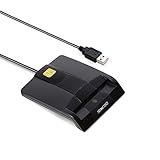
- DOD Military CAC USB Smart Card Reader for Government ID, National ID, ActivClient, AKO, OWA, DKO, JKO, NKO, BOL, GKO, Marinenet, AF Portal, Pure Edge Viewer, ApproveIt, DCO, DTS, LPS, Disa Enterprise Email etc. CAC Cards
- Compatible with windows (32/64bit) XP/Vista/ 7/8/10, Mac OS X
- Sleek Ergonomic Design -Gloss Black Finish. EMS ready.ISO7816 Class A,B and C.
- What You Get: Saicoo CAC Smart Card Reader, 18-month warranty and lifetime technical support.
- Open Settings and search for Recovery.
- Enter the Windows Recovery Environment.
- Select Troubleshoot.
- Select Advanced options and then System Restore.
- Choose a restore point from before the problem.
- Review the affected programs before confirming.
System Restore can revert applications, settings, certificates, and updates. It is not the first choice for a simple missing-file message, but it can help after a recent update or software conflict.
Outdated Drivers Are Slowing You Down
One free scan finds every outdated or missing driver and matches the right update for your exact hardware.Free scan · exact hardware matchPC Slower Than It Used to Be?
A free scan shows the junk files, broken settings and background clutter dragging Windows down - then fixes them in one click.Free scan · Windows 10 & 11Prevention and final checks
Keep Windows updated, avoid unofficial DLL replacements, and install reader drivers and smart-card middleware only from trusted providers. After repairs:
- Restart Windows.
- Run
sc queryex SCardSvr. - Confirm the reader in Device Manager.
- Run
certutil -scinfoif you use a card. - Launch the affected application again.
FAQ
Is scardsvr.dll safe?
The genuine file is a Microsoft Windows component. Verify that it is in the expected Windows system location and carries a valid Microsoft signature. A copy in a random download folder or an application directory deserves further investigation.
Does Windows 10 or Windows 11 need a separate download?
No. It is part of Windows. Use Windows Update, DISM, and SFC rather than downloading a standalone DLL.
Should the Smart Card service always be running?
No. SCardSvr is demand-started and may be stopped when no reader or application needs it. Start it when testing a smart-card failure, but do not assume a stopped service is itself a fault.
Will reinstalling Visual C++ fix this error?
Usually not. scardsvr.dll is not a Visual C++ runtime. Only investigate a separate runtime if the complete error identifies another missing dependency.
What if the service runs but my card still fails?
Check the reader’s USB connection, Device Manager status, manufacturer driver, card middleware, certificates, card insertion, and organizational policy. A running service does not prove that the reader stack is healthy.
Can I use System Restore?
Yes, when a suitable restore point predates the failure and ordinary Windows repair has not helped. Review the changes it will make before confirming.
Quick Recap
Product prices and availability are accurate as of the date/time indicated and are subject to change. Any price and availability information displayed on Amazon at the time of purchase will apply.




