The Tool Desk
Outbyte Driver Updater FREEFix the driver behind crashes, sound loss and screen glitchesFind Drivers →Outbyte PC Repair FREERepair Windows errors before they cause bigger problemsFix Now →sodppun2.dll is a Sony DPP printer-driver component, not a general Windows, DirectX, .NET, or Visual C++ runtime. If Windows says sodppun2.dll is missing, was not found, or could not be loaded, the safest fix is to repair or remove the Sony DPP printer package rather than download the DLL by itself.
The file is associated with Sony DPP digital photo printers, including models in the DPP-FP range. Some older Windows installations supplied the driver through Windows, while other models required Sony’s installer. Support for Windows 10 and Windows 11 depends on the exact printer model.
As an Amazon Associate I earn from qualifying purchases.
Fix sodppun2.dll errors
Work through these fixes in order. If the error appears when printing or adding a Sony printer, start with Fix 1.
What’s actually slowing this PC down?
Pick the symptom - the matching free tool is one click away.
1. Reinstall the exact Sony DPP printer driver
Time needed: 10–20 minutes
A damaged, incomplete, or partially removed printer package is the most likely cause. Reinstalling the correct package restores the related files and driver registration together.
#1 Best Overall
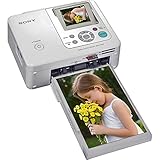
- Auto Touch-up for Red-eye Correction and Exposure Correction
- Create 4x6¿ prints, Index prints, Photo ID prints, Calendar prints
- Print lab-quality photos at home in about a minute
- USB A-B cable included
- Bluetooth Ready with optional BT adaptor (DPPA-BT1)
- Disconnect the Sony printer from the computer.
- Press Windows + I to open Settings.
- Select Bluetooth & devices.
- Select Printers & scanners.
- Choose the Sony DPP printer, if it is listed.
- Select Remove and confirm.
- Restart Windows.
- Open Sony’s official support site in your browser.
- Search for the exact printer model, such as DPP-FP65, DPP-FP75, DPP-FP90, DPP-FP95, or DPP-FP97.
- Download the driver or setup package that matches your Windows edition and architecture.
- Run the downloaded
Setup.exeas an administrator. - Connect the printer only when the installer tells you to do so.
- Restart Windows after setup finishes.
- Print a test page or test photograph.
Sony’s older manuals commonly require an administrator account and may instruct you to remove the printer, restart Windows, and repeat setup if installation fails. Follow the instructions for your exact model rather than forcing a driver intended for a different DPP printer.
What success looks like: the printer appears under Printers & scanners, the test print completes, and the missing-DLL message no longer appears.
If it fails: remove the printer again, then clean its old driver package as described in Fix 4 before retrying. Do not copy a loose DLL into a Windows folder.
When manually checking several old driver packages and model-specific versions becomes tedious, Outbyte Driver Updater can scan for outdated drivers; its free scan shows what is wrong, while the full version performs the driver installation. It is optional, and the exact Sony model driver remains the correct source for this file.
2. Use Windows Update or the Windows 7 printer-driver path
Time needed: 10–25 minutes
Some Sony DPP models used an inbox driver supplied through Windows, particularly on Windows 7. If Sony’s instructions identify your model as using the Windows driver, install it through Windows rather than searching for sodppun2.dll separately.
On Windows 10 or Windows 11:
- Open Settings.
- Select Windows Update.
- Select Check for updates.
- Install available updates.
- Restart the computer.
- Return to Settings → Bluetooth & devices → Printers & scanners.
- Select Add device.
- If Windows does not find the printer, select Add manually.
- Choose the option for adding a local printer or using a manual printer connection.
- Select the correct USB or virtual printer port.
- Choose the Sony model if it appears in the manufacturer and printer lists.
- Complete setup and print a test page.
On Windows 7, the documented route is:
- Open Control Panel.
- Select Devices and Printers.
- Select Add a printer.
- Select Add a local printer.
- Choose the correct port.
- Select Windows Update in the printer selection window.
- Wait for the list to refresh.
- Select the exact Sony DPP model.
- Finish the installation.
Do not assume that a driver offered for one DPP-FP model works for another. Older Sony downloads may list Windows XP, Vista, or Windows 7 support without promising compatibility with Windows 10 or Windows 11. If the printer is not listed for your current Windows version, the model may require an older supported computer or a compatible generic printing path.
3. Repair Windows components with DISM and SFC
Time needed: 15–45 minutes
Use this step when Windows reports broader component corruption, several printer files are missing, or driver installation fails with Windows servicing errors. These commands repair protected Windows components. They are not guaranteed to restore a third-party Sony printer-driver file.
Rank #2
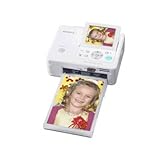
- Compact and portable dye-sublimation photo printer with built-in memory card reader and screen
- 3.5-inch adjustable LCD screen
- Red-eye correction, and basic editing functions built-in
- Icon-based navigation system
- Backed by a 1-year warranty
- Right-click Start.
- Select Terminal (Admin) or Windows PowerShell (Admin).
- Select Yes at the User Account Control prompt.
- Run:
DISM.exe /Online /Cleanup-Image /RestoreHealth
- Wait for DISM to finish.
- Then run:
sfc /scannow
- Wait until verification reaches 100 percent.
- Restart Windows.
- Retry the Sony driver installation from Fix 1.
Microsoft recommends running DISM before System File Checker. If SFC reports that it repaired files, restart and test the printer. If it reports that it could not repair everything, repeat the repair after Windows Update has installed pending updates.
If repeatedly hunting through Windows repair results is slowing you down, Outbyte PC Repair can show what its free scan finds; the repair action is performed by the full version. It is optional, and DISM, SFC, and reinstalling the exact Sony package remain the direct repair path.
If the error remains: continue with driver cleanup. SFC may leave a missing third-party driver untouched because sodppun2.dll belongs to the printer package rather than the Windows component store.
4. Remove an old Sony driver package from Windows
Time needed: 10–20 minutes
If you no longer use the printer, removing the stale package is usually better than restoring a file that Windows no longer needs. This is also useful when an old startup task or print spooler entry keeps requesting the DLL.
Free tools Windows power users keep installed
One-click scans. No signup required.
First remove the printer:
- Open Settings → Bluetooth & devices → Printers & scanners.
- Select the Sony printer.
- Select Remove.
- Restart Windows.
Then remove the driver package where Windows provides the option:
- Press Windows + R.
- Enter:
printmanagement.msc
- Press Enter.
- Expand Print Servers.
- Expand your computer name.
- Select Drivers.
- Locate the Sony DPP driver.
- Right-click it and select Remove Driver Package.
- Restart Windows.
Some editions of Windows do not include Print Management. In that case:
- Press Windows + R.
- Enter:
printui.exe /s /t2
- Press Enter.
- Select the Sony driver.
- Select Remove.
- Choose to remove the driver and driver package when prompted.
- Restart Windows.
What success looks like: the startup message stops appearing, and the old Sony printer no longer appears in printer settings.
Rank #3

- High-speed, portable dye-sublimation photo printing
- Borderless 4-by-6 and 3.5-by-5-inch prints in about 1 minute
- Built-in LCD preview panel; compact, lightweight design
- USB, PictBridge, memory card ports; prints with or without a computer
- SuperCoat 2 protective lamination; rich, long lasting colors
If Windows refuses to remove the package because the spooler is using it, restart the computer and try again before manually stopping services. Do not delete random files from System32 or the Driver Store.
5. Check antivirus quarantine safely
Time needed: 5–15 minutes
Security software can quarantine a printer-driver file, especially after a cleanup or a driver update.
- Open Windows Security.
- Select Virus & threat protection.
- Select Protection history.
- Look for an entry involving
sodppun2.dllor the Sony printer package. - Check the detected file path and the package it came from.
Restore the file only when it came from a trusted Sony or Windows driver package and your security product identifies the detection as a false positive. If the file was found in a temporary folder, a download directory, or an unexpected user-writable location, do not restore it. Run a full Microsoft Defender scan and reinstall the driver from the manufacturer instead.
A file name alone does not prove safety. A legitimate copy should be part of the correctly installed printer package, not an isolated download.
6. Match the driver architecture and printer model
Time needed: 10–20 minutes
Public records show that sodppun2.dll has appeared in different legacy package variants, including 32-bit metadata and a Windows 7 x64 Driver Store package. That does not mean the files are interchangeable.
Quick wins for a faster PC:
Scan for outdated or missing drivers - takes under a minuteDriver Scan →Clear out junk files and repair common Windows errorsFree Scan →Fix the driver behind crashes, sound loss and screen glitchesFind Drivers →Check your system architecture:
- Open Settings.
- Select System → About.
- Read System type.
Then download the driver intended for:
- Your exact Sony DPP model
- Your Windows edition
- Your Windows architecture
A 32-bit driver is not a substitute for a 64-bit package, and a similarly named DLL from another release may have different dependencies. If Sony provides no compatible package for Windows 10 or Windows 11, forcing an old driver can create more printer errors. Remove the obsolete printer instead if you no longer need it.
Rank #4

- Dye-sublimation technology, 8-bit color, 300 dpi resolution
- Prints a 4-by-6-inch photo in about 90 seconds to 2 minutes
- Borderless 4-by-6 and 3.5-by-5-inch photo sizes
- Photos are resistant to fingerprints, water, and fading
- USB 2.0 interface, PictBridge compatible; Windows compatible
Do not copy sodppun2.dll manually
Avoid DLL download sites websites and random forum attachments. A loose copy may contain malware, belong to the wrong architecture, come from an unrelated release, or still fail because another dependency is missing. The message “specified module could not be found” can refer to sodppun2.dll itself or to a dependency that the driver needs.
Do not place the file manually in:
C:WindowsSystem32C:WindowsSysWOW64- An application folder
- The Windows Driver Store
The correct repair is to reinstall the complete Sony driver package or remove the obsolete package.
Independent reader supportYour contribution helps us test, update, and keep practical guides available for everyone.Do not use regsvr32 for this file
regsvr32 is intended for DLLs that provide a registration entry point such as DllRegisterServer. A printer-driver support DLL does not automatically qualify merely because its name ends in .dll.
Running:
regsvr32 sodppun2.dll
is not a standard repair step. If Windows reports that DllRegisterServer was not found, the command was inappropriate. It does not show that you need another copy of the file. Microsoft documents regsvr32 as a DLL registration command, not a general missing-DLL repair tool.
Why the error can appear when you are not printing
A Sony printer may have been removed while its driver remained registered. Windows can then encounter the old package during startup, printer enumeration, a print-spooler operation, or an attempted driver update.
The package may also be stored in the Driver Store under an INF such as prnso002.inf, alongside other Sony printer files. Seeing the file in a Windows-managed folder does not make it a normal Windows runtime component.
Best Value

- Dye-sublimation technology with over 400 x 400 dpi resolution
- Prints 4-by-6-inch photo in just 90 seconds
- Prints directly from Memory Stick media cards
- Accepts 4-by-6, 3.5-by-5, and sticker papers
- USB interface; PC and Mac compatible
If the message appears during startup but no printer is connected, remove the stale Sony printer and driver package. If it appears only when printing, reinstall the exact model driver first.
Outdated Drivers Are Slowing You Down
One free scan finds every outdated or missing driver and matches the right update for your exact hardware.Free scan · exact hardware matchWindows Errors? Fix Them Before They Spread
Repair common Windows errors and clear accumulated junk for a smoother, more stable PC - no reinstall needed.Free scan · no reinstallLikely causes and the appropriate fix
| Likely cause | Best response |
|---|---|
| Damaged or incomplete Sony driver | Remove and reinstall the exact model package |
| Windows Update or Driver Store corruption | Update Windows, run DISM, then SFC |
| Wrong architecture or model driver | Install the matching package |
| Antivirus quarantine | Scan, verify the source, then reinstall if needed |
| Stale printer reference | Remove the printer and driver package |
| Missing dependency | Reinstall the complete package, not just the named DLL |
| File tampering or malware | Scan with Microsoft Defender and avoid restoring the file |
Frequently asked questions
Is sodppun2.dll a Microsoft Windows file?
It is identified as Sony DPP Printer Uni Driver. Some public metadata labels Microsoft as the publisher, likely reflecting Windows distribution or cataloguing, but that does not establish a current standalone Microsoft download. Treat it as part of a Sony printer-driver package.
Which printers use sodppun2.dll?
It is associated with Sony DPP digital photo printers, including models in the DPP-FP family. The exact package varies by model and Windows architecture.
Will SFC restore sodppun2.dll?
Not necessarily. SFC repairs protected Windows components. It may not restore a missing third-party printer-driver file, so reinstall the Sony package after running DISM and SFC.
Can I download the DLL by itself?
Do not. Download the complete driver from Sony Support or use the Windows printer-driver process for a model that Windows supports.
Is the file 32-bit or 64-bit?
The answer depends on the driver package and build. Public records show both 32-bit metadata and a Windows 7 x64 Driver Store variant. Match the complete driver to your system and printer model.
What if I no longer own the Sony printer?
Remove the printer and its driver package through Windows printer settings or Print Management. Removing the stale reference is safer than restoring a driver you do not use.
What if the error continues after reinstalling?
Check whether the message names a missing dependency, run a full security scan, and verify that the installed driver matches the exact model and architecture. If the old printer is unsupported on Windows 10 or Windows 11, remove the legacy package rather than forcing it into the system.




