Crashes, No Sound, or Screen Glitches?
Random freezes, missing sound and display glitches usually trace back to one bad driver. Find and replace yours safely.Free scan · under a minuteWindows Errors? Fix Them Before They Spread
Repair common Windows errors and clear accumulated junk for a smoother, more stable PC - no reinstall needed.Free scan · no reinstallIf Sea of Thieves never gets past the loading screen, first check the official Sea of Thieves Game Status page, then completely close the game, restart your platform and install every pending game, launcher and system update. The correct next fix depends on your platform and the exact message: Windows players who see “loading supplies” may be dealing with an antivirus conflict, while a Lavenderbeard message commonly points to a client-version or account-linking problem.
Check whether Sea of Thieves is down before changing anything
Open the official Sea of Thieves Game Status page immediately before changing local settings. The page snapshot updated October 12, 2026 reported that all systems were working as expected, but it also recorded that searching the seas could take longer than usual on October 11 and 12. That kind of temporary joining degradation can look like a frozen loading screen, and status information can change after the snapshot you see elsewhere.
| # | Preview | Product | Price | |
|---|---|---|---|---|
| 1 |

|
Sea of Thieves: Standard Edition – Xbox One | $38.87 | Buy on Amazon |
| 2 |

|
Sea of Thieves Xbox One (Renewed) | $30.14 | Buy on Amazon |
| 3 |
![Sea of Thieves: Standard Edition – Xbox One [Digital Code]](https://m.media-amazon.com/images/I/41RiuntPiNL._SL160_.jpg)
|
Sea of Thieves: Standard Edition – Xbox One [Digital Code] | $35.19 | Buy on Amazon |
| 4 |
|
Sea of Thieves - Xbox One/PC - Full Game - Key Card | $57.90 | Buy on Amazon |
| 5 |

|
Sea of Thieves Xbox One | $76.41 | Buy on Amazon |
As an Amazon Associate I earn from qualifying purchases.
If the status page reports an outage or degraded service, wait for the service to recover and try again later. Avoid reinstalling the game or rebuilding console storage while a service incident is active; those steps cannot repair a server-side problem.
Identify the symptom and platform
Use the wording on screen to choose the least disruptive branch. A black screen, an endlessly animated loading icon and “loading supplies” do not prove the same cause.
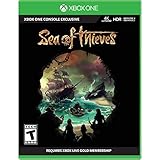
#1 Best Overall
- A shared-world adventure game by acclaimed UK developer Rare Ltd. Xbox Live Gold required to play (sold separately)
- Live the essential pirate life in a world rich with Rare’s irreverent charm. Sail and fight together, hunt treasure and create your own legends
- A fantastical world of unspoiled islands, mythical monsters and mouth-watering loot. Total freedom to decide how you approach the world and its players
- Xbox One Console exclusive
- Battery: no battery used;Entertainment Software Rating Board (ESRB) Content Description: Crude humor, use of alcohol, violence
| What you see | Most relevant branch | Start with |
|---|---|---|
| “Loading supplies” on Windows | Possible antivirus conflict | Check status, update the client, then test security software safely |
| Lavenderbeard or another beard error | Client and server versions may be out of sync; account linking can also matter | Refresh the installation and confirm the correct Xbox Live account |
| Black screen or endless loading on Xbox | Pending update, stale client state or damaged installation | Full close, console restart, updates, then a hard reset and re-download if required |
| Steam sign-in or launch failure | Xbox Live account-linking, Steam client or missing/corrupt data | Confirm account linking and repair the game files |
| PS5 crash or performance failure during loading | Out-of-date system software, licence or database problems, storage or installation damage | Apply PS5 recovery steps in order before reinstalling |
Do these reversible checks first
- Exit Sea of Thieves completely. Do not leave it suspended or minimized. Close it from the console menu or launcher, then start it again.
- Restart the whole platform. Restart the Xbox, Windows PC or PS5, not just the game process. A restart clears a suspended client and reloads platform services.
- Install every pending update. Check Sea of Thieves, the game launcher, Windows or console system software, and the relevant storefront. Rare’s support index has separate forced-update and installation guidance for Xbox and PC, a PS5 installation guide, Microsoft Store troubleshooting, Steam sign-in and launch help, and missing or corrupt data branches.
- Try one fresh launch after updating. If the message changes to a beard error or an account prompt, follow that branch rather than repeating restarts.
- Record useful details before making deeper changes. Note the platform, storefront, exact loading text, whether another account can sign in, the time of the attempt and any error code. Those details make a support ticket substantially easier to diagnose.
Windows: fix the “loading supplies” branch
Test for a security-software conflict
Rare’s troubleshooting article, last updated February 17, 2021, states that the “loading supplies” issue can be caused by the player’s antivirus conflicting with the game. It specifically names COMODO, Kaspersky and WARSAW / gas tecnologia as reported culprits. This is a documented possibility, not proof that every Windows loading failure is caused by antivirus software.
- Update Sea of Thieves and Windows first, then restart the PC.
- Open the security product’s own settings and use its documented safe allow-list or temporary-test procedure for the game. Follow the vendor’s instructions rather than deleting protection files or making permanent exclusions blindly.
- Launch Sea of Thieves once for the test. If the loading screen clears, the security product is implicated.
- Restore normal protection immediately after the test. Replace a broad exception with the narrowest vendor-supported rule, or contact the security vendor for a compatible configuration.
Rare recommends using another antivirus until the conflict is resolved and raising a Sea of Thieves support ticket if the problem persists. Do not treat this test as a universal fix, and do not leave your PC unprotected simply to keep playing.
Rank #2
- A shared-world adventure game by acclaimed UK developer Rare Ltd. Xbox Live Gold required to play (sold separately)
- Live the essential pirate life in a world rich with Rare's irreverent charm. Sail and fight together, hunt treasure and create your own legends!
- A fantastical world of unspoiled islands, mythical monsters and mouth-watering loot
- Total freedom to decide how you approach the world and its players
- Available on the Xbox One family of devices and Windows 10 PCs. Supports Xbox Play Anywhere and cross-platform play** (**Play on one device at a time. PC hardware requirements may vary for games on Windows 10).The Hungering Deep, the first major Sea of Thieves content update landing May 2018, brings with it an exciting new threat to the Sea of Thieves world. Work together with other crews on a completely new adventure with gameplay enhancements and unique rewards.The May kick-off of the Sea of Thieves weekly events programme also introduces fun new ways to play with weekly events and rewards.
Update Microsoft Store installations
For a Microsoft Store copy, open the Store’s library or update area and apply all available Sea of Thieves and Xbox-related updates. If the Store reports that the game is current but the client behaves as if it is old, sign out and back in to the Microsoft account used to own the game, restart Windows, and check for updates again. Rare’s support index has a Microsoft Store troubleshooting path when the normal update process does not complete.
What’s actually slowing this PC down?
Pick the symptom - the matching free tool is one click away.
Repair a Steam installation and sign-in
Steam users must be signed in to the intended Xbox Live account. When Sea of Thieves prompts for Xbox Live, complete the linking flow with that account; using a different account can make the game appear stuck even when the files are intact.
Rank #3
- Sea of Thieves offers the essential pirate experience, from sailing and fighting to exploring and looting – everything you need to live the pirate life and become a legend in your own right.
- Whether you’re voyaging as a group or sailing solo, you’re bound to encounter other crews in this shared-world adventure – but will they be friends or foes, and how will you respond?
- Quit Sea of Thieves and restart Steam.
- Open the game’s Steam properties and use the installed-files or file-integrity repair command if it is available. Steam changes its labels and layout periodically, so look for the control that verifies or repairs local files.
- Start the game and complete the Xbox Live sign-in prompt. Confirm that the displayed account is the one associated with your progress.
Rare lists separate Steam sign-in, launch and missing-or-corrupt-data support branches. A file repair can replace damaged data without immediately deleting the whole installation.
Lavenderbeard and client-version mismatches
Rare’s Lavenderbeard guidance connects this failure to a client version becoming out of sync with the server. The practical remedy is platform-specific:
- Xbox: install the current game update, perform a hard reset, and re-download the client when the mismatch remains.
- Microsoft Store on PC: apply updates through Microsoft Store, restart Windows, and launch again after the Store finishes.
- Steam: complete the Xbox Live account-linking prompt, then repair the local files if needed.
A Lavenderbeard message is therefore a reason to refresh versions and account state, not a reason to assume that your console or hard drive has failed.
Do these 3 things before closing this tab:
1Repair Windows errors before they cause bigger problems2Scan for outdated or missing drivers - takes under a minute3Clear out junk files and repair common Windows errorsXbox recovery steps
Refresh the client before reinstalling
- Close Sea of Thieves from the Xbox guide so it is no longer running or suspended.
- Restart the console and apply all Xbox system and game updates.
- Launch once. If Lavenderbeard or an endless loading screen remains, perform the Xbox hard-reset procedure recommended in Rare’s guidance.
- Re-download Sea of Thieves after the hard reset if the client still appears out of sync or its installation is damaged.
Re-downloading is later in the sequence because it takes longer and does not help when the service itself is degraded or the wrong account is signed in.
Best Value
- A shared-world adventure game by acclaimed UK developer Rare Ltd. Xbox Live Gold required to play (sold separately)
- Live the essential pirate life in a world rich with Rare's irreverent charm. Sail and fight together, hunt treasure and create your own legends!
- A fantastical world of unspoiled islands, mythical monsters and mouth-watering loot
- Total freedom to decide how you approach the world and its players
- Available on the Xbox One family of devices and Windows 10 PCs. Supports Xbox Play Anywhere and cross-platform play** (**Play on one device at a time. PC hardware requirements may vary for games on Windows 10).The Hungering Deep, the first major Sea of Thieves content update landing May 2018, brings with it an exciting new threat to the Sea of Thieves world. Work together with other crews on a completely new adventure with gameplay enhancements and unique rewards.The May kick-off of the Sea of Thieves weekly events programme also introduces fun new ways to play with weekly events and rewards.
PS5 recovery steps
Rare’s PS5 guidance is written for crashes and performance failures. It provides useful recovery actions for a loading failure, but none of these steps proves that every loading-screen hang is a PS5 hardware fault.
- Update PS5 system software. Install all available console updates, then restart and test Sea of Thieves.
- Restore licences. Use the PS5 account and licence option to refresh ownership information for the game.
- Power-cycle the console. Shut down fully, wait briefly, start the PS5 again and launch the game.
- Rebuild the database in Safe Mode. Follow Sony’s on-screen Safe Mode procedure and choose the database-rebuild option. This is a maintenance step, not a factory reset.
- Check internal storage. Ensure the console has usable internal space and that the installation is on healthy internal storage.
- Reinstall only if earlier steps fail. Delete and reinstall Sea of Thieves, then apply its updates before testing.
When reinstalling is justified
Reinstallation is appropriate after the status check, restart, updates, account verification, security-software test and platform repair steps have failed. It is most useful when the launcher reports missing or corrupt data, a file-integrity repair repeatedly finds the same damaged files, or a platform update cannot complete. It will not correct an outage, a wrong Xbox Live account or an antivirus rule that blocks the client again after installation.
Before deleting anything, confirm that you know the account used for the game and that your platform has finished syncing saved data. After reinstalling, launch once with default settings and apply all updates before adding custom security exceptions or other changes.
What to include in a Sea of Thieves support ticket
If the loading screen persists, submit a ticket through Sea of Thieves Support. Include:
- Platform and storefront: Xbox, Microsoft Store PC, Steam or PS5.
- The exact text shown, such as “loading supplies,” Lavenderbeard or a black screen.
- Your Xbox Live sign-in state and, for Steam, whether account linking completed.
- Whether the official status page showed an incident when you tested.
- Recent game, launcher, Windows or console updates.
- Every step already attempted, including antivirus testing, file repair, database rebuild or reinstall.
- Any error code, crash time and whether the problem affects one account or all accounts on the platform.
This information lets support separate a service-side delay from a client-version, account, security-software or installation problem without asking you to repeat every basic step.
Quick Recap
As an optional Windows shortcut after the manual checks, Outbyte PC Repair can address more than 100 common Windows issues where possible, including broken system elements, invalid redirects and shared DLL files; it also offers settings adjustments, temporary-file and cache cleanup, privacy tools, vulnerability checks, a real-time boost, file shredder and app-crash log. It runs on Windows 11, 10, 8 and 7, has a free trial by category of at least two days and then requires a subscription. It complements antivirus software rather than replacing it, and results vary; no tool repairs every Sea of Thieves crash.
Product prices and availability are accurate as of the date/time indicated and are subject to change. Any price and availability information displayed on Amazon at the time of purchase will apply.




