
A SteelSeries headset that suddenly stops working is often suffering from a power, pairing, routing, or permission problem—not a dead speaker. Start with the five checks below, then follow the branch matching your symptom. Because Arctis, Arctis Nova, wired, Bluetooth, 2.4GHz, PlayStation, and Xbox models behave differently, verify your exact model before using a reset or compatibility fix.
- No sound
- Microphone not working
- Wireless or dongle problems
- Bluetooth problems
- PlayStation, Xbox, Mac, Switch, or mobile
- GG, Sonar, or firmware problems
- When it is probably hardware failure
Do these five checks first
- Charge and power-cycle it. Charge the headset for a meaningful period, then power it off and on using the button procedure for your model. Do not assume every Arctis or Arctis Nova uses the same hold time. Check the volume wheel, Game/Chat balance control, and physical mute button.
- Reconnect the connection. Unplug the wireless dongle and connect it directly to the computer or console—not through a hub, dock, monitor, or front-panel extension. Try another USB port, then restart the computer or console.
- Confirm the connection mode. Make sure the headset is paired with its own dongle or Bluetooth device. If the dongle has a PC, USB, or Xbox mode switch, use the mode required by that model.
- Select the right devices. Set the headset as the playback device and its microphone as the input device. Exact names vary, but Windows may show separate Game, Chat, and Microphone devices.
- Test a clean baseline. Temporarily bypass Sonar, Bluetooth, VPNs, audio-enhancement software, and USB hubs. Test Windows audio or a basic recorder before opening a game.
If the headset works on another device, the original computer or console is the likely cause. If another headset works on the same port but yours does not, suspect the SteelSeries headset or dongle.
As an Amazon Associate I earn from qualifying purchases.
SteelSeries headset has no sound on Windows
Choose the physical SteelSeries devices
Right-click the speaker icon, open Sound settings, and select the headset’s physical Game device for Windows playback. Select the SteelSeries Microphone device for recording. In Discord or another chat app, select the headset’s Chat device where appropriate. The exact labels differ by model; SteelSeries documents the Game, Chat, and Microphone distinction for traditional Arctis setups in its Arctis setup guide.
Test a YouTube video or Windows sound before launching the game. If Windows works but the game does not, check the game’s own audio-output and voice-chat settings. Also check that the Game/Chat balance is centered rather than turned fully toward one side.
#1 Best Overall
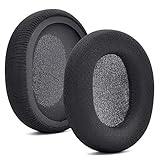
- 【Compatible with】Fit perfectly on Arctis 1/3/5/Arctis 7/7+/7P/7P+/7X/7X+/9/9X/Pro/Prime(Do Not Fit Any Arctis Nova) ' model before purchase. Before making a purchase, please make sure to confirm your headset's model to ensure compatibility.
- 【 OUR INGENUITY】defean is a factory specializing in ear pad acoustics. Buying defean products gives you a high price/performance ratio,We have excellent ear pad development engineers and skilled technical workers. Upgrade your headphones with defean Ear Pads for ultimate comfort.Experience effective noise isolation while wearing your headphones
- 【Easy to install】Just remove the old ear pads and put the new ear pads into the ear cups of the earphones, then you can easily snap the ear pads into the earphones without any auxiliary tools.
- 【Service guarantee】All defean are produced under strict quality inspection, and come with a 12-Month worry-free warranty and free
- 【 Package Includes】1 Pair of Ear Pads (Headphone no included) If you have any questions about the replacement pads, please feel free to contact us. We hope you have a good shopping experience!
Check Sonar routing
Sonar is a PC-only feature. It adds virtual Gaming and Chat devices, which creates more routing options—and more ways to send sound somewhere else.
- Open SteelSeries GG → Sonar → Mixer.
- Check which physical headset is assigned to the Gaming channel.
- Check the physical device assigned to the Chat channel.
- In Windows, select the intended Sonar Gaming or Sonar Chat device if you want to use Sonar.
- If there is still no sound, disable Sonar temporarily and select the physical SteelSeries Game device instead.
Selecting Sonar Gaming or Sonar Chat in Windows is not enough: Sonar must also send those channels to the actual headset. See SteelSeries’ Sonar guide.
Fix game/chat audio that disappears or cuts out
- Center the Game/Chat balance.
- Confirm Windows’ default playback and communication devices.
- Try another direct USB port.
- Check whether another application has exclusive control of the sound device.
- Update firmware only after completing the basic connection tests.
- Where Windows exposes the setting, try 2-channel, 16-bit, 44.1 kHz.
SteelSeries microphone not working
- Extend the retractable microphone fully, if your model has one.
- Press the physical mute button and check its indicator.
- Open Windows Settings → Privacy & security → Microphone and allow microphone access for Windows and the affected app.
- In Settings → System → Sound → Input, select the SteelSeries microphone.
- In Discord, Teams, or the game, select the same microphone rather than leaving an incorrect device on automatic selection.
- Test the mic with Windows’ input meter or a basic recorder.
If the Windows meter moves but other people cannot hear you, the problem is inside the chat application or its input sensitivity and mute settings. If Sonar is enabled, temporarily disable it. A high noise gate or aggressive noise reduction can cut off speech or make it distorted; lower those settings and test again.
Wireless, pairing, and dongle problems
First determine whether the problem is the headset, the dongle, or the host device. Use this isolation matrix:
Rank #2

- Compatibility: Fit perfectly on Arctis 1/3/5/Arctis 7/7+/7P/7P+/7X/7X+/9/9X/Pro/Prime(Do Not Fit Any Arctis Nova) Headset Headphones! Please confirm your headset model before purchase.
- Rugged Durability: Made of the Football Texture Fiber, our earpads are sweatproof, non-slip and durable, which provides you an enhanced soft touch during long-term wearing.
- Adopting the High-density foam to achieve a personalized fit, our earpads will bring you extreme comfort and excellent noise isolation.
- Easy to replace: We have included a detailed user guide to make the entire installation process quick and easy (usually 5 minutes).
- Committed to Innovation: We create professional-grade headphone accessories and are dedicated to ensuring a satisfying experience.
| Test | What it suggests |
|---|---|
| Same headset in another USB port | The original port, hub, dock, or adapter may be at fault. |
| Same headset on another computer or console | The original device or its software configuration is suspect. |
| Different headset on the same port | Your original headset or dongle becomes more likely to be defective. |
| Wired or analog test, if supported | Helps separate wireless pairing from speaker and microphone hardware. |
| Bluetooth test, if supported | Helps separate 2.4GHz dongle trouble from the headset itself. |
Keep the dongle connected directly during diagnosis. A dock can work perfectly with other peripherals and still cause intermittent headset detection or firmware behavior. Try both USB 2.0 and USB 3.0 ports where available, but neither is universally superior.
Check for the correct platform version. A PC/PlayStation headset is not automatically compatible with Xbox, and a dongle intended for one model may not pair with another. For Xbox models, use the required Xbox or USB mode according to the model’s documentation.
Bluetooth audio becomes poor when the microphone is active
This can be normal Bluetooth behavior rather than a defective headset. Bluetooth commonly uses A2DP for higher-quality one-way audio and HFP for two-way microphone audio. When Windows activates the microphone, it may switch to HFP, reducing playback quality.
Recommended Free Tools
For low-latency, full-quality gaming audio with an active microphone, use the headset’s 2.4GHz dongle, USB connection, or analog connection when supported. If Bluetooth has stopped connecting entirely, forget the headset in the device’s Bluetooth settings, restart Bluetooth, and pair it again.
Rank #3

- 🎧COMPATIBILITY - Please ensure compatibility with your headset model before purchasing, as these ear pads are designed to fit perfectly on Arctis 1/3/5/Arctis 7/7+/7P/7P+/7X/7X+/9/9X/Pro/Prime models (Not compatible with Arctis Nova).
- 🎧OUR INGENUITY - MZKLQVE specializes in ear pad acoustics, providing high value for your money. Our team of skilled engineers and technicians ensure top-notch quality in all our products. Upgrade your headphones with MZKLQVE Ear Pads for superior comfort and effective noise isolation.
- 🎧Easy to install - Simply remove the old ear pads and replace them with the new ones in the ear cups of your headphones. No additional tools are required for a hassle-free installation.
- 🎧Package Includes - 1 Pair of Ear Pads (Headphones not included). If you have any inquiries about the replacement pads, please don’t hesitate to reach out to us. We aim to provide you with a pleasant shopping experience!
- 🎧ONGOING IMPROVEMENT - MZKLQVE is committed to developing more professional and ergonomic ear pads. Please contact us for replacements or refunds if you encounter any issues with your purchase.
Platform-specific fixes
PlayStation
- Connect the correct headset dongle directly to the console and power on the headset.
- Open the PlayStation audio settings and select the headset as the output device.
- Set Output to Headphones → All Audio when you want game sound through the headset.
- Check headphone volume and the headset’s Game/Chat balance.
- Use the PlayStation-compatible version and dongle required by the model.
Menu labels can vary with console firmware. Sonar is not a PlayStation troubleshooting solution; SteelSeries identifies Sonar as PC-only. Its Sonar compatibility guidance explains the limitation.
Xbox
- Confirm that the headset and dongle are the Xbox-compatible versions.
- Set the dongle to the model’s Xbox or USB mode as required.
- Check Xbox privacy and communication settings if game audio works but chat does not.
- For firmware updates, SteelSeries says an Xbox headset’s dongle should be set to the USB side during the update.
Mac
Open System Settings → Sound and select the SteelSeries headset under both Output and Input. Check the chat application’s own microphone selection. Supported firmware updates can be performed through SteelSeries GG on macOS as well as Windows.
Nintendo Switch and mobile
Confirm that the exact model supports the intended connection. Bluetooth models may need to be forgotten and paired again. Dongle models may require a supported USB-C or dock arrangement. Simultaneous wireless models can have a separate active-connection control. Sonar settings from a PC do not transfer as a universal fix to Switch or mobile.
GG or Sonar will not load
If Sonar is stuck or missing, first establish whether the headset works without it. Select the physical SteelSeries device in Windows and test audio. If that works, the problem is probably Sonar routing or the GG installation rather than the headset hardware.
Rank #4

- 🎧MORE COMFORTABLE - Professional-grade gel layer and memory foam combined with breathable sports fabric make this more comfortable than the stock Arctis 7 ear cushion, and your ears will be a little cooler.
- 🎧UPGRADE FROM THE OEM - The foam inside feels denser and springs back slower than that in the OEM Arctis 7 earpads. For those who wear glasses, the original pads press into the frames of glasses, making them uncomfortable. These pads can solve this issue, place far less pressure on the glasses.
- 🎧GREAT SOUND QUALITY - The important part of the sound quality is on the pads, these Arctis pro earpads seal around the ears brilliantly, you can not tell noise cancellation difference or sound quality change.
- 🎧PERFECT FIT - These ear cushions are perfect replacements for SteelSeries Arctis 7/7+/7P/7P+/7X/7X+, Arctis 5/3/1, Arctis 9X/9/Pro/Prime Wireless Gaming Headset. (Also Compatible with ATH M50/M50X/M40/M40X/M35/M30/M30X/M20X, HyperX Cloud III/Cloud II/Cloud Alpha/Cloud Flight/CloudX/Cloud Stinger, Sony WH-CH700N/WH-CH710N/WH-CH720N/WH-XB900N/WH-RF400, Turtle Beach Stealth Stealth 700 Gen 1/Stealth 600/Stealth 520/Stealth 500/Stealth 450/Stealth 400, Logitech G Pro X/G Pro X Wireless)
- 🎧EASY TO INSTALL - These earcups only require 10% of a brain to install. Just peel off the old ear cups, then insert the new earcups’ rubber lip into the top groove of the earphones, finally insert the rest of the lip around the groove by gently pulling the earcups with fingers.
SteelSeries’ current Sonar reset sequence is:
- Open GG and Sonar.
- Open Windows Task Manager.
- Force-close Sonar-related background processes; GG will also close.
- Restart GG with administrator rights.
- Check whether a VPN or firewall is blocking GG.
- Add GG to the relevant exception list, or temporarily disable the suspected software only for testing.
Other audio-processing software, including DTS-related software, can also conflict with headset processing. SteelSeries discusses these conflicts in its DTS troubleshooting guidance.
Firmware updates: when and how to use them
Firmware can correct connection and compatibility bugs, but it should not be the first response to every audio problem. A failed update can create a more difficult recovery issue, so do not disconnect power, the headset, or the dongle while an update is running.
- Install or open SteelSeries GG on a Windows or macOS computer.
- Connect the headset and its wireless dongle directly to the computer.
- Power on the headset and connect it to the dongle.
- Open Engine in GG.
- Find the headset device card and follow the update banner if one appears.
If the update fails or freezes, quit and relaunch GG, restart the computer, try another computer, use a different direct USB port, and test without a VPN or firewall. Reinstall GG only after preserving profiles, macros, or clips. See SteelSeries’ firmware guide and failed-update guidance.
Crashes, No Sound, or Screen Glitches?
Random freezes, missing sound and display glitches usually trace back to one bad driver. Find and replace yours safely.Free scan · under a minuteWindows Errors? Fix Them Before They Spread
Repair common Windows errors and clear accumulated junk for a smoother, more stable PC - no reinstall needed.Free scan · no reinstallUse the correct model-specific hardware reset
There is no universal SteelSeries reset combination. A reset location or button sequence for one Arctis model may be wrong for another.
Best Value
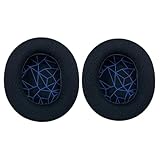
- 🎧【Wide Compatibility】: Our earpads designed for Steelseries Arctis 1/Arctis 3/Arctis 5/Arctis Prime/Arctis 7/7+ /7P/7P+/7X/7X+/Arctis 9/Arctis 9X/Arctis Pro wireless gaming headsets. (Do Not Fit Any Arctis Nova) Please check your model before purchase.
- 🎶【High-Quality Replacement Earpad】: Enjoy enhanced comfort and sound quality with soft memory sponge and breathable mesh fabric ear pads cushioned with a stylish blue stripe in black. Upgrade your headset with these premium earmuffs.
- 🎧【Easy to Install and Maintain】:Effortlessly replace your old earpads with these high-quality alternatives to revitalize your Steelseries Arctis headset. The blue line in black design adds a touch of style while ensuring optimal sound performance.
- 🎶【Superior Sound Isolation and Comfort】:Crafted with protein leather offering high elasticity and durability for long-lasting use. Immerse yourself in your gaming or music sessions without distractions.
- 🎧【Enhanced Gaming Experience】: Upgrade your Steelseries Arctis wireless gaming headset with high-density noise cancelling foam earpads. The high-density foam material effectively isolates sound, reducing external noise and enhancing the acoustics of your gaming audio
For the Arctis Nova 7 and Nova 7 Gen 2, SteelSeries documents this procedure:
- Remove the right ear cushion.
- Locate the reset pinhole.
- Insert a paperclip, pin, or similar tool.
- Hold the reset button for 1–2 seconds.
- Wait for the headset to restart.
This hardware restart does not remove firmware updates or delete GG/Sonar settings. For every other model, use the relevant entry in SteelSeries’ official Arctis reset resource rather than removing an ear cushion or inserting a tool based on a generic guide.
When the headset is probably defective
Hardware failure becomes more likely when the headset is not detected by multiple known-good computers or consoles, will not charge or power on after testing another cable and power source, has one silent side across wired, wireless, and Bluetooth tests, or has a microphone that fails on multiple platforms. A dongle that is physically damaged or never appears on any computer is also a strong warning sign.
At that point, a reset or driver reinstall cannot repair a failed battery, speaker, microphone capsule, USB port, or wireless dongle. Contact SteelSeries support and keep your purchase details and exact model name available.
If troubleshooting confirms hardware failure
Replace like-for-like if you want the same connection and platform support. Choose according to the problem you are trying to avoid:
- Arctis Nova 1: a wired 3.5mm option for broad basic compatibility and minimal software complexity.
- Arctis Nova 5: midrange wireless with 2.4GHz, Bluetooth, mobile presets, Quick-Switch Wireless, and a listed 60-hour battery life.
- Arctis Nova 7 or Nova 7 Wireless Gen 2: dual-wireless use, including simultaneous 2.4GHz and Bluetooth functionality on supported versions; verify the exact platform model.
- Arctis Nova Pro Wireless: premium multi-system use with ANC, base-station controls, and an Infinity Power System; it is unnecessary if you only need dependable basic audio.
These are product-positioning and feature signals from SteelSeries’ current listings, not recommendations to replace a headset before testing it. Verify the exact PC, PlayStation, or Xbox version before buying. Historical launch MSRPs—such as $129.99 for the Nova 5 series, $179.99 for the Nova 7, and $59.99 for the Nova 1—are not current prices; check the official store for live pricing.
Quick Recap
Product prices and availability are accurate as of the date/time indicated and are subject to change. Any price and availability information displayed on Amazon at the time of purchase will apply.
Free tools Windows power users keep installed
One-click scans. No signup required.

