Do these 3 things before closing this tab:
1Scan for outdated or missing drivers - takes under a minute2Repair Windows errors before they cause bigger problems3Fix the driver behind crashes, sound loss and screen glitchesMouse feet, also called mouse skates or glide feet, are the low-friction pads attached to the bottom of a computer mouse. They carry the mouse across your desk or mouse pad, prevent the shell from scraping, and affect how easily the mouse starts, moves, and stops.
Replacing them can restore a worn mouse or change its glide, but new feet are not automatically better. Material, thickness, shape, edge finish, mouse weight, and pad surface all matter.
As an Amazon Associate I earn from qualifying purchases.
What are mouse feet?
Mouse feet are contact surfaces designed to slide across a desk or mouse pad. “Mouse skates,” “mouse glides,” and “replacement skates” are alternative names for the same basic component. They are functional parts, not decorative stickers.
Windows Errors? Fix Them Before They Spread
Repair common Windows errors and clear accumulated junk for a smoother, more stable PC - no reinstall needed.Free scan · no reinstallCrashes, No Sound, or Screen Glitches?
Random freezes, missing sound and display glitches usually trace back to one bad driver. Find and replace yours safely.Free scan · under a minuteMost mice use two or more large feet near the front and rear, sometimes with smaller corner or side pieces. Many also have a circular foot around the sensor. Some designs include separate feet around a battery or aperture door, while others can use small universal dots.
#1 Best Overall

- Versatile: Set of 60 black mouse feet stickers/skates/pads for replacing worn-out mouse feet on M215, M310, M325 mice and other compatible models.
- Universal Compatibility: These mouse skates can also be used on various mouse pads, wrist rests, and other surfaces requiring smooth gliding.
- Easy Installation: The adhesive backing allows for quick and secure application onto the mouse's underside.
- Smooth Glide: The pads provide a smooth and precise gliding experience, enhancing cursor control and responsiveness.
- Durable Material: Constructed from high-quality materials, these mouse feet offer long-lasting performance and wear resistance.
Foot shapes are highly model-specific. Feet made for one mouse may not fit a similarly named wired, wireless, Mini, second-generation, or regional revision.
What do mouse feet do?
- Support the mouse: They carry some or all of its weight.
- Reduce friction: They make movement smoother than bare plastic.
- Protect the shell and pad: They keep the mouse body from rubbing directly against the surface.
- Influence control: Their friction affects starting movement, stopping, micro-adjustments, noise, and perceived smoothness.
- Maintain clearance: Correctly fitted feet help keep the sensor opening and shell at the intended height above the pad.
Static friction is the force needed to start moving the mouse. Dynamic friction is the resistance while it is already moving. Two sets of feet can therefore feel different both when beginning a swipe and while changing direction.
What are mouse feet made of?
PTFE
PTFE—polytetrafluoroethylene—is the most common material for quality replacement feet. “Teflon” is a trademarked brand name often used colloquially for PTFE; not every PTFE product is made by that brand.
The Tool Desk
Outbyte Driver Updater FREEScan for outdated or missing drivers - takes under a minuteDriver Scan →Outbyte PC Repair FREEClear out junk files and repair common Windows errorsFree Scan →PTFE is popular because it offers low friction, predictable glide, broad availability, and compatibility with many cloth and hard pads. Model-specific products from companies such as Corepad and EspTiger emphasize virgin or pure PTFE, rounded edges, and adhesive backing.
However, “100% PTFE” does not completely describe the experience. Formulation, thickness, flatness, surface finish, contact area, edge treatment, adhesive quality, and manufacturing tolerance can all change the result.
Ceramic
Ceramic feet are a niche option marketed around durability and fast movement. They can work well on suitable surfaces, but they are more pad-dependent than a conventional PTFE set. A rough or abrasive pad may produce excess noise, wear, or an unpleasant feel. Do not assume ceramic is universally faster or longer-lasting.
Rank #2

- ✨Replacement Pack: This set includes 60 black mouse feet sticker pads, providing ample replacements for your M215, M310, or M325 mouse pads and wrist rests.
- ✨Smooth Gliding: These mouse skates ensure smooth and effortless cursor movement on various surfaces for enhanced productivity.
- ✨Easy Installation: Simply peel off the old worn-out feet and apply these self-adhesive replacement pads for a quick and hassle-free upgrade.
- ✨Compatible Devices: Designed specifically for M215, M310, and M325 mouse models, these skates offer a perfect fit and optimal performance.
- ✨Durable Construction: Crafted from high-quality materials, these mouse feet deliver long-lasting performance and resistance against wear and tear.
Glass
Glass skates are designed for very low-friction glide. They can feel exceptionally fast, but that may make stopping and fine control harder, especially on an already-fast pad. Dust, grit, damaged surfaces, and unsuitable hard pads can also become more noticeable.
Universal dots
Universal dots are small individual feet that you position yourself. They are useful for unusual mice, custom shells, or models without dedicated replacement kits. They also allow experimentation with contact area.
The trade-off is installation precision. Dots must be placed evenly and symmetrically. Too few can concentrate the mouse’s weight and wear quickly; misplaced dots can make the mouse rock or interfere with shell and sensor clearance. EspTiger’s Ice V2 universal dots were listed at $8.99 USD on the referenced product page, though prices and availability can change.
Why do new mouse feet feel different?
Glide is a property of the complete mouse-and-pad system, not a standardized material score. It depends on:
- Thickness: Thicker feet can raise the mouse and alter sensor-to-pad distance.
- Surface finish: Polished and textured surfaces produce different friction.
- Edge profile: Rounded or beveled edges are less likely to catch or scratch.
- Contact area: Larger feet distribute weight and may feel more planted; smaller contact areas may feel quicker but can wear faster.
- Mouse weight: Heavier mice increase load on the feet and pad.
- Pad material and condition: Cloth, hybrid, plastic, glass, dirt, grit, and wear all change the result.
- Break-in: Some feet feel different after their edges and surfaces have run across the pad.
Terms such as “fast,” “control,” and “smooth” are usually product categories or subjective descriptions, not universal laboratory ratings. Corepad’s Pro Max range, for example, highlights machine-milled virgin PTFE, flatness, and rounded edges—details that matter beyond the material name alone.
Stock feet versus aftermarket skates
When stock feet are enough
Keep the original feet if they are smooth, intact, level, and consistent on your pad. Many modern gaming mice already ship with good PTFE feet. Replacement is not automatically an upgrade, and the difference may be subtle if the originals are in good condition.
Rank #3
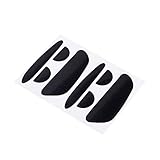
- Replacement mouse feet design to compatible with MX Master (1st Gen) and also for MX Master 2S Gaming Mouse. (ATTENTION: Not for MX Master 3)
- Smooth Glide. Helps reduce grip tension which improves accuracy.
- Adesive back for easy inatll to the bottom on mouse. Please peel off the invisible film covering on top of the skates Before usage.
- Durable and lowest friction PTFE Teflon material.
- Each pack contains 2 sets replacement feet (Gaming Mouse is NOT included)
When aftermarket feet make sense
Replacement feet are worthwhile when the originals are scratched, chipped, peeling, uneven, or worn through; when the mouse feels rough; or when the shell is beginning to contact the pad. They can also be useful for refurbishing a mouse or deliberately changing the balance between speed and control.
Aftermarket feet do not guarantee better accuracy or aim. They may improve smoothness and consistency, but a setup that is too fast can reduce stopping control.
Signs your mouse feet need replacing
- Scraping, scratching, or unusual noise during movement.
- Roughness in one direction or inconsistent glide.
- Visible grooves, cracks, chips, or lifted corners.
- Exposed adhesive or foam residue.
- The mouse rocks on a flat surface.
- The shell or sensor area touches the pad.
- Dust or hair is trapped under a lifted foot.
- A hard pad has visibly worn the contact surfaces.
There is no universal replacement schedule. Wear depends on usage, mouse weight, pressure, pad texture, dust, and cleaning habits. Discoloration or polishing alone does not prove that the feet have failed.
Quick wins for a faster PC:
Fix the driver behind crashes, sound loss and screen glitchesFind Drivers →Repair Windows errors before they cause bigger problemsFix Now →Scan for outdated or missing drivers - takes under a minuteDriver Scan →Clean the feet and pad before replacing anything
- Turn off and disconnect the mouse. Remove its battery if it is user-removable.
- Remove loose dust and hair with a dry microfiber cloth or air blower.
- Clean the mouse pad according to its manufacturer’s instructions.
- Never scrape the feet with a blade or metal tool, and avoid abrasive cleaners.
- Let a damp-cleaned pad dry completely.
A dirty, damaged, or worn pad can make even new skates feel scratchy. Inspect the pad before blaming the feet.
How to choose replacement mouse feet
Verify the exact mouse
Check the full model name, size, generation, wired or wireless version, and shell revision. Confirm the kit includes every required piece, including a sensor ring or feet around an aperture. Product photos and seller descriptions are not enough if revisions differ.
Choose model-specific or universal feet
Model-specific feet are the safer choice for beginners. They align with the original recesses, screw locations, sensor opening, and shell contours.
Rank #4

- COMPATIBILITY: Designed specifically as replacement mouse feet , ensuring perfect fit and smooth gliding
- QUANTITY: Package includes 60 pieces of black mouse feet stickers, providing multiple replacements for extended use
- EASY APPLICATION: Self-adhesive design allows for quick and simple installation to restore smooth mouse movement
- ENHANCED GLIDE: Premium quality mouse skates improve cursor control and reduce friction for better mouse performance
- PROTECTION: These mouse feet help prevent scratches on your mousepad or desk surface while maintaining optimal tracking
Universal dots suit custom projects or unsupported mice, but require careful measuring and symmetrical placement. They are less likely to provide a factory-like fit without additional work.
Match glide to your setup
- Balanced PTFE: A sensible all-round choice for work and gaming.
- Faster PTFE: Useful when movement feels sticky, especially with low sensitivity and a large pad, but it can reduce stopping control.
- Controlled PTFE: Better when the mouse already feels too fast or precise braking matters.
- Ceramic or glass: Consider only after checking pad compatibility and accepting a more specialized feel.
On soft cloth pads, PTFE is generally the least complicated starting point. Hybrid and hard surfaces can be faster but may wear feet more quickly, depending on their texture. Glass pads demand especially careful control of dust and grit.
Why thickness matters
Do not assume replacement feet are dimensionally identical to the originals. A thicker or thinner set can:
- Raise or lower the mouse body.
- Change the distance between the sensor and pad.
- Alter lift-off behavior.
- Make the sensor ring or shell contact the pad.
- Create rocking when thicknesses are mixed.
The effect varies by mouse sensor and firmware, but matching the original thickness is the safest approach unless the product is specifically intended as a modification. For context, ZOWIE states that original skates on its DW-series mice are approximately 0.5 mm thick.
Independent reader supportYour contribution helps us test, update, and keep practical guides available for everyone.How to replace mouse feet
The exact procedure varies by mouse. Some mice hide screws beneath the feet, so removing them may be required for shell access and may affect the condition of the original feet or your warranty. Check the manufacturer’s terms first.
Recommended Free Tools
- Disconnect the mouse and remove the battery if applicable.
- Photograph the original foot layout.
- Warm difficult adhesive gently; avoid excessive heat.
- Lift the old feet with a fingernail or plastic pick, not a metal blade.
- Remove all old adhesive, foam, and residue.
- Clean the mounting recess and let it dry fully.
- Test-fit the new feet with their backing still attached.
- Check screw holes, sensor openings, and shell edges.
- Identify the adhesive side, then peel the backing without touching it.
- Apply each foot from one end to the other and press evenly.
- Check that no edge is raised or protrudes beyond the shell.
- Allow the adhesive to settle before intensive use.
iFixit’s Logitech G Pro Wireless guide demonstrates the general process and shows why screws beneath feet matter, but it should not be treated as a universal procedure for every mouse.
Best Value

- 【Precision Fit】 This mouse feet pad is strictly designed and manufactured according to the original mouse, precision cut make it fit your mouse perfectly to replace your original mouse feet.
- 【Glide Smoothly】 Made of special material PTFE with very low coefficient of friction, waterproof and dirt-resistant, provide you smoother glide.
- 【Easy to Use】 Self-adhesive for easy installation on mouse back and easy to remove after use. Please remember to tear off the protective film on the surface of the mouse feet pads after installation.
- 【Appropriately Thickened】 After consider the mouse sensor's durability and accuracy carefully, our mouse feet pad is properly thickened without affect the premise of mouse sensor, this ensures its wear resistance and sensitivity.
- 【Package】 Each pack includes two sets of replacement mouse feet pads, compatible with Logitech MX Master 3 Wireless Gaming Mouse.
Troubleshooting after installation
| Problem | Likely causes | What to check |
|---|---|---|
| Scratching | Raised edge, grit, rough pad, or damaged foot | Clean both surfaces and inspect every edge. |
| Rocking | Uneven residue, mixed thicknesses, or badly placed dots | Check the mounting recess and confirm equal-height feet. |
| Poor tracking | Changed sensor distance or blocked sensor opening | Verify thickness, sensor clearance, and lift-off settings. |
| Too much speed | Feet or pad are faster than expected | Use a more controlled PTFE option or slower pad. |
| Peeling | Dust, finger oils, residue, or insufficient pressure | Replace the foot after preparing the surface correctly. |
| Uneven glide | Worn pad, trapped debris, or uneven contact | Inspect the pad as well as the feet. |
Are replacement mouse feet worth it?
Usually, yes, when the original feet are damaged or the mouse is scraping. A model-specific PTFE set is often a relatively inexpensive way to restore a usable mouse. Approximate market pricing is commonly around $10–$25, though vendor, currency, shipping, and availability vary; one referenced European Corepad listing showed €9.49 including 19% VAT and excluding shipping.
Replacement is optional when your mouse already has smooth, intact feet and you like its glide. It is also a poor solution when the real problem is a dirty or damaged pad. The best feet are not necessarily the fastest: choose the material and speed that give you a controlled, consistent setup.
Frequently Asked Questions
Are mouse feet and mouse skates the same thing?
Yes. Mouse feet, mouse skates, glide feet, and glide pads are common names for the low-friction contact surfaces on a mouse.
Can I use feet from another mouse?
Only if the dimensions, thickness, sensor clearance, and mounting layout are genuinely compatible. A similar product name does not guarantee a fit.
Can old mouse feet be reused?
Usually not cleanly. Removing them can stretch or deform the material and contaminate the adhesive, so replacement feet are normally intended as one-time installations.
Do mouse feet work on a bare desk?
They can slide on a desk, but a suitable mouse pad usually provides a more consistent and protective surface.
Can I replace only one foot?
You can, but mixing a new foot with worn feet may create uneven height or friction. Replacing the complete matching set is safer.
Can a new mouse pad fix poor glide?
Yes, if the pad is dirty, damaged, or incompatible with the feet. Clean and inspect the pad before buying new skates.
Quick Recap
Product prices and availability are accurate as of the date/time indicated and are subject to change. Any price and availability information displayed on Amazon at the time of purchase will apply.




