Anti-aliasing smooths jagged edges and reduces shimmering in games. Leave it enabled when you have enough GPU performance and want a more stable image. Turn it off—or choose a lighter, sharper mode—when you need maximum FPS, lower latency, or the game’s implementation causes blur and ghosting.
There is no single “anti-aliasing” setting with one performance cost. FXAA, MSAA, SMAA, TAA, TSR, DLSS, FSR, XeSS, DLAA, and SSAA solve aliasing in different ways.
As an Amazon Associate I earn from qualifying purchases.
What is anti-aliasing?
A game renders continuous shapes—diagonal lines, curves, wires, fences, foliage and character silhouettes—onto a grid of discrete pixels. When an edge falls between pixels, it can look like a staircase. This is called aliasing, or “jaggies.”
Do these 3 things before closing this tab:
1Clear out junk files and repair common Windows errors2Fix the driver behind crashes, sound loss and screen glitches3Repair Windows errors before they cause bigger problemsSmall details can also flicker, crawl or shimmer as the camera moves because their coverage changes from frame to frame. Anti-aliasing estimates intermediate coverage or reconstructs information from multiple samples and frames, making edges look smoother and more stable. NVIDIA describes the basic effect as adding intermediate shades around stair-stepped edges, although that smoothing can also make an image appear softer. NVIDIA’s anti-aliasing overview explains the trade-off.
#1 Best Overall

- 18.5" LED CCTV HD Security Monitor: HDMI accept downscaled 4K/8MP Ultra HD. Ultra fine pixel pitch for close viewing in surveillance applications, keeps video looking its best by preventing blurry or pixelated images. 170 viewing angle for fewer restrictions on your range of vision
- Universal Compatibility with Multiple Video Formats: New downscaled UHD HDMI and existing Standard Definition CVBS composite BNC surveillance system compatibility with multiple video formats including new Downscaled Ultra HD 4K/8MP, 5MP 2560x1920, 4MP 2560x1440, 2MP 1920x1080 TVI/CVI/AHD (Through a TVI/AHD to HDMI Converter/AHTTVI-MI102), traditional standard definition 960H/composite video cameras. HD/TVI/CVI and AHD cameras will look crisp and lifelike
- Ultra HD Security Monitor with Multiple Input Options: HDMI (V1.4) port accepts downscaled Ultra HD 4K/8MP 3840x2160@30Hz, 5MP/Super HD 2560x1920@30Hz, 2K/4MP 2560x1440@30Hz, Full HD 2MP 1920x1080@30Hz Resolution. BNC port supports up to 700 TV lines. VGA port supports up to 1366 x 768 Resolution. Auto display recovery after power interruptions. NTSC/PAL auto detection. Certification: FCC, CE and CB. Multiple inputs (HDMI, VGA, BNC) allow multi-device setups without the need to juggle cords
- Direct BNC Connection for High Quality Video: 1 looping BNC video-in connector allows security camera to hookup to the monitor directly without going through a DVR. This "Direct BNC connection" preserves original high quality camera video without artifacts, signal loss, or distortion caused by digital processing and compression through a Digital Video Recorder or Distributor. It allows clear security video using single coax cable connection up to 1000ft/300 meters between the camera, recorder, and monitor to prevent fuzzy or unclear images
- True-to-Life Detail with SSAA Technology: Utilizes Super Sampling Anti-Aliasing (SSAA) technology to eliminate jagged edges and pixelation, providing a razor-sharp, smooth video feed essential for identifying critical evidence like faces and license plates
Anti-aliasing does not increase texture resolution, improve anisotropic filtering or fix every visual artifact. Anisotropic filtering improves texture clarity when surfaces recede at an angle; anti-aliasing primarily smooths edges and reduces temporal instability.
Anti-aliasing versus upscaling
Traditional anti-aliasing smooths an image rendered at the target resolution. Upscaling or super resolution renders internally at a lower resolution and reconstructs the final output at a higher one.
Modern technologies often do both jobs. DLSS, FSR, XeSS and Unreal Engine’s TSR use temporal information and reconstruction to improve performance while also reducing aliasing. They may replace the game’s normal TAA or other AA method rather than operate alongside it. Avoid stacking multiple temporal filters unless the game specifically recommends that combination. Unreal Engine’s documentation describes these methods as part of the modern AA and upscaling pipeline.
Anti-aliasing methods explained
| Method | Main strength | Main weakness | Typical use |
|---|---|---|---|
| FXAA | Very low cost | Can soften the whole image | Low-end hardware or high-FPS targets |
| MSAA | Clean geometric edges | Can be expensive and misses some transparent textures | Supported forward-rendered games |
| SMAA | Usually sharper than FXAA | Less effective against temporal shimmer | Clarity-focused settings |
| TAA | Good stability for foliage and fine geometry | May cause blur, ghosting and trails | Modern rasterized games |
| TSR | Temporal reconstruction plus AA | Quality depends on internal resolution and implementation | Unreal Engine games |
| DLSS, FSR and XeSS | Can improve FPS while reducing aliasing | May produce reconstruction artifacts | Supported modern games |
| DLAA | Native-resolution NVIDIA anti-aliasing | Uses considerable GPU performance | High-end systems with spare headroom |
| SSAA | Excellent broad image quality | Extremely expensive | High-end hardware or older games |
FXAA
Fast Approximate Anti-Aliasing is a screen-space filter applied after the scene is rendered. It is generally inexpensive, but because it works on the completed image it can blur texture detail, fine text and the entire frame. It is useful when performance matters more than maximum clarity. NVIDIA documents FXAA among its driver-level controls.
MSAA
Multisample Anti-Aliasing samples polygon edges and can produce cleaner geometric boundaries than FXAA. Higher levels such as 4x or 8x usually cost more performance. MSAA may not adequately handle alpha-tested or transparent textures, including fences, grass, leaves and hair. AMD specifically notes this limitation in its MSAA guidance.
SMAA
Subpixel Morphological Anti-Aliasing identifies edge patterns and blends pixels according to those patterns. It is often a useful middle ground when FXAA is too blurry and TAA produces too much motion softness. Results depend on the game’s implementation. Unity documents its pattern-based approach here.
TAA
Temporal Anti-Aliasing combines the current frame with information from previous frames. It is often better than spatial filters at reducing foliage shimmer, crawling edges and subpixel aliasing. However, incorrect or incomplete motion information can create ghost trails, smearing and lost fine detail. TAA implementations require motion vectors, as Unity’s documentation notes, and quality varies significantly between games.
The Tool Desk
Outbyte Driver Updater FREEScan for outdated or missing drivers - takes under a minuteDriver Scan →Outbyte PC Repair FREERepair Windows errors before they cause bigger problemsFix Now →Rank #2
![[Pack of 2] Premium Anti Blue Light Screen Filter for 32 Inches Computer Monitor, Screen Filter Size is 17.3' Height x29 Width, Blocks Harmful Blue Light, Reduce Digital Eye Strain Help Sleep Better](https://m.media-amazon.com/images/I/41kP6kmZkOL._SL160_.jpg)
- 【𝗦𝗰𝗿𝗲𝗲𝗻 𝗣𝗿𝗼𝘁𝗲𝗰𝘁𝗼𝗿 𝗦𝗶𝘇𝗲】 This Blue Light Screen Filter Panel fit 32 inches TV/Monitor. The Screen Filter is 29 inches width x 17.3 inches height. Please compare your TV to our measurement picture before purchasing.
- 【𝗕𝗲𝗻𝗲𝗳𝗶𝘁 𝗼𝗳 𝗕𝗹𝘂𝗲 𝗟𝗶𝗴𝗵𝘁 𝗦𝗰𝗿𝗲𝗲𝗻 𝗣𝗿𝗼𝘁𝗲𝗰𝘁𝗼𝗿】 Ideal for individuals such as insomniacs, students, office workers, gamers, beauty and fashion enthusiasts, pregnant women, and seniors. This screen protector helps filter blue light and ease eye strain, contributing to better sleep and eye comfort.
- 【 𝗕𝗹𝘂𝗲 𝗟𝗶𝗴𝗵𝘁 𝗕𝗹𝗼𝗰𝗸𝗶𝗻𝗴 𝗧𝗲𝗰𝗵𝗻𝗼𝗹𝗼𝗴𝘆】 Our screen filter effectively blocks up to 80% of harmful blue light and radiation, helping to prevent digital eye fatigue and reduce the risk of vision problems. Enjoy prolonged screen use with improved eye protection.
- 【𝗦𝗰𝗿𝗮𝘁𝗰𝗵-𝗥𝗲𝘀𝗶𝘀𝘁𝗮𝗻𝘁】 Constructed from acrylic, it effectively protects the screen from dust and scratches. Ideal for use in the office or at home by office workers, gamers, and programmers.
- 【𝗜𝗻𝘀𝘁𝗮𝗹𝗹𝗮𝘁𝗶𝗼𝗻】 They attach easily and securely to your monitor’s bezel without the need for adhesives, making it simple to put the filter on or take it off whenever needed.
TSR, DLSS, FSR and XeSS
These reconstruction methods can render below the display resolution and rebuild a higher-resolution image. Quality presets such as Quality, Balanced and Performance progressively reduce internal resolution. They can improve FPS when the GPU is the bottleneck, but may introduce shimmer, ghosting or loss of fine detail. DLSS requires compatible NVIDIA hardware and game support; FSR and XeSS have different requirements depending on their version and implementation.
DLAA is related to NVIDIA’s reconstruction technology but runs at native resolution rather than using a lower internal resolution. It can provide high-quality AA, but it is intended for systems with spare GPU headroom. NVIDIA discusses the distinction in its RTX technology documentation.
SSAA
Supersample Anti-Aliasing renders at a higher internal resolution and downsamples the result. It can improve many forms of aliasing, but the GPU must render substantially more pixels. AMD’s supersampling guidance describes the quality benefit and higher performance cost.
Should you turn anti-aliasing on or off?
| Situation | Starting recommendation |
|---|---|
| Jaggies are distracting and FPS is comfortably above target | Enable AA |
| The image shimmers during camera movement | Try TAA, TSR, DLSS, FSR or XeSS |
| The image is blurry or leaves ghost trails | Try SMAA, a sharper mode, moderate sharpening or AA off |
| Competitive game where latency and clarity dominate | Test AA off, FXAA, SMAA or the sharpest low-cost option |
| Low-end GPU cannot maintain the target FPS | Use AA off or FXAA |
| High-resolution display with barely visible jaggies | Lower or disable AA if the performance gain helps |
| Foliage, wires or fences shimmer | Try a good temporal or reconstruction method |
| DLSS, FSR, XeSS or TSR is enabled | Do not automatically add another temporal AA method |
| Image quality is more important than FPS | Try higher-quality AA or native-resolution reconstruction |
The right choice depends on your target frame rate, refresh rate, resolution, GPU headroom, genre and tolerance for blur. At 1440p and 4K, jaggies are often less obvious, but thin geometry and shimmer can remain visible. High resolution does not make anti-aliasing universally unnecessary.
How much FPS does anti-aliasing cost?
There is no reliable universal percentage. The performance impact depends on the GPU, resolution, game engine, rendering path, selected method, sample count, internal resolution and whether the game is GPU- or CPU-limited.
FXAA may have a small cost, while SSAA can be extremely expensive. Upscaling may increase FPS by lowering internal resolution, but the benefit depends on the game and workload. Higher MSAA levels generally cost more within that technique, but an “8x” setting is not automatically visually superior to TAA, SMAA or reconstruction.
For a useful comparison, test these options in the same scene:
Rank #3
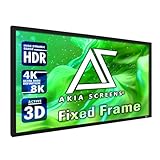
- 138-INCH 16:9 TENSIONED PROJECTION SIZE: 138-inch diagonal fixed frame projector screen with a 16:9 aspect ratio. Viewable image area measures 67.6" H x 120.3" W. Designed for use with a home theater projector in large indoor viewing spaces such as theaters, offices, and cinema-style rooms.
- CINEWHITE UHD-B SCREEN MATERIAL: This projection screen features 1.3 gain with full Lambertian diffusion for uniform brightness and reduced light penetration. ISF Certified for accurate color reproduction to support balanced, consistent image quality in indoor home theater, office, and classroom projection environments.
- BLACK VELVET ALUMINUM FRAME: Fixed frame design features a 2.4-inch lightweight aluminum frame wrapped in dense black velvet. The velvet border absorbs projector overshoot and enhances perceived contrast, delivering a clean, theater-style appearance that complements a 135-inch projector screen in dedicated indoor viewing spaces.
- 4K / 8K & WIDE VIEWING ANGLE: Compatible with 4K, 8K Ultra HD, HDR, and active 3D projection. Features a wide 180-degree viewing angle with no noticeable loss in brightness or resolution, making it ideal for a 4K projector home theater where consistent image quality is maintained across multiple seating positions.
- EASY ASSEMBLY & WIDE COMPATIBILITY: The tensioned rod and spring system helps maintain a flat screen surface for consistent viewing. Designed as a projector screen solution, it includes wall mounting hardware for straightforward installation and supports standard, short-throw, and ultra short-throw projectors. Backed by a 1-year manufacturer's warranty.
- Native resolution with AA off.
- The game’s recommended AA mode.
- The sharpest low-cost option.
- A temporal or reconstruction mode at Quality.
- Balanced mode only if more performance is necessary.
Check average FPS and frame-time consistency, then inspect foliage, wires, railings, characters, particles, text, reflections and transparent surfaces while moving the camera. A higher FPS number is not automatically better if the image becomes unstable or smeared.
What’s actually slowing this PC down?
Pick the symptom - the matching free tool is one click away.
Best starting points by game and hardware
Competitive shooters
Prioritize stable frame times, low latency and target visibility. Start by testing AA off and the sharpest low-cost mode. If jagged edges or shimmer make distant targets harder to read, moderate AA may be worthwhile.
Open-world games
Foliage, wires and distant geometry commonly shimmer. TAA or reconstruction may work better than MSAA alone, although you should check for ghosting and excessive softness.
Racing games
Fast camera movement exposes temporal smearing. Compare modes while watching fences, track markings, vegetation and moving cars.
Low-end hardware
Use AA off or FXAA first. A low MSAA level can work efficiently in some games, but its results depend on the rendering path. Reduce other settings or resolution only after checking whether the AA mode itself is the bottleneck.
Free tools Windows power users keep installed
One-click scans. No signup required.
High-resolution displays
Lower AA settings may be acceptable because pixels are smaller or more densely packed, but inspect thin geometry and movement rather than judging only a static screenshot.
Independent reader supportYour contribution helps us test, update, and keep practical guides available for everyone.How to change anti-aliasing settings
Menu names vary, but the normal in-game path is:
- Open Settings or Options.
- Enter Graphics, Video or Display.
- Find Anti-Aliasing, Anti-Aliasing Quality, Upscaling or a vendor-specific option.
- Change one setting at a time and apply it.
- Use the same scene or benchmark for comparison.
- Test during camera movement, not only in a still image.
Some games expose only Low, Medium and High; others let you select individual methods. Disable motion blur while diagnosing AA softness, then restore it if you normally play with it enabled.
Rank #4

- 100” 16:9 HD Viewing Size: 100 inch projector screen with a 49" H x 87.2" W viewing area in 16:9 aspect ratio. Overall assembled size measures 50" H x 88.2" W with a thin border strip, delivering a clean, modern presentation ideal for indoor home theater setups.
- CineWhite UHD-B 1.3 Gain Material: ISF Certified front projection surface with 1.3 gain and a fully black-backed layer to prevent light penetration. This projector screen indoor solution supports 8K, 4K Ultra HD, and Active 3D with a wide 180° viewing angle for consistent brightness. Compatible with Standard, Short Throw, UST projectors.
- Edge Free Fixed Frame Design: Sleek edge-free look enhances visual immersion while maintaining a lightweight 6-piece split aluminum frame. Designed for indoor movie and video environments, it pairs seamlessly with a home theater projector for a clean, modern entertainment setup.
- Easy Assembly & Maintenance: Includes full installation hardware and sliding wall mount brackets for precise centering with your projector mount or ceiling projector mount setup. The screen surface cleans easily with mild soap and water for reliable long-term indoor use. ISF-certified material supports accurate color reproduction with minimal color shift.
- Warranty & U.S. Based Support: Backed by a 1-year manufacturer warranty from an ISO9001-certified manufacturer since 2004, plus lifetime technical support via email, web chat, or toll-free phone. Designed to pair reliably with your 4K projector setup for long-term indoor performance.
Should you use driver-level overrides?
Use the game’s own settings first. Driver overrides may do nothing or conflict with modern DirectX 12, Vulkan, deferred-rendering or temporal pipelines.
For NVIDIA hardware, open NVIDIA Control Panel → Manage 3D settings, choose Global Settings or Program Settings, and normally leave anti-aliasing set to Application-controlled. NVIDIA documents these controls here.
Quick wins for a faster PC:
Clear out junk files and repair common Windows errorsFree Scan →Fix the driver behind crashes, sound loss and screen glitchesFind Drivers →Repair Windows errors before they cause bigger problemsFix Now →AMD Software: Adrenalin Edition offers options including Use application settings, Enhance application settings and Override application settings, with common levels such as 2x, 4x and 8x. AMD also recommends application control where appropriate. Use overrides mainly for a specific legacy-game or compatibility reason.
Why does anti-aliasing make games blurry?
- FXAA: broad screen-space filtering can soften the whole frame.
- TAA: accumulated history can reduce fine detail or create motion softness.
- Upscaling: a lower internal resolution may be mistaken for an AA problem.
- Motion blur: can make temporal AA appear worse.
- Sharpening: may restore clarity but create halos and artificial edges.
Try disabling motion blur, switching from FXAA to SMAA, raising an upscaler from Performance to Quality, or using moderate sharpening. Compare native-resolution TAA with Quality-mode reconstruction before disabling AA completely.
Common problems and fixes
AA off causes flicker
Thin geometry, foliage, specular highlights and transparency patterns may change coverage between frames. Try a temporal method rather than simply increasing MSAA.
MSAA does not fix foliage
This can be expected: MSAA primarily targets geometric edges and may not remove aliasing from transparent textures such as grass, fences and leaves.
Recommended Free Tools
DLSS, FSR or TSR plus TAA looks too soft
The reconstruction method may already include anti-aliasing, or the game may be applying multiple temporal stages. Test the game’s recommended combination and avoid adding a second filter without understanding which setting replaces the other.
A driver override changes nothing
The game may control AA internally, use an unsupported rendering API or employ a custom temporal pipeline. Restarting may be required, but many modern games simply ignore driver-level overrides.
Final recommendation
Start with the game’s recommended temporal or reconstruction mode, preferably at Quality. If it looks stable and meets your FPS target, keep it. If the image is too soft or ghosts during movement, try SMAA, a sharper supported mode or native-resolution AA. If performance is insufficient, use a lighter AA mode or a lower reconstruction preset. For maximum responsiveness, test AA off—but keep it only if the resulting jaggies and shimmer do not make the game harder to read.
Quick Recap
Product prices and availability are accurate as of the date/time indicated and are subject to change. Any price and availability information displayed on Amazon at the time of purchase will apply.




