
Free tools Windows power users keep installed
One-click scans. No signup required.
Some links on this page are affiliate links: if you buy through them we may earn a commission, at no extra cost to you.
Before the Anbernic RG DS arrives, prepare a reputable 128GB microSDXC card, a USB card reader, a legally obtained ROM collection, and two backups. Leave the supplied card unchanged until the handheld has completed its first boot and you have checked the installed Android or Linux branch. After backing up your prepared card, the documented import route is Game Frontend → SELECT → + → Select Path → Scan ROM.
Anbernic’s current product and manual materials call the handheld the RG DS. If your order or retailer uses “RG DDS,” verify the model before downloading firmware, because Android and Linux packages are branch-specific.
As an Amazon Associate I earn from qualifying purchases.
Crashes, No Sound, or Screen Glitches?
Random freezes, missing sound and display glitches usually trace back to one bad driver. Find and replace yours safely.Free scan · under a minuteWindows Errors? Fix Them Before They Spread
Repair common Windows errors and clear accumulated junk for a smoother, more stable PC - no reinstall needed.Free scan · no reinstallWhat should I prepare before the RG DS arrives?
Prepare the storage and files on a computer first, rather than trying to build a library while the handheld is connected. A small, repeatable setup makes it easier to recover from a bad card, change firmware branches, or restore saves.
Buy the basic hardware
- One reputable 128GB microSDXC/TF card. This is a practical starting point for a mixed library, save backups, and artwork. No particular manufacturer is endorsed here; buy from a trustworthy seller and keep the receipt until the card has passed testing.
- A USB microSD card reader. A reader is faster and safer for copying thousands of files than repeatedly removing the card from the handheld.
- A second backup destination. Use another computer drive, an external disk, or a cloud location for the library, firmware archives, and saves. A card is removable storage, not a backup.
Create a working folder on the computer
Make a top-level folder such as RG-DS-Library/. Add one folder per system and keep firmware in a separate location, for example:
#1 Best Overall
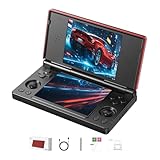
- 【RG DS Dual-Screen Immersion】Dive into authentic dual-screen gaming with two 4-inch IPS OCA-laminated displays, featuring capacitive touch and stylus compatibility. Switch apps between screens effortlessly, perfect for dual-screen applications, multitasking, and interactive touch controls on this RG DS Portable Pocket Arcade.
- 【 Classic Gaming & Modern Performance】Powered by the quad-core RK3568 CPU (2.0GHz) and Mali-G52 GPU, the RG DS smoothly runs over 20 emulators for classic consoles, handhelds, and arcades. Enjoy modern Android titles like Genshin Impact, PC game streaming via Moonlight, and online multiplayer—all from one RG DS handheld game console.
- 【 Intelligent Dual-Screen Creativity】Unlock new gameplay dimensions: play on one screen while displaying guides, maps, or walkthroughs on the other. Built-in AI tools offer one-click game guides, real-time dual-screen translation, and smart dialogue—making gaming more immersive and accessible across languages.
- 【RG DS Versatile Connectivity 】Stay connected with dual-band Wi-Fi and Bluetooth 4.2 on your RG DS Retro Game Console. Stream games from your PC, play online with friends, cast to TV, or enjoy wireless multiplayer and cross-device sharing anytime, anywhere.
- 【4000mAh Battery & Magnetic Flip】Play for hours on a single charge with a 4000mAh polymer battery. The Hall magnetic auto-sleep triggers when closed, preserving power and making this RG DS handheld game console ideal for on-the-go gaming and safe travel.
RG-DS-Library/
  GameBoy/
  GameBoy-Color/
  GameBoy-Advance/
  Nintendo-DS/
  PlayStation/
  Homebrew/
  Public-Domain/
  Artwork/
  Saves/
Firmware-Backups/
  Supplied-Card-Image/
  Official-Downloads/
The names above are preparation labels, not an official universal folder tree. Firmware branches and individual emulators can require different paths. Treat this computer structure as an orderly staging area, then confirm the locations used by the emulator on your particular unit.
Collect only software you are allowed to use
Use your own legally dumped games, homebrew, and public-domain software. The product page describes Android games and more than 20 simulator types, but that support does not grant permission to download copyrighted games. Keep proof of ownership or licence information with unusual files, and do not mix unverified downloads into the main library.
Record what you copy
A simple spreadsheet or text manifest should record the system, filename, source, date copied, and whether a save or BIOS file is required. For firmware archives, record the official download page, version label, date, and checksum if one is published. This turns a mystery card into a restorable library.
Which microSD card size is right for the RG DS?
For most first-time owners, 128GB is the sensible preparation target. Choose 256GB when you already have a large, legally obtained collection or many disc-based games and artwork; do not buy a larger card merely because the console can address one.
| Option | What Anbernic lists | Best use | Trade-off |
|---|---|---|---|
| 32GB internal storage | Built into the RG DS | System files, apps, and a small starter set | Not a substitute for a removable library or backup |
| 64GB card | Optional configuration | Small, focused collection | Less room for artwork, multiple emulator versions, and backups |
| 128GB card | Optional configuration | Starter library, saves, and artwork | Requires curation if your collection contains many large disc images |
| 256GB card | Optional configuration | Larger collections and disc-based titles | Higher cost and more data to copy and back up |
| Up to 2TB TF expansion | Hardware specification | Very large capacity when your files justify it | Capacity does not guarantee compatibility, speed, or a published ROM-count limit |
The RG DS is listed with 32GB of internal storage and TF-card expansion up to 2TB. Anbernic also lists 64GB, 128GB, and 256GB card configurations. Actual free space is lower than the printed capacity after formatting and system data, and the cited specifications do not publish a maximum number of games.
Rank #2

- [system configuration] Important Note : The RGDS Package don’t included Game Card, NO Preload Games.Anbernic's latest RG series product, the RG DS, is now available. CPU: RK3568 quad-core 64-bit Cortex-A55, Max frequency: 2.0 GHZ, GPU: The ARM G52 2ee has 3 + 32gb of memory and storage, and is powered by the latest Android 14 system. It is a folding type android game machine with built-in whole switch chip. It is a magnet type that enters sleep mode when the cover is closed, and closes automatically at a small Angle.
- 【Dual Screens】The foldable RG DS features an entirely new, evolved dual-screen interaction system distinct from the previous X18S/X15 models, offering enhanced operational convenience: supporting multi-touch and capacitive stylus input with a resolution of 640×480. It enables swift switching of keyboard focus between upper and lower screens while achieving synchronised application operation across both displays. Through dedicated shader optimisation, it delivers more vibrant colours and sharper visuals, offering a visual feast. (Includes capacitive stylus)
- 【Dual Screen Creative】 The Dual Screen Creative function unlocks infinite possibilities. Immersive games on the upper screen, strategy guides on the lower screen – freely switch apps between the upper and lower screens.
- 【Compatible with numerous simulators】: Supports Android games (such as Genshin Impact and Honor of Kings) and over 20 other emulators; users can download compatible games themselves. Features a built-in 6-axis gyro sensor and supports online multiplayer; compatible with Moonlight Streaming, enabling free play of PC games and delivering an enhanced user experience.
- 【Battery and WIFI/Bluetooth Function】Features a built-in 4000mAh ultra-high-capacity, high-density lithium-ion battery with a battery life of 6 hours. RG DS Supports 5V/2A charging, taking approximately 3.5 hours to fully charge. 2.4/5G WIFI 802.11a/b/g/n/ac, Bluetooth 4.2
One large card or separate cards?
One card is convenient: one scan, one library, and one set of artwork. Separate cards make rollback easier; you can keep a conservative stock-style card and experiment on another without touching the working setup. If you use two cards, label them clearly and keep a backup image or full file copy of each.
What’s actually slowing this PC down?
Pick the symptom - the matching free tool is one click away.
How should I organize ROMs, saves, and BIOS files?
Organize by system first, then use stable filenames. Consistency helps the frontend match artwork and prevents duplicate entries when you rescan.
Use predictable filenames
Keep the game title, region, and revision where useful, and avoid decorative characters that an emulator may sort badly. For example, Game Title (USA).gba is easier to search than a filename containing download-site tags. Do not rename a file after creating an associated save unless you know how that emulator derives save names.
Keep saves with a documented backup
Save files may be stored beside the ROM, in an emulator-specific directory, or in an Android application-data location. The sources do not define one path for every firmware branch. After launching a game, make a test save, exit normally, and copy the resulting save to your computer’s Saves/ folder. Repeat this after changing emulator settings so you know which files matter.
Handle BIOS files deliberately
Some systems boot without a BIOS; others require a correctly named firmware file in a specific directory. Obtain BIOS files legally, note the exact filename and checksum when available, and place them only where the selected emulator instructs. Do not scatter duplicate BIOS files across every folder: that makes troubleshooting harder and can cause an emulator to load the wrong revision.
The Tool Desk
Outbyte Driver Updater FREEScan for outdated or missing drivers - takes under a minuteDriver Scan →Outbyte PC Repair FREEClear out junk files and repair common Windows errorsFree Scan →Rank #3
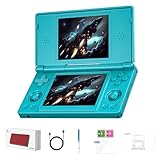
- 【ANBERNIC RG DS Dual-Screen Immersion】Dive into authentic dual-screen gaming with two 4-inch IPS OCA-laminated displays, featuring capacitive touch and stylus compatibility. Switch apps between screens effortlessly, perfect for dual-screen applications, multitasking, and interactive touch controls on this RG DS Portable Pocket Arcade.
- 【 Classic Gaming & Modern Performance】Powered by the quad-core RK3568 CPU (2.0GHz) and Mali-G52 GPU, the RG DS smoothly runs over 20 emulators for classic consoles, handhelds, and arcades. Enjoy modern Android titles like Genshin Impact, PC game streaming via Moonlight, and online multiplayer—all from one RG DS handheld game console.
- 【 Intelligent Dual-Screen Creativity】Unlock new gameplay dimensions: play on one screen while displaying guides, maps, or walkthroughs on the other. Built-in AI tools offer one-click game guides, real-time dual-screen translation, and smart dialogue—making gaming more immersive and accessible across languages.
- 【ANBERNIC RG DS Versatile Connectivity 】Stay connected with dual-band Wi-Fi and Bluetooth 4.2 on your RG DS Retro Game Console. Stream games from your PC, play online with friends, cast to TV, or enjoy wireless multiplayer and cross-device sharing anytime, anywhere.
- 【4000mAh Battery & Magnetic Flip】Play for hours on a single charge with a 4000mAh polymer battery. The Hall magnetic auto-sleep triggers when closed, preserving power and making this RG DS handheld game console ideal for on-the-go gaming and safe travel.
Artwork is optional, not a reason to risk the library
Artwork improves browsing but consumes space and can slow a first scan. Start with ROMs and saves, test the frontend, then add images in a separate Artwork/ batch. If the frontend expects a particular image name, follow that emulator’s convention rather than assuming one universal format.
Do I need to copy the supplied card before using my own?
Yes. Leave the supplied card untouched until the RG DS has completed its first-boot checks, then archive or clone it before experimenting. It may contain the factory launcher, configuration, or files needed for recovery.
What to check on the first boot
- Confirm that the handheld reaches the launcher without errors.
- Check whether the installed branch is Android or Linux.
- Test Wi-Fi if your branch exposes it, along with touch input, sleep and wake behavior, charging, and the stock launcher.
- Open a supplied game or system tool long enough to confirm that controls and audio work.
Use a card reader to make a complete file copy or image on the computer. Keep the original card write-protected by habit: do not format it, rename its folders, or delete files while you are still establishing that the console works. If Android asks to format a newly inserted card, stop and read the prompt; copy any needed files first.
What is the safest first-boot workflow?
Build the library in small, testable stages. This avoids spending hours copying files before discovering that the card format, firmware branch, or folder path is wrong.
Do these 3 things before closing this tab:
1Scan for outdated or missing drivers - takes under a minute2Clear out junk files and repair common Windows errors3Fix the driver behind crashes, sound loss and screen glitches- Boot the supplied configuration. Let setup finish and record the operating-system branch shown in the menus.
- Back up the supplied card. Use the computer and card reader, and verify that the backup opens and contains the expected folders.
- Prepare the replacement card. Copy a small test set from your computer library. Do not move the only copy of a ROM, save, BIOS, or artwork file.
- Insert the card after the backup. If the operating system offers to format it, cancel until you have confirmed that no required files are on the card and that the requested filesystem is appropriate.
- Scan from the frontend. Open Game Frontend, press SELECT, choose +, select Select Path, choose the ROM directory, and run Scan ROM. This is the path printed in the English RG DS manual.
- Test one or two games per system. Launch, change no settings initially, create a test save, exit, and relaunch to confirm that the save returns.
- Expand gradually. Add the remaining systems in batches and rescan only after checking filenames and folders. This makes a bad file or unsupported format easy to identify.
How does the RG DS scan games?
The frontend scans a folder path that you select; it does not automatically understand every directory on a card. The manual’s exact sequence is Game Frontend → SELECT → + → Select Path → Scan ROM.
Rank #4
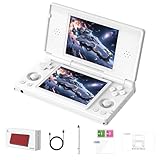
- 【RG DS Dual-Screen Immersion】Dive into authentic dual-screen gaming with two 4-inch IPS OCA-laminated displays, featuring capacitive touch and stylus compatibility. Switch apps between screens effortlessly, perfect for dual-screen applications, multitasking, and interactive touch controls on this RG DS Portable Pocket Arcade.
- 【 Classic Gaming & Modern Performance】Powered by the quad-core RK3568 CPU (2.0GHz) and Mali-G52 GPU, the RG DS smoothly runs over 20 emulators for classic consoles, handhelds, and arcades. Enjoy modern Android titles like Genshin Impact, PC game streaming via Moonlight, and online multiplayer—all from one RG DS handheld game console.
- 【 Intelligent Dual-Screen Creativity】Unlock new gameplay dimensions: play on one screen while displaying guides, maps, or walkthroughs on the other. Built-in AI tools offer one-click game guides, real-time dual-screen translation, and smart dialogue—making gaming more immersive and accessible across languages.
- 【RG DS Versatile Connectivity 】Stay connected with dual-band Wi-Fi and Bluetooth 4.2 on your RG DS Retro Game Console. Stream games from your PC, play online with friends, cast to TV, or enjoy wireless multiplayer and cross-device sharing anytime, anywhere.
- 【4000mAh Battery & Magnetic Flip】Play for hours on a single charge with a 4000mAh polymer battery. The Hall magnetic auto-sleep triggers when closed, preserving power and making this RG DS handheld game console ideal for on-the-go gaming and safe travel.
Point the scanner at the directory that actually contains the ROM files, not merely the card’s root, unless your branch’s frontend expects the root. If a system appears empty, check the extension, filename, and emulator association before copying more files. A successful scan does not prove that every title will run: it only means the frontend found files it could index.
What to do when the card is not detected
The English manual gives three remedies: replug the TF card, format it to FAT32, or replace it. Apply them in that order, preserving your computer backup before formatting.
- Power down the handheld, remove and reinsert the card, then boot again.
- Check the card in the computer. If the computer also reports errors, copy what you can and replace the card rather than trusting it with saves.
- If the manual’s FAT32 instruction applies to your branch, format the card only after confirming that the backup is complete, then recopy the small test set.
- Try a known-good replacement card if the original is still absent. A card that works in the computer but not in the handheld can still be incompatible or incorrectly formatted.
Should I use the stock Android setup or a Linux setup?
Use the branch already installed unless you have a specific reason to change it. Android generally offers broader app and emulator flexibility, while Linux tends to present a more console-like library workflow; the correct choice depends on the software you need and the image available for your exact unit.
| Consideration | Android branch | Linux branch |
|---|---|---|
| Software model | Apps and Android emulators can be installed and configured | Usually centered on a dedicated frontend and packaged emulators |
| Library workflow | More flexible, but storage permissions and app-specific paths can vary | Often more appliance-like, with clearer system menus |
| Firmware handling | Requires an Android-matched image | Requires a Linux-matched image |
| Best first step | Learn the installed emulator’s ROM, save, and BIOS paths | Use the frontend’s path selector and test scanning with a small set |
Anbernic publishes separate Android and Linux resources. Do not flash an image from the other branch because the filename contains RG DS; match the operating system, hardware revision, and supplied-card instructions shown for your unit.
Independent reader supportYour contribution helps us test, update, and keep practical guides available for everyone.How should I handle firmware downloads and experiments?
Download firmware only from Anbernic’s official download resources, and keep the original card and a computer backup available until the replacement plan has been tested.
Best Value
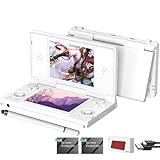
- [system configuration] Important Note : The RGDS Package don’t included Game Card, NO Preload Games.Anbernic's latest RG series product, the RG DS, is now available. CPU: RK3568 quad-core 64-bit Cortex-A55, Max frequency: 2.0 GHZ, GPU: The ARM G52 2ee has 3 + 32gb of memory and storage, and is powered by the latest Android 14 system. It is a folding type android game machine with built-in whole switch chip. It is a magnet type that enters sleep mode when the cover is closed, and closes automatically at a small Angle.
- 【Dual Screens】The foldable RG DS features an entirely new, evolved dual-screen interaction system distinct from the previous X18S/X15 models, offering enhanced operational convenience: supporting multi-touch and capacitive stylus input with a resolution of 640×480. It enables swift switching of keyboard focus between upper and lower screens while achieving synchronised application operation across both displays. Through dedicated shader optimisation, it delivers more vibrant colours and sharper visuals, offering a visual feast. (Includes capacitive stylus)
- 【Dual Screen Creative】 The Dual Screen Creative function unlocks infinite possibilities. Immersive games on the upper screen, strategy guides on the lower screen – freely switch apps between the upper and lower screens.
- 【Compatible with numerous simulators】: Supports Android games (such as Genshin Impact and Honor of Kings) and over 20 other emulators; users can download compatible games themselves. Features a built-in 6-axis gyro sensor and supports online multiplayer; compatible with Moonlight Streaming, enabling free play of PC games and delivering an enhanced user experience.
- 【Battery and WIFI/Bluetooth Function】Features a built-in 4000mAh ultra-high-capacity, high-density lithium-ion battery with a battery life of 6 hours. RG DS Supports 5V/2A charging, taking approximately 3.5 hours to fully charge. 2.4/5G WIFI 802.11a/b/g/n/ac, Bluetooth 4.2
- Identify the exact branch and hardware variant from the first boot and the card’s files.
- Download the matching package from the official resource, noting its version and publication date.
- Record a checksum when Anbernic publishes one, and retain the untouched archive in
Firmware-Backups/Official-Downloads/. - Read the instructions attached to that package. Firmware links, versions, and regional pages can change, and there is no single flashing sequence established for every RG DS branch.
- Only after the stock setup and backups are verified should you test another firmware card or image. Keep the known-good card separate so you can return to it.
What does the RG DS hardware mean for library planning?
The listed hardware gives useful context but does not predict compatibility. Anbernic lists two 4-inch IPS displays at 640×480, 3GB of RAM, 32GB of internal storage, a 4,000mAh battery, and approximately six hours of stated battery life. The product page also says that more than 20 simulator types are supported.
Those figures are manufacturer specifications, not independent performance tests. No cited source publishes a per-system compatibility table, a ROM-count limit, or benchmark results. Plan around the games you legally own, test each emulator on your unit, and leave free space for saves, artwork, shader files, and future recovery copies.
Quick wins for a faster PC:
Fix the driver behind crashes, sound loss and screen glitchesFind Drivers →Clear out junk files and repair common Windows errorsFree Scan →Which mistakes are easiest to avoid?
- Flashing the wrong branch: identify Android or Linux before downloading an image.
- Erasing the only factory card: complete a computer backup and verify it before formatting anything.
- Moving rather than copying files: keep the computer library as the master copy.
- Scanning the wrong directory: use the manual’s Select Path step and point it at the folder containing the ROMs.
- Adding everything at once: test a few titles and saves per system first.
- Assuming a scan equals compatibility: an indexed filename can still fail to boot or save.
- Downloading copyrighted games: use personal dumps, homebrew, or public-domain software only.
What is the practical preparation checklist?
Before delivery, you should be able to answer yes to each item:
- A reputable 128GB card and a USB reader are ready.
- The computer library is divided by system, with separate save, artwork, and firmware-backup areas.
- Every ROM and BIOS file was obtained legally and has a stable, descriptive name.
- A second copy of the library and saves exists away from the card.
- The supplied card will remain unchanged through first boot and basic hardware checks.
- You know which Android or Linux branch is installed before selecting firmware.
- You have a small test set ready for the documented frontend scan path.
Frequently Asked Questions
Can I put the microSD card in a computer before the RG DS arrives?
Yes. Use the card reader to create folders and copy your test files, but keep the computer library as the master copy. Do not assume a card formatted on the computer is ready for every firmware branch; follow the handheld’s prompt and the manual if detection fails.
How many games will fit on a 128GB card?
There is no published RG DS ROM-count limit, and game files vary enormously by system and format. Estimate from the actual sizes of your legally obtained files, then reserve space for saves, artwork, emulator data, and a recovery copy.
Will my saves move automatically when I change emulators?
Not necessarily. Save naming and directories are emulator-specific, so make a test save, locate the resulting file, and copy it to your computer before changing software. A save may require conversion or the exact same ROM filename to load.
Do I need Wi-Fi to scan ROMs?
The manual’s scan procedure is local and does not require an internet connection. Wi-Fi is still worth testing during first boot because it is part of checking that the supplied configuration works before you begin changing cards or firmware.
Quick Recap
Product prices and availability are accurate as of the date/time indicated and are subject to change. Any price and availability information displayed on Amazon at the time of purchase will apply.

