Do these 3 things before closing this tab:
1Clear out junk files and repair common Windows errors2Scan for outdated or missing drivers - takes under a minute3Repair Windows errors before they cause bigger problemsIf your SCUF controller works in the console or Windows menus but stops responding when a game starts, it is usually not completely dead. The failure is more often at the game-input layer: the game may not support that controller mode, Steam Input or another remapper may be interfering, the wrong wireless mode or profile may be active, or the game may be receiving a different controller protocol than expected.
Use the wired test first, then work through the game, launcher, profile, wireless, firmware, and hardware checks below. The correct reset and updater depend on your SCUF model, so do not apply an Instinct procedure to a Reflex, Valor, Envision, Vantage, Impact, or Infinity4PS Pro.
As an Amazon Associate I earn from qualifying purchases.
First, identify which failure you have
“My SCUF is not working in-game” can describe several different problems:
Windows Errors? Fix Them Before They Spread
Repair common Windows errors and clear accumulated junk for a smoother, more stable PC - no reinstall needed.Free scan · no reinstallOutdated Drivers Are Slowing You Down
One free scan finds every outdated or missing driver and matches the right update for your exact hardware.Free scan · exact hardware match- The controller is not detected anywhere.
- It navigates the console or Windows menus but fails in one game.
- It works in some games but not another.
- Only paddles, triggers, sticks, the headset, or particular buttons fail.
- The game accepts input but displays keyboard-and-mouse prompts.
- The game detects the controller, then ignores it after launch.
- The controller disconnects when the game opens.
- It works by USB but not wirelessly, or wirelessly but not by USB.
These symptoms point to different causes. A controller that works in menus should not be treated like one that is completely undetected, and a paddle-remapping problem does not call for the same fix as a failed USB port.
#1 Best Overall

- Built for PS5 Consoles: Officially Licensed PlayStation 5 performance controller, engineered for easy setup and low-latency connectivity. Designed to meet Sony Interactive Entertainment’s exacting performance standards for input response, power management, and wireless stability you can trust
- 11 Additional Inputs: x4 rear paddles, x2 side action buttons, G-Keys; all fully customizable for personalized gameplay, faster reactions, and more control at your fingertips
- New SCUF Mobile App: Customize almost every input on your controller. Full control over your trigger and thumbsticks response curves, action (Triangle, Circle, Square, and Cross) buttons, and true 0% thumbstick deadzone. Directly from your phone (iOS & Android) to your controller in real time
- Endurance TMR Thumbsticks: Delivers increased durability, preventing the wear and tear that causes drift and/or jitter while consistently providing precision and smooth control
- Omron Mechanical Switches: Faster activating, mouse-like clicks across Instant Triggers, Instant D-Pad, and Instant Action Buttons. Utilising Omron switches for the most durable, consistent, and crisp feeling possible
The five-minute wired test
- Close the game and its launcher.
- Connect the SCUF directly to the console or PC with a known data-capable USB cable. A charge-only cable can power a controller without carrying input data.
- Avoid USB hubs, monitor ports, KVMs, and questionable front-panel ports during the test. Try another direct USB port if necessary.
- Disconnect other controllers, wheels, fight sticks, wireless adapters, and virtual-controller software.
- Confirm that the SCUF can navigate the console home screen or Windows controller settings.
- Launch the game with the controller already connected and recognized.
- Test ordinary face buttons, bumpers, triggers, sticks, and the D-pad before testing paddles.
SCUF identifies charge-only cables, faulty USB ports, unsupported wireless methods, outdated firmware or drivers, game compatibility, and Steam Input conflicts among the causes of PC input problems. See its PC connection troubleshooting guide.
Step 1: Confirm your model, platform, and connection method
Write down the exact SCUF model before changing settings. Reflex, Instinct, Valor, Envision, Vantage, Impact, Infinity4PS Pro, Omega, and other models do not share identical connection methods, firmware tools, or reset procedures.
| Check | Why it matters |
|---|---|
| SCUF model | Determines compatibility, reset steps, firmware updater, and profile controls. |
| Platform | PS5, Xbox, Windows PC, mobile, and streaming devices handle controllers differently. |
| Connection | USB, Bluetooth, Xbox Wireless, and a proprietary wireless dongle are separate paths. |
| Game and launcher | Steam, Epic, the Xbox app, Battle.net, console storefronts, and cloud services can apply different input layers. |
| Scope of failure | One game suggests compatibility or configuration; every game suggests connection, firmware, or hardware. |
For example, SCUF documents Reflex compatibility with PS5 and Windows 10+, Instinct compatibility with Xbox Series X|S, Xbox One, and Windows 10+, and Valor Pro compatibility with Xbox consoles and Windows 10/11. Envision Pro is designed for Windows 10/11 and requires current iCUE software or driver support. Confirm the current model documentation before assuming a connection should work. See SCUF’s model-specific support hub, Reflex connection guide, and Instinct connection guide.
What’s actually slowing this PC down?
Pick the symptom - the matching free tool is one click away.
Step 2: Check whether the game supports the controller
A controller can appear in Windows and still be ignored by a particular game. Some PC games expect XInput, the protocol commonly used by Xbox-compatible controllers. A PlayStation-layout SCUF may still present itself as an Xbox/XInput controller on PC, which can provide broad compatibility but produce Xbox button prompts.
That behavior is not automatically a fault. SCUF documents this behavior for its Omega controller in its XInput troubleshooting article. The game may show A, B, X, and Y prompts even when the controller has PlayStation-style labels.
Try the following:
- Test the SCUF in a second controller-supported game.
- Check the affected game’s settings for controller enable/disable options.
- Restore the game’s controller bindings to default.
- Check player assignment, especially in local multiplayer or split-screen games.
- Disconnect every other gamepad, wheel, fight stick, and virtual controller.
- Restart the launcher and start the game with the SCUF already connected.
If the controller works everywhere except one title, prioritize that game’s support and input settings over firmware or repair.
Rank #2
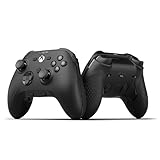
- FASTER GAMEPLAY: Features four rear paddles so you can react faster in-game and with our instant triggers that eliminate trigger pull, shaving milliseconds off your reaction time. And when you're on PC, activate the 1k Hz polling rate for lightning-fast inputs
- MULTIPLE WAYS TO CONNECT: Switch between low-latency wireless, Bluetooth, or ultra-fast wired. No matter how you play, Valor Pro keeps your connection stable so you can stay locked in
- TAILORED FUNCTIONALITY: Customize your inputs and adjust the TMR thumbstick deadzones directly from your Xbox or PC using the SCUF app; Built for total control with no need to pause
- ULTIMATE CUSTOMIZATION: Show off your personality and coordinate your controller with your space. With a wide range of colors, designs, and swappable faceplates and thumbsticks, it’s easy to create a look that’s all you
- MORE COMFORT: Utilizing over a decade of expertise our performance grip provides ultimate non-slip comfort, and the new wraparound bumpers have more surface area for faster movements
Step 3: Test Steam Input and other remapping layers
Steam Input can translate controller signals, load a community layout, create virtual inputs, or send keyboard-and-mouse commands instead of native gamepad input. Those changes can also make SCUF paddles and remapped buttons behave differently from their physical labels.
- Close the game.
- In Steam, open the game’s Properties.
- Open the game-specific Controller or Steam Input setting. The exact wording can change.
- If the game has native controller support, test with Steam Input disabled or forced off.
- If the game requires Steam Input, test it enabled with a standard gamepad layout rather than an unverified community layout.
- Restart Steam and relaunch the game after changing the setting.
Do not change Steam Input, DS4Windows, reWASD, iCUE, the game’s bindings, and the SCUF profile all at once. Change one layer, restart the game, and retest so you can identify the cause. Also check for conflicts from the Xbox Accessories app, game-specific launchers, cloud gaming, and remote-play software.
Step 4: Check the SCUF profile, paddles, and triggers
A SCUF can be connected correctly while its active configuration produces unexpected or unusable inputs. Check the active onboard profile, paddle assignments, trigger stops or instant-trigger settings, dead zones, sensitivity settings, and any blanked or disabled paddles.
- Switch to the default profile.
- Temporarily ignore or disable paddle inputs.
- Return adjustable triggers to full travel.
- Test ordinary face buttons, bumpers, triggers, sticks, and the D-pad.
- If ordinary controls work but paddles do not, use the exact remap-reset procedure for your model.
- Create or restore a custom profile only after the basic controls work.
For Instinct, SCUF separates a normal power reset from the rear remap reset. Its documented deeper reset involves removing the batteries or unplugging the controller, waiting about one minute, and reconnecting it. Use the Instinct reset instructions only for an Instinct. Other models require their own procedures.
Step 5: Verify the connection mode
Wireless SCUF models may offer separate USB, Bluetooth, Xbox Wireless, and proprietary-dongle modes. A controller can be paired successfully but still be in the wrong platform position or connection mode for the game.
Valor Pro, for example, has documented modes for wired USB-C play, low-latency wireless through its supplied dongle, and Bluetooth. For PC low-latency wireless, the dongle must be connected and the controller set to the PC position. Bluetooth pairing uses a separate procedure and can time out after approximately 20 seconds if no device connects. Follow SCUF’s Valor Pro connection guide for the exact controls.
Rank #3

- FASTER GAMEPLAY: Features four rear paddles so you can react faster in-game and with our instant triggers that eliminate trigger pull, shaving milliseconds off your reaction time. And when you're on PC, activate the 1k Hz polling rate for lightning-fast inputs.
- MULTIPLE WAYS TO CONNECT: Switch between low-latency wireless, Bluetooth, or ultra-fast wired. No matter how you play, Valor Pro keeps your connection stable so you can stay locked in.
- TAILORED FUNCTIONALITY: Use the audio control system to change volume levels on the fly and save up to three remapping configurations with the flip of a switch.
- ULTIMATE CUSTOMIZATION: Show off your personality and coordinate your controller with your space. With a wide range of colors, designs, and swappable faceplates and thumbsticks, it’s easy to create a look that’s all you.
- MORE COMFORT: Utilizing over a decade of expertise our performance grip provides ultimate non-slip comfort, and the new wraparound bumpers have more surface area for faster movements.
For any model:
- Turn the controller off.
- Select the correct platform or connection position.
- Connect the official dongle if using low-latency wireless.
- Remove stale Bluetooth pairings and pair again when Bluetooth is involved.
- Charge the controller or replace its batteries.
- Keep the controller near the console, PC, or dongle.
- Temporarily disconnect unnecessary Bluetooth devices and reduce wireless interference.
- Repeat the direct wired test before concluding that the controller is defective.
SCUF recommends wired or low-latency wireless for PC gaming with Valor Pro and positions Bluetooth primarily for mobile use. A Bluetooth connection is therefore not always equivalent to a wired or low-latency wireless connection.
Step 6: Update firmware and required software
Firmware, drivers, and companion applications can affect pairing, input recognition, profiles, and compatibility after an operating-system or console update. Update only through the official tool for your exact model.
- Connect by USB where possible.
- Keep the controller connected during the update.
- Do not close the updater, unplug the controller, or allow the PC to sleep.
- Restart the official app and retry if an update fails.
- Restart the PC or console after a successful update, then test before restoring custom profiles.
Valor controllers use the Valor Companion app available through the Xbox or Microsoft Store; SCUF says a failed or canceled update can be recovered by restarting the app and retrying without leaving the app during the process. See the Valor Companion FAQ.
Recommended Free Tools
Envision Pro requires current iCUE software or driver support for PC play. Vantage has a model-specific firmware process that SCUF documents for Windows 10, and its updater is not intended for other SCUF models. See the Envision product documentation and Vantage firmware instructions.
Platform-specific checks
PS5
- Confirm the SCUF is a PS5-compatible model, not a controller intended only for an older console generation.
- Pair it using the model’s documented USB procedure.
- Test it on the PS5 home screen before launching the game.
- Check whether the game is running its PS5 or PS4 version.
Xbox
- Confirm the controller is in Xbox mode.
- Check whether it is using USB, Xbox Wireless, Bluetooth, or a dongle.
- On PC, Xbox-compatible SCUF models generally have fewer protocol hurdles because many games expect XInput.
- If the Xbox button works but gameplay inputs do not, check game recognition, profiles, and launcher conflicts before assuming hardware failure.
Windows PC
- Use direct wired USB as the baseline test.
- Remember that Bluetooth pairing does not guarantee reliable game input.
- Xbox Wireless requires compatible PC hardware or an adapter.
- Check Steam, the Xbox app, the game launcher, third-party remappers, and model-specific companion software.
Mobile and streaming devices
Bluetooth support does not guarantee that paddles, special buttons, trigger settings, or onboard profiles will be exposed to a mobile game or streaming service. Follow the model’s mobile instructions and verify that the service accepts gamepad input in the chosen app or browser mode.
Independent reader supportYour contribution helps us test, update, and keep practical guides available for everyone.What each test result means
| Result | Most likely direction |
|---|---|
| Fails in menus, games, and multiple devices | Connection, firmware, port, or hardware fault. |
| Works in menus but fails in one game | Game support, bindings, player assignment, or input-layer conflict. |
| Works in several games but not one | That game’s controller settings or compatibility. |
| Works wired but not wireless | Pairing, battery, interference, dongle, platform switch, or wireless hardware. |
| Works wireless but not wired | Cable, USB port, driver, or controller USB-C port. |
| Only paddles fail | Profile, remapping, blanking, paddle hardware, or game limitations. |
| Only one trigger fails | Trigger-stop setting, calibration, profile, or hardware. |
| Xbox prompts appear on a PlayStation-layout controller | Often normal XInput behavior on PC. |
| The game sees two controllers | Physical and virtual controllers may both be active. |
When the problem is probably hardware
Escalate toward support or repair when the SCUF fails in system menus, multiple games, and preferably another supported device after a known-good cable and port have been tested. Hardware is also more likely when a button, trigger, paddle, or stick fails everywhere; the controller disconnects when the cable moves; stick drift appears across games; the controller will not hold a charge; or it powers off unexpectedly.
Rank #4

- Anti-drift Hall effect thumbsticks prolong the life of your controller
- Four rear, remappable paddles keep your thumbs on the sticks for faster reactions
- Five fully remappable G-Keys for advanced macros and Corsair iCUE integration
- Two unique side-mounted SAX buttons are designed to provide additional configurability and fit the natural placement of your fingers
- OMRON mechanical button switches operate like a mouse click for instant activations
Before contacting SCUF, test wired and wireless separately, remove custom profiles, and record a short video showing the failure, connection method, LEDs, and the relevant game or system screen. Include:
- Exact model and serial number.
- Purchase date and seller.
- Console or PC model and operating-system version.
- Game, launcher, and game version if visible.
- Wired, Bluetooth, Xbox Wireless, or dongle connection.
- Firmware and companion-software versions.
- Every troubleshooting step already attempted.
- Video of the problem and proof of purchase if requested.
Use SCUF’s support and RMA hub for model-specific troubleshooting and service options. If the controller is under warranty, support may be preferable to buying another controller.
Should you replace the controller?
Do not buy a replacement until the wired test and cross-game test establish that the controller is actually at fault. A new SCUF will not fix Steam Input, a disabled gamepad setting, an unsupported protocol, or a conflicting virtual controller.
If a replacement is justified, match it to the platform. A wired Valor Pro can eliminate wireless and battery variables for Xbox and Windows users, while Valor Pro Wireless adds wired, low-latency wireless, and Bluetooth options. Envision Pro is a Windows-focused option that requires iCUE and is not listed for Mac or iOS. Prices, availability, compatibility, firmware, and warranty terms change, so verify current details on the official Valor Pro Wired, Valor Pro Wireless, or Envision Pro pages.
Frequently Asked Questions
Why does my SCUF work in the menu but not in a game?
That usually points to game support, player assignment, controller bindings, Steam Input, or another remapping layer rather than a completely dead controller. Test a second game and perform the direct wired test first.
The Tool Desk
Outbyte Driver Updater FREEScan for outdated or missing drivers - takes under a minuteDriver Scan →Outbyte PC Repair FREEClear out junk files and repair common Windows errorsFree Scan →Why does my SCUF show Xbox buttons on PC?
Many SCUF controllers present as XInput devices on Windows. Xbox-style prompts can therefore be normal even when the physical controller has PlayStation-style labels.
Why do my SCUF paddles not work?
Check the active profile, paddle mappings, blanked paddles, and game support. Test the ordinary buttons first, then use the reset procedure for the exact SCUF model.
When should I contact SCUF support?
Contact support after the controller fails in menus or multiple games despite a known-good cable, direct USB port, reset configuration, and model-specific firmware or software checks.
Quick Recap
Product prices and availability are accurate as of the date/time indicated and are subject to change. Any price and availability information displayed on Amazon at the time of purchase will apply.




